

Design manager is a publishing feature available in publishing sites for both Sharepoint Server and Office 365. Using design manager you can brand the internet-facing websites in Sharepoint Server 2013 and Office 365.
Skills required:
- Having some knowledge of HTML and CSS
- Javascript
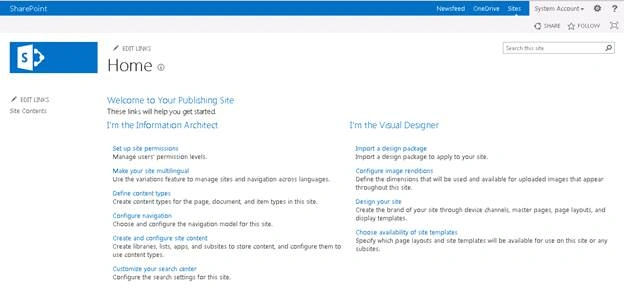
Open a Sharepoint publishing site,
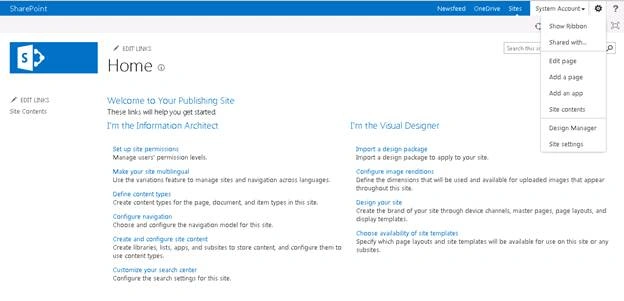
Click site settings -> Design manager,
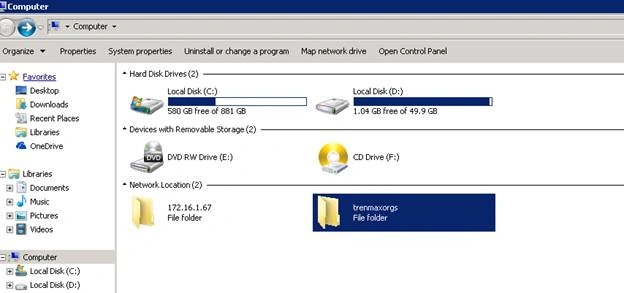
Before doing that I created some sample HTML and CSS,
Html
- <!DOCTYPE html>
- <html>
- <head>
- <meta charset="utf-8">
- <title>Masterpage coversion using Html and css</title>
- <link rel="stylesheet" type="text/css" href="css\custom.css"> </head>
- <body>
- <header>
- <p>this is my header </p>
- </header>
- <footer>
- <p>this is my footer</p>
- </footer>
- </body>
- </html>


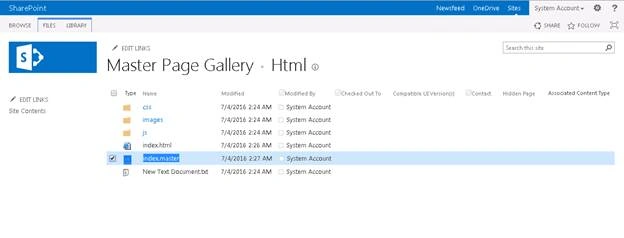
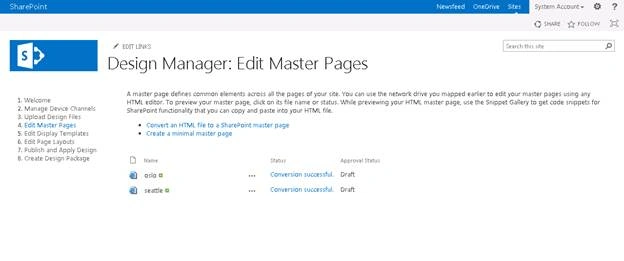 Select Convert an HTML file into a Sharepoint masterpage,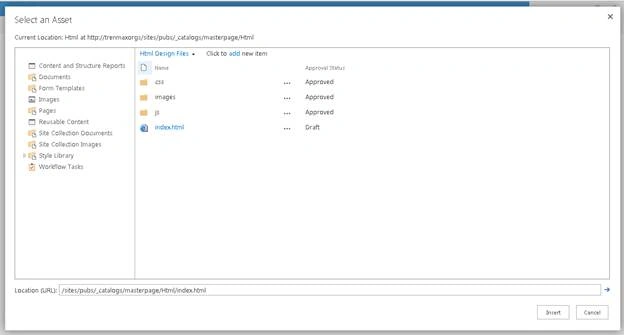

Vinodh NarayananPosted Jul 31, 2017, 5:02 AM
Just place the data div in between your header and footer it works perfect
Raghu ReddyPosted Jul 31, 2017, 1:43 AM
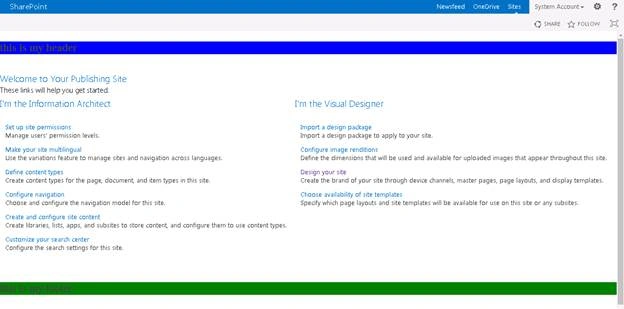
I have tried with the given css and html ,Header and Footer both are displaying on top only. Please let me know how t orectify this