

Introduction
In this article you will learn how to develop a View Switcher app in Android applications using Android Studio.
Requirements
- Android Studio 2.1.3
If you want to create a View Switcher app in Android using android studio, you should follow the given steps.
Step 1
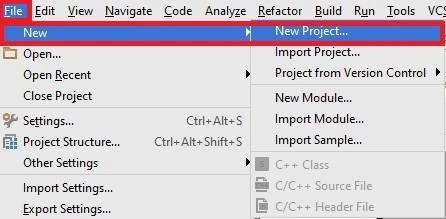
Now, open Android Studio and you can choose the File and subsequently New. Afterwards, choose the New Project.
Step 2
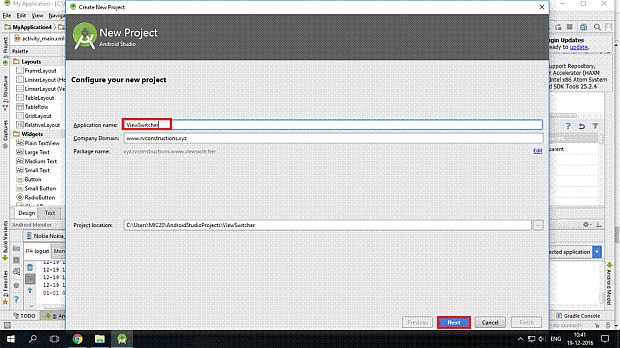
Here, you can create your application name and choose where your project should be stored on the location and click Next button.
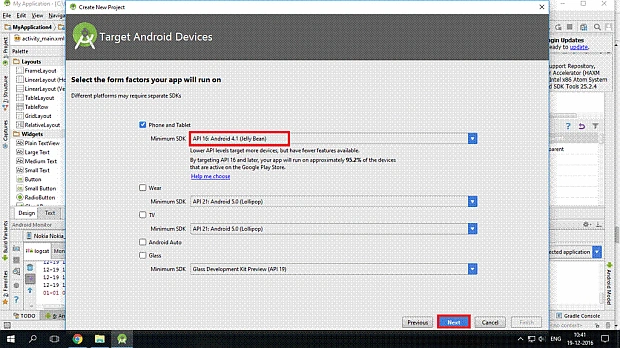
Now, we can select the version of Android, which is Target Android Devices.
Step 3
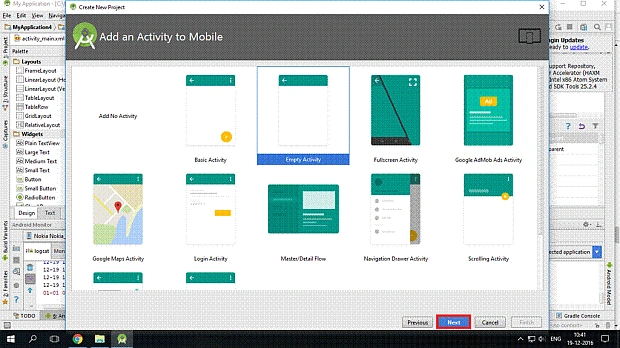
Here, we can add the activity and click Next button.
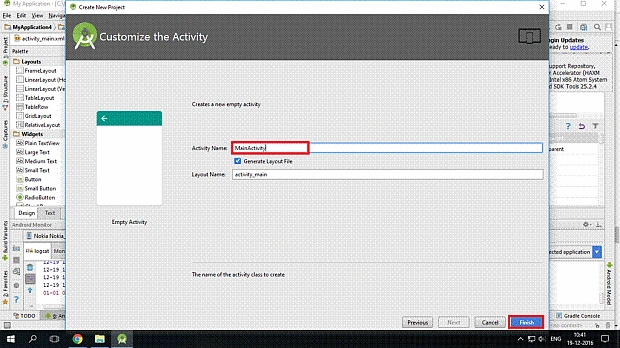
Now, we can write the activity name and click Finish button.
Step 4
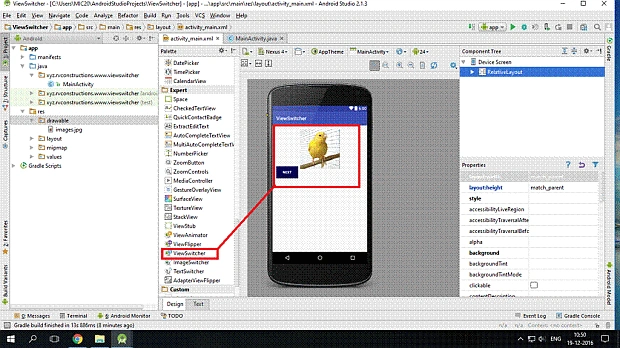
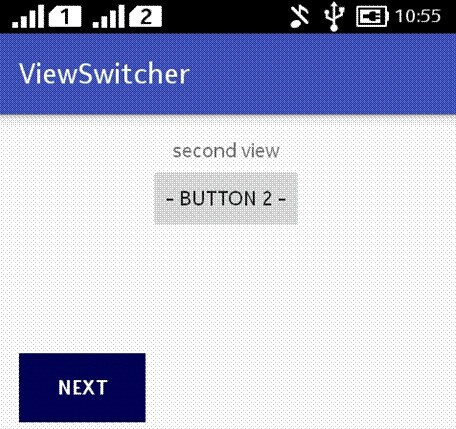
Now, open your project and you will go to activity_main.xml. Afterwards, you will build the design, which should be chosen with the toolbox and if you want some option like (ViewSwitcher,button,TextView), it is possible with the help of the drag and drop method. Now, you will add the image on Drawable folder.
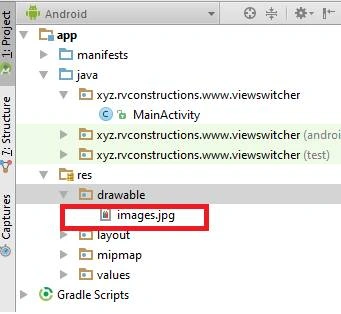
Here, we can see the image in the Drawable folder.
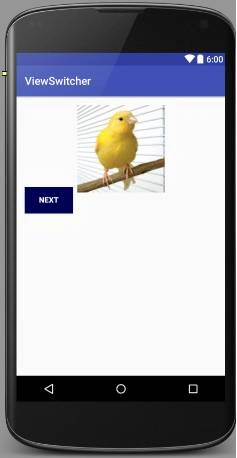
Now, we can see the Graphical User Interface design.
Step 5
Here, you will build on the design and write the .XML code.
Activity_mai.xml code
- <?xml version="1.0" encoding="utf-8"?>
- <RelativeLayout xmlns:android="http://schemas.android.com/apk/res/android" xmlns:tools="http://schemas.android.com/tools" android:layout_width="match_parent" android:layout_height="match_parent" android:paddingBottom="@dimen/activity_vertical_margin" android:paddingLeft="@dimen/activity_horizontal_margin" android:paddingRight="@dimen/activity_horizontal_margin" android:paddingTop="@dimen/activity_vertical_margin" tools:context="xyz.rvconstructions.www.viewswitcher.MainActivity">
- <ViewSwitcher android:id="@+id/simpleViewSwitcher" android:layout_width="match_parent" android:layout_height="wrap_content">
- <ImageView android:layout_width="wrap_content" android:layout_height="wrap_content" android:layout_gravity="center" android:src="@drawable/images" />
- <LinearLayout android:layout_width="match_parent" android:layout_height="wrap_content" android:gravity="center" android:orientation="vertical">
- <TextView android:layout_width="wrap_content" android:layout_height="wrap_content" android:text="second view" />
- <Button android:layout_width="wrap_content" android:layout_height="wrap_content" android:text="- Button 2 -" /> </LinearLayout>
- </ViewSwitcher>
- <Button android:id="@+id/buttonNext" android:layout_width="wrap_content" android:layout_height="wrap_content" android:layout_gravity="center" android:layout_marginTop="150dp" android:background="#005" android:text="NEXT" android:textColor="#fff" android:textStyle="bold" /> </RelativeLayout>
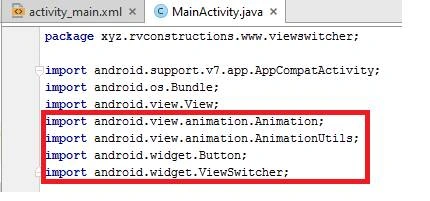
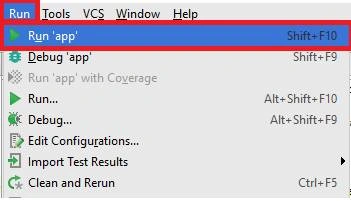
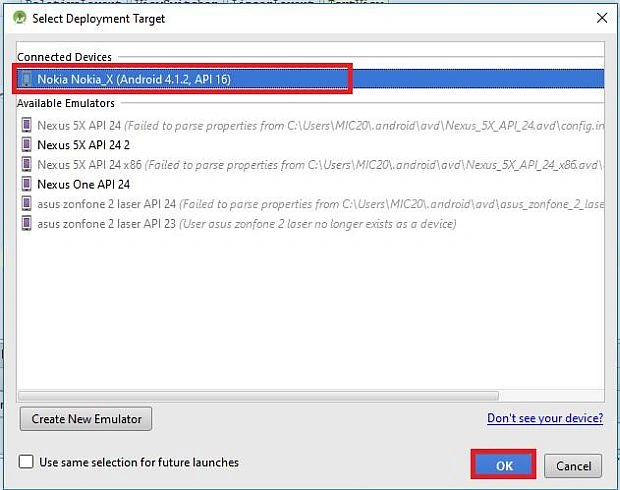
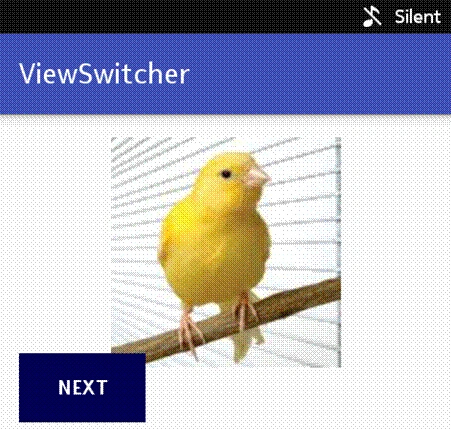
Join the conversation! Your thoughts help the community grow.