

Introduction
In this blog, we will discuss how we can create a modern site Page programmatically using PnP online. Then we will add a hero webpart to it programmatically. To perform the procedure, we must follow the below steps.
Step 1
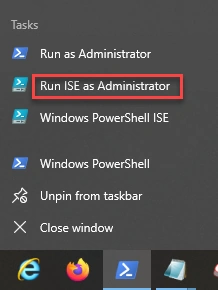
First, we have to open the windows PowerShell and then run the command “Connect-PnPOnline -UrlprovidesiteUrl”. Then run ISE as administrator as shown below (Right-click on Windows PowerShell).
Step 2
Store site URL in an object siteURL. Then connect PnP online and ask for the credentials, as shown in the below code.
- # Provide URL of the Site over here
- $siteURL = https://sharepoint.com/sites/sitename
- # If you do not wish to pass credentials hard coded then you can use: -Credentials (Get-Credential). This will prompt to enter credentials
Connect-PnPOnline-Url$siteURL-Credentials (Get-Credential). Provide valid credentials for the SharePoint site.
Step 3
Here, we are going to create a modern site page with the title “Homepage” using the following command:
“Add-PnPClientSidePage”.
Step 4
We will add a section to the page by using the command “Add-PnPClientSidePageSection”.
Step 5
Now in the last step, we will add a hero webpart to the page that we created. For this, we require the below command “Add-PnPClientSideWebPart”. Now, please follow the below code snippet present in the image for the complete code.
- # Provide URL of the Site over here
- $siteURL = "https://sharepoint.sharepoint.com/sites/Site"
- # If you do not wish to pass credentials hard coded then you can use: -Credentials (Get-Credential). This will prompt to enter credentials
- Connect-PnPOnline -Url $siteURL -Credentials (Get-Credential)
- #Create Site Page
- $page = Add-PnPClientSidePage -Name “PageName”
- #Add a new sections to the page
- Add-PnPClientSidePageSection -Page $page -SectionTemplate OneColumn -Order 1 # OneColumnFullWidth is only available if the site is a Communication site
- #Add Hero webpart to page
- Add-PnPClientSideWebPart -Page $page -DefaultWebPartType "Hero" -Section 1 -Column 1
After running the code, we need to check site content of the provided site and we will see that a page has been created successfully, as shown below.

Finally, after opening the site page, go to the edit mode to check the hero webpart.
Join the conversation! Your thoughts help the community grow.