

Introduction
In this article you will learn how to Design Simple College Logo Using Line,
Text and Ellipse with help of Expression Design.
Step 1
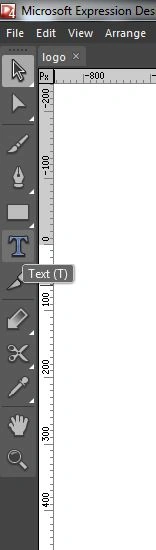
Open Expression Design and click on Text Tool.
Step 2
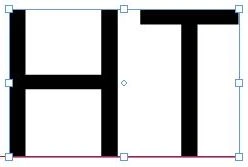
Type "HT", and click on Selection Tool. Select to all Text and set up Text by dragging to mouse.
Step 3
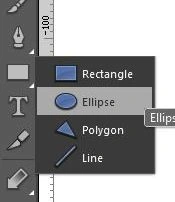
Select to Ellipse Tool and Draw Ellipse on Artboard by dragging to mouse And click on Selection Tool set up Ellipse. Select Ellipse and Press Ctrl+C and paste same Width Ellipse and set Position using Selection Tool.

Step 4
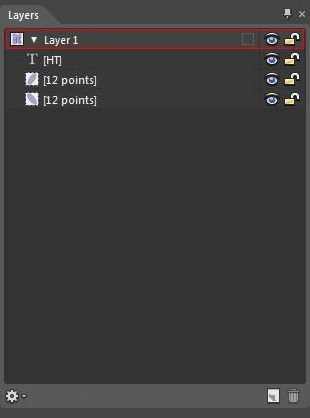
Go to Layers Panel and Text Layer drag to upper .
Step 5
Click Text Tool and Type hindustan college and click Selection Tool set up the Position.

Step 6
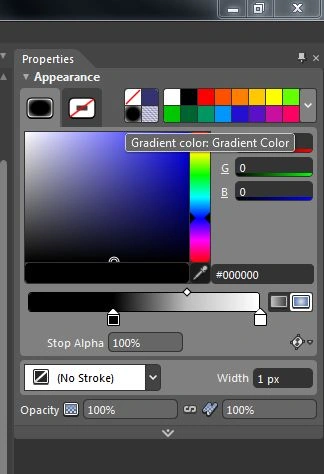
Select to All Artboard using Selection Tool and choose the color And Go to Properties and click on Gradient Color.
Step 7
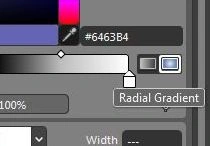
Click on Radial Gradient and choose the color .
Step 8
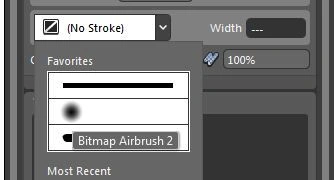
Click on Stroke and Select Bitmap Airbrush 2 and set the Color Design.
After that logo is ready.


Join the conversation! Your thoughts help the community grow.