

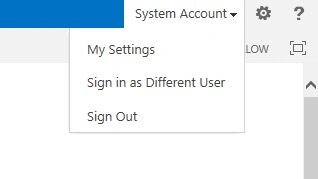
By default SharePoint 2013 site “sign in different user” option doesn't show.

Step 1: Go to the following location and open the Welcome.ascx in Visual Studio or Notepad.
C:\Program Files\Common Files\Microsoft Shared\Web Server Extensions\15\TEMPLATE\CONTROLTEMPLATES

Step 2: Add the following code and save the file.
- <SharePoint:MenuItemTemplate runat="server" ID="ID_LoginAsDifferentUser"
- Text="<%$Resources:wss,personalactions_loginasdifferentuser%>"
- Description="<%$Resources:wss,personalactions_loginasdifferentuserdescription%>"
- MenuGroupId="100"
- Sequence="100"
- UseShortId="true"
- />

Step 3: Go to your SharePoint site and refresh the screen.
Summary
In this article we learnt how to enable “sign in different user” option in SharePoint 2013.
Jacob RobinsonPosted Jul 27, 2015, 12:27 AM
Thanks Santhakumar sir..
Santhakumar MunuswamyPosted Jul 23, 2015, 3:30 PM
Thanks for sharing