

Introduction
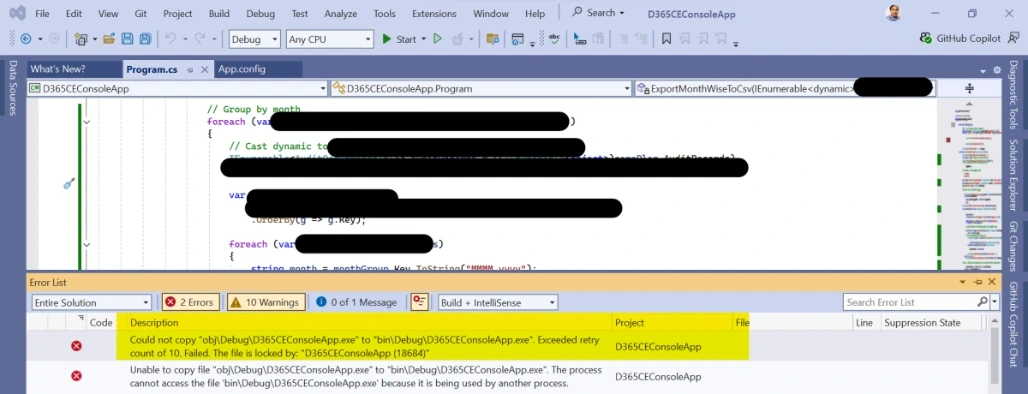
While building a Dataverse Console application in Visual Studio, you may encounter the following build error:
Could not copy "obj\Debug\D365CEConsoleApp.exe"
to "bin\Debug\D365CEConsoleApp.exe".
Exceeded retry count of 10. Failed.

The file is locked by:
"D365CEConsoleApp (18684)"
This error indicates that the application's executable file is still being used by a running process. Because Visual Studio cannot replace the locked .exe file, the build operation fails.
In this article, we will see how to identify the running Dataverse Console application process and stop it using Windows Task Manager.
Why Does This Error Occur?
When a console application is running, Windows keeps its executable file in use by the associated process.
In some situations, stopping debugging in Visual Studio may not terminate the console application's process correctly. The application can continue running in the background.
When Visual Studio tries to build the project again, it attempts to replace the existing executable:
obj\Debug\D365CEConsoleApp.exe
        ↓
bin\Debug\D365CEConsoleApp.exe
If the previous process is still using the executable, Windows prevents Visual Studio from copying the new file.
This results in the file-locking error.
How to Fix the File-Locking Error
The simplest solution is to locate the running console application in Task Manager and end its process.
Step 1: Open Task Manager
Right-click the Windows taskbar and select Task Manager.
You can also open Task Manager using:
Ctrl + Shift + Esc
Step 2: Find the Running Console Application
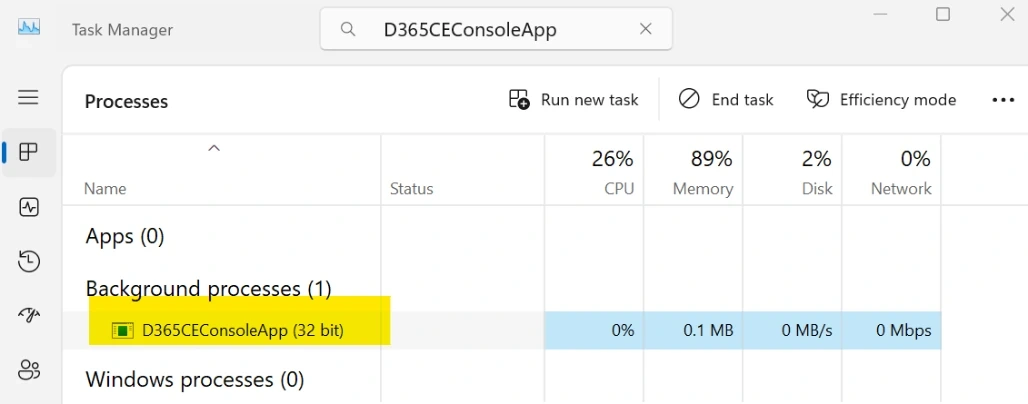
In Task Manager, search for the console application process.
In this example, look for:
D365CEConsoleApplicationEven though debugging was stopped in Visual Studio, the console application's executable may still be running in the background.
The process ID shown in the error message can also help identify the process.
For example:
D365CEConsoleApp (18684)Here, 18684 is the process ID associated with the locked executable.
Step 3: End the Process
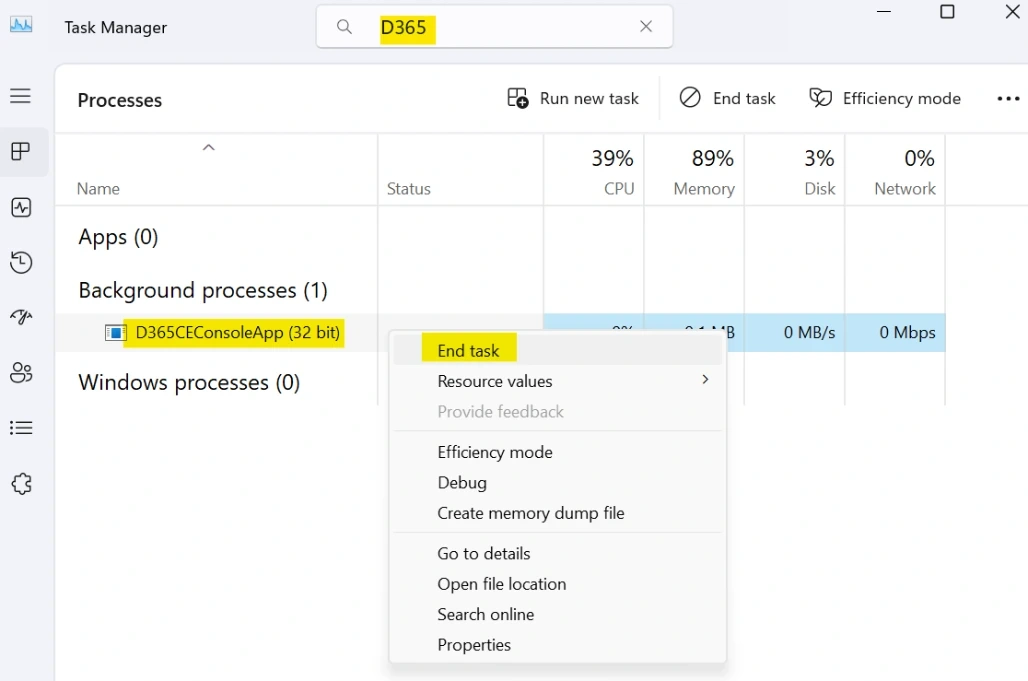
Right-click the corresponding console application process in Task Manager.
Select:
End task
This terminates the running process and releases the executable file.
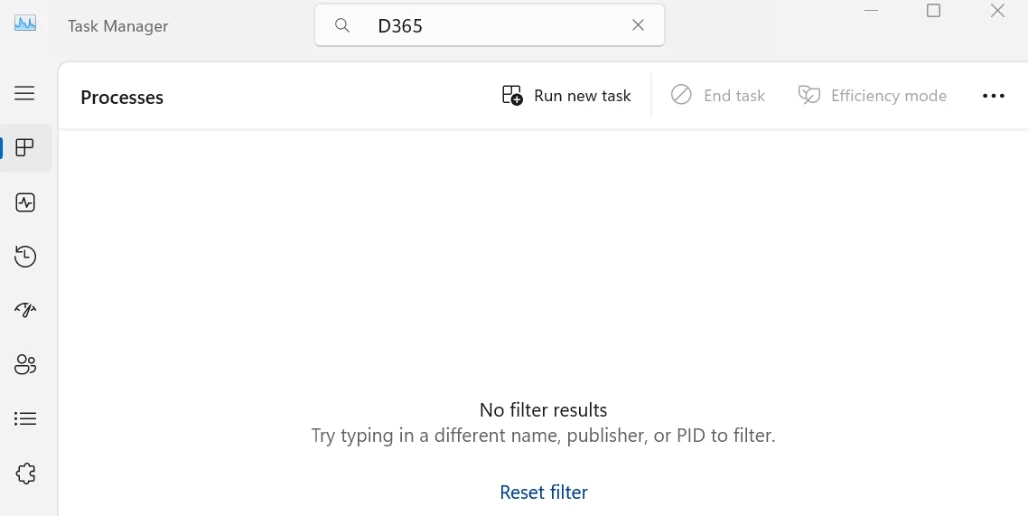
Step 4: Verify the Process Is Closed
After selecting End task, verify that the console application is no longer listed in Task Manager.
Once the process has been terminated, the executable should no longer be locked by that process.
Step 5: Build the Application Again
Return to Visual Studio and build the Dataverse Console application again.
The application should now build successfully because Visual Studio can access and replace the executable file.
You can then run the console application normally.
What Happened Behind the Scenes?
The sequence can be summarized as follows:
Console application starts
          ↓
D365CEConsoleApp.exe is being used
          ↓
Debugging is stopped
          ↓
Process remains running
          ↓
Visual Studio tries to rebuild
          ↓
EXE is still locked
          ↓
Build fails
After ending the process:
End D365CEConsoleApp process
          ↓
EXE file lock is released
          ↓
Build again
          ↓
Build succeeds
Quick Troubleshooting Checklist
If you encounter a similar Visual Studio build error stating that an .exe file is locked:
Read the process name and process ID from the error.
Open Task Manager.
Find the corresponding application process.
Select End task.
Confirm that the process has disappeared.
Build the project again.
Run the application after the build succeeds.
Conclusion
The Exceeded retry count of 10 error in this Dataverse Console application was caused by the application's executable still being used by a running process.
Stopping the debugging session does not always guarantee that the console application's process has terminated. When the process continues running, Visual Studio cannot replace the locked .exe during the next build.
By opening Task Manager, locating the D365CEConsoleApplication process, and selecting End task, the file lock can be released. After that, the project can be built and run again normally.
Join the conversation! Your thoughts help the community grow.