


Introduction
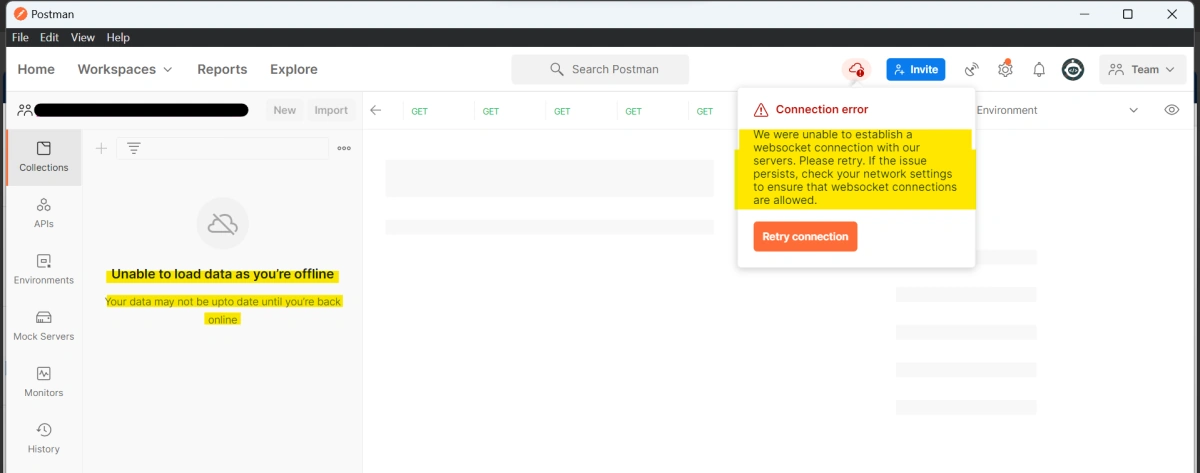
I got the following error when I launched Postman.
Unable to load data as you're offline.
Your data may not be up to date until you're back online.
Also, I saw the Connection error.
We were unable to establish a WebSocket connection with our servers. Please retry. If the issue persists, check your network settings to ensure that WebSocket connections are allowed.
Nothing has been loaded like Collections, Environments, Workspaces, etc., even though I connected to the internet.
I clicked on the Retry connection, but no luck. Then I followed the below steps and resolved this issue.
Step 1: Check for Updates
Click on Help.
Select Check for Updates.
Then, I found that there were some new updates that needed to be installed.
Step 2: Try Installing the Update
I followed the steps to install the update.
However, I was not able to install it successfully.
Step 3: Download the Latest Version Manually
I clicked on the Postman Downloads page to download the latest version of Postman.
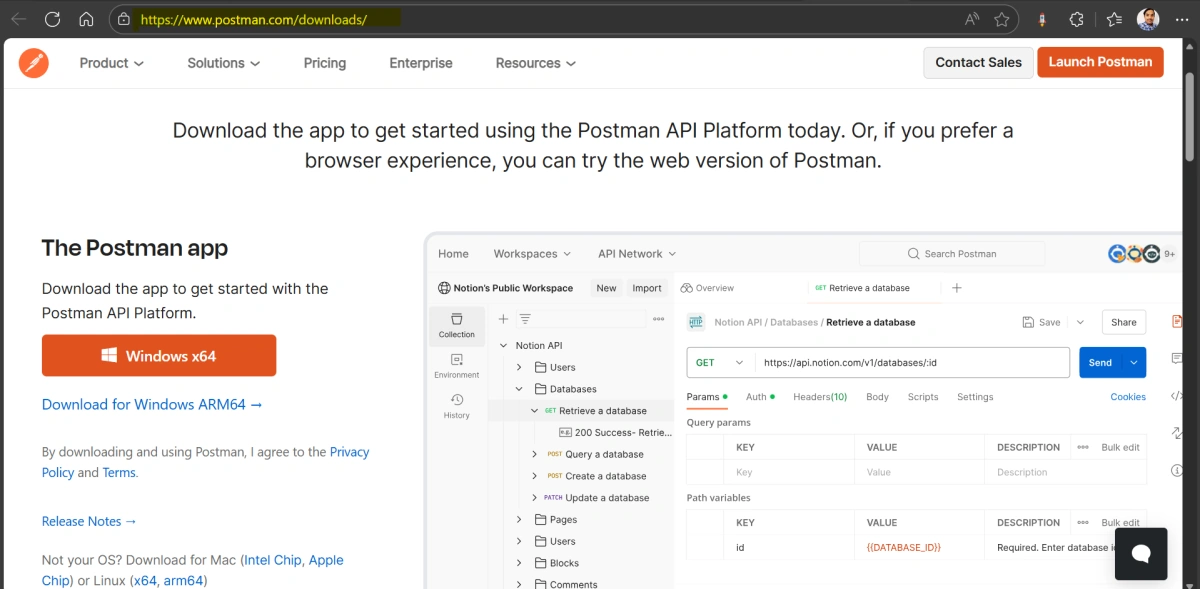
Step 4: Download Windows x64 Version
Clicked on Windows x64.
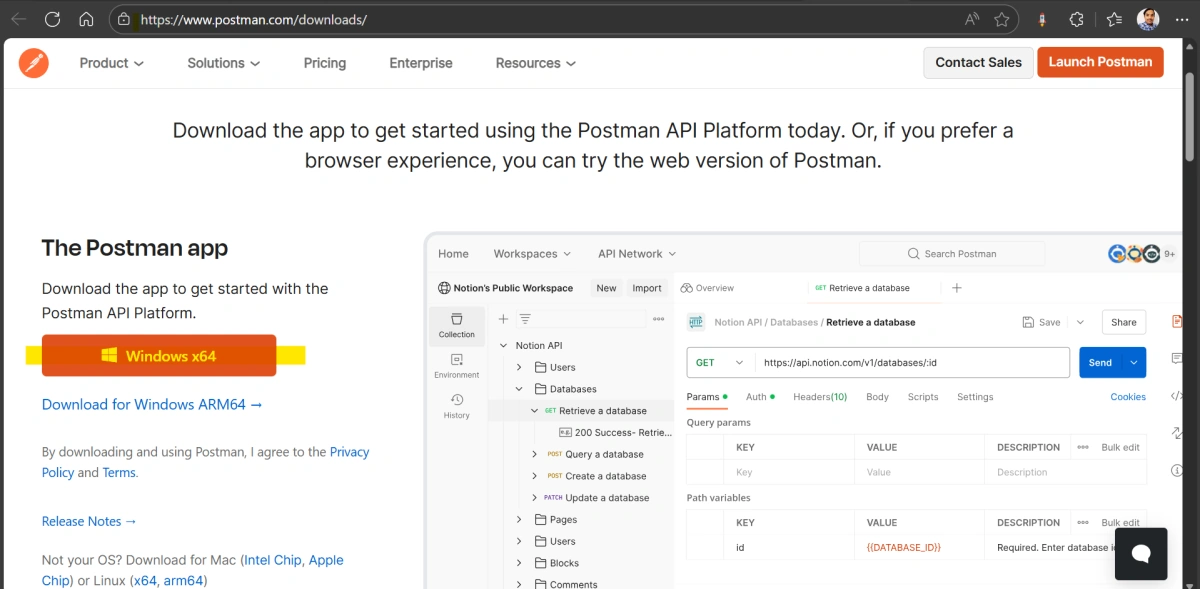
Postman (x64).exe has started downloading.

Postman has been downloaded to the Downloads folder.

Step 5: Install the Latest Version
Double-clicked on Postman (x64).exe to start installing the latest version of Postman.
Postman installation started.
The latest version of Postman was installed successfully and launched with the new version.
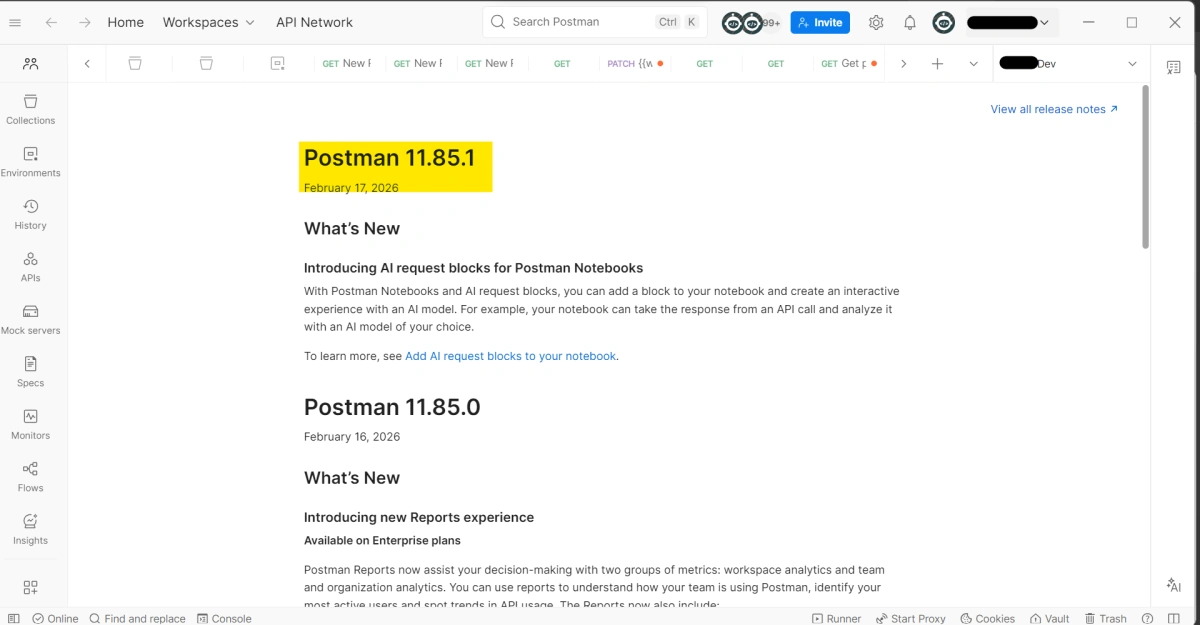
Result
After installing the latest version, I was able to see all my existing Workspaces, Collections, and Environments.
I hope you followed all the steps and resolved this issue.
Summary
If Postman shows an offline error or fails to establish a WebSocket connection, updating or reinstalling the latest version of Postman can resolve the issue. By downloading the latest installer from the official downloads page and installing it manually, the application reconnects to the server and restores access to workspaces, collections, and environments.
Join the conversation! Your thoughts help the community grow.