

This article is about the "Get Started With Your Site" web part in SharePoint Online or other versions of SharePoint.
The "Get Started With Your Site" web part is not a new web part because it was already introduced in SharePoint 2013. This provides a sequence of 6 (six) quick links, shown as tiles, on the page.
- Share your site
- Working on deadline
- Add Lists libraries and other apps
- What's your style?
- Your site. Your brand.
- Keep email in context (new in SharePoint Online)

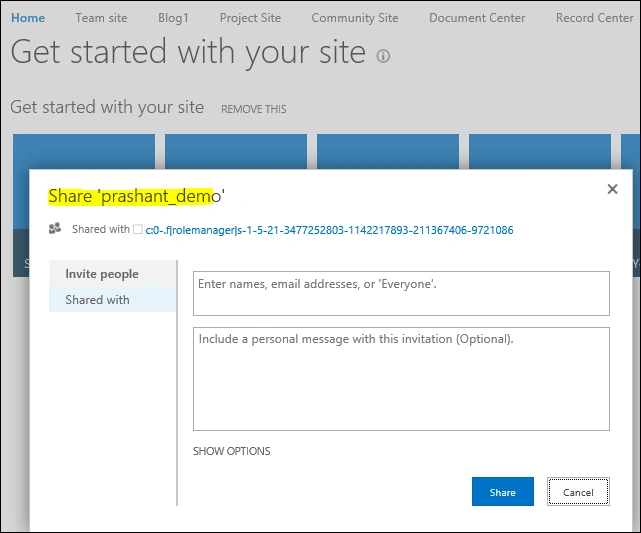
- Share your site - This tile results in a popup, enabling you to configure the access permissions or see the shared with result as well.
- Working on deadline - It displays a popup listing links to the Tasks and Calendar lists. It'll help you by adding a project summary to your homepage and the following apps.
- Add Lists libraries and other apps - This tile navigates the browser to the Site Contents page where we can add list library etc…

- What's your style? - It will take us to change the look page directly where we can choose and select the different ones by default.

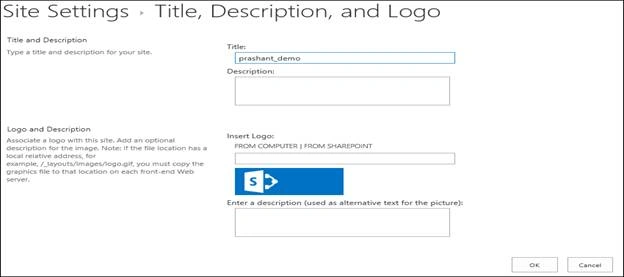
- Your site. Your brand - This will display and navigate us to the Site branding page where we can change Logo and others details.
- Keep email in context (new in SharePoint Online) - This is very new for SharePoint Online. This will allow us to add the site email box directly by clicking on "ADD IT".


This page appears on the Homepage for those site collection template types for which the Wiki Page Home features is activated, by default.
If we deactivate the same site features, then we cannot see the same result. We need to add back the web part for the same.
To access the site collection Features, go to Setting >> Site Settings >> Site Features, under Site actions and scroll down to see the result.

The "Get started with your site" web part is an associate of the collection of web parts existing with all site templates. We can add back the web part available in the web part gallery, and we will get the same output by adding the web part if we are going to deactivate this feature from site collection.
We can find this web part, by default, in the Media and Content group of web parts. The below will be the result if we are adding it. If we are deactivating Wiki Home Page features, we will get output as blank on the page.

To add back the "Get started page using web part, click on page ribbon. Then, click on edit page and add web parts from the same.

From the web part page, scroll down and select Media and Content and select web part called Get started with your site. See below.

Later, stop editing this page; and we will get the same page back.
Join the conversation! Your thoughts help the community grow.