

Today, we are showing how to change the Site Title, Logo, and description. We can modify this as per our customer requirement.
To change the above, follow these steps.
- Log in to the site and click on "Gear Box" on the right side of the site.
- Select Title, Description, and Logo under the "Look and Feel".
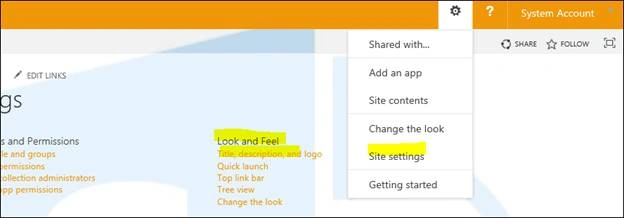
- On the title description and logo wizard, we need to select and feed the below.
- Title
Enter the Title for the site. - Description
Enter the description of the site. - On the Logo and Description
Insert Logo from Computer or from SharePoint and enter Logo Description. Add a document dialog, type or browse for the filename, and then click OK.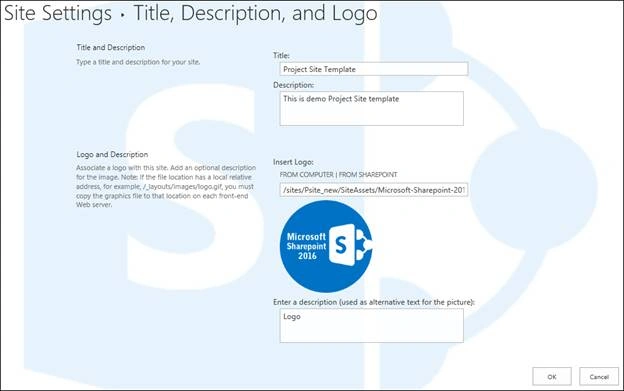
- Once you're all done, click on OK. It will take us to the site settings page. Go to "Home" site page. Now, see the result.
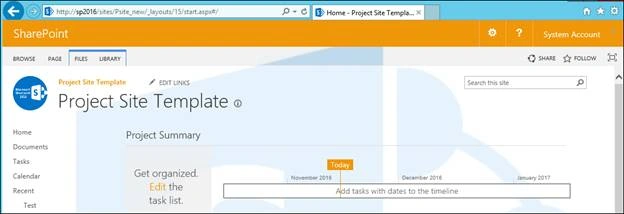
See below, for details.
Prashant KumarPosted Nov 21, 2016, 8:22 AM
Thanks Kumar for positive comment..
Rathrola Prem KumarPosted Nov 21, 2016, 2:06 AM
Nicr article, good start :) :)