

Introduction
In this blog, we will explore how to add a Delete button to the SharePoint list column as below.

Recently, I got a requirement to have an instant Delete button for each item in the SharePoint List View.
After many workarounds with several examples, I found the solution.
Implementation
So, simply follow the steps mentioned below.
Create a new calculated column.

Add the following formula. Just copy and paste the formula carefully into the calculated column.
Formula
- =" <img src=""/_layouts/images/delitem.gif""cursor:pointer"""
- & " onclick=""{event.stopPropagation();"
- & "var clientContext=new SP.ClientContext.get_current();"
- & "var list=clientContext.get_web().get_lists().getById(SP.ListOperation.Selection.getSelectedList());"
- & "var TR=this;while(TR.tagName!='TR'){TR=TR.parentNode}"
- & "var item=list.getItemById( TR.id.split(String.fromCharCode(44))[1] );"
- & "clientContext.load(item);"
- & "item.deleteObject();"
- & "this.style.opacity=0;"
- & "clientContext.executeQueryAsync("
- & "(function(){"
- & " this.style.opacity=0.5;"
- & " this.style.backgroundColor="
- & CHAR(39)& "lightcoral" &CHAR(39) &";"
- & " true || AJAXRefreshView({currentCtx:ctx,csrAjaxRefresh:true},1);"
- & "}).bind(TR));"
- & "}"">"
Select the datatype as "Number".
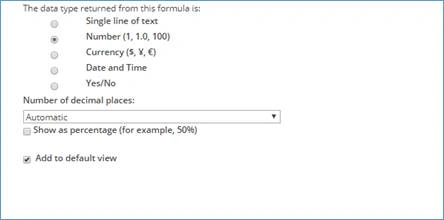
Click OK.
Yeah! Finally, we got the Delete button added to the ListView.
Itsn78 gamesPosted May 10, 2018, 6:00 AM
Hi this is not working, it just shows a text in that field
Sagar PardeshiPosted Dec 22, 2017, 6:59 AM
Good concept explore using calculated column