

Apply Excel Cell text color
- In EPPlus, ExcelRange class has a style property. This style property is the type of ExcelStyle (seal) class.
- ExcelStyle class has another ExcelFont (seal) type font properties.
- ExcelFont class has ExcelColor (seal) type colorproperty. ExcelColor has SetColor method. This method can accept Colorstructure object as a parameter.
Example
- ExcelRange Rng = new ExcelRange();
- Rng.Style.Font.Color.SetColor(Color.Red);
*By default, EPPlus supports Black font color, if you are not specifying any Font color.
Now, the next question in our mind is how to set cell background color?
Example
Now, the next question in our mind is how to set cell background color?
Example
- Rng.Style.Fill.PatternType = ExcelFillStyle.Solid;
- Rng.Style.Fill.BackgroundColor.SetColor(Color.Green);
- Here SetColor method can support structure Color property as a parameter.
- You can also specify the HTML Color code.
*By default, EPPlus supports White background color.
For Example
For Example
- Color DeepBlueHexCode = ColorTranslator.FromHtml("#254061");
- Rng.Style.Fill.BackgroundColor.SetColor(DeepBlueHexCode);
- In this example FromHtml() directly accept HTML RGB (Red Green Blue) color Code.
Output on an Excel sheet is given below.
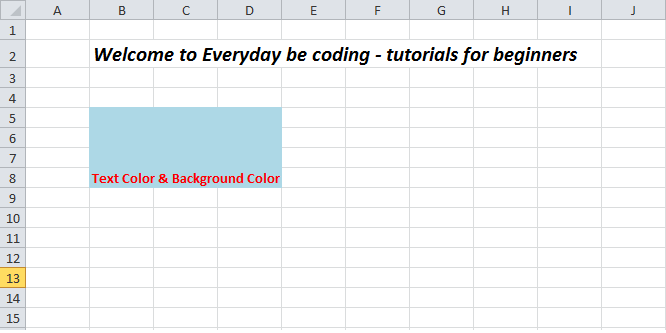
Source code
Source code
- using OfficeOpenXml;
- using System.IO;
- using System;
- //add two new namespace
- using OfficeOpenXml.Style;
- using System.Drawing;
- class Program {
- static void Main(string[] args) {
- ExcelPackage ExcelPkg = new ExcelPackage();
- ExcelWorksheet wsSheet1 = ExcelPkg.Workbook.Worksheets.Add("Sheet1");
- using(ExcelRange Rng = wsSheet1.Cells[2, 2, 2, 2]) {
- Rng.Value = "Welcome to Everyday be coding - tutorials for beginners";
- Rng.Style.Font.Size = 16;
- Rng.Style.Font.Bold = true;
- Rng.Style.Font.Italic = true;
- }
- //First Border Box
- using(ExcelRange Rng = wsSheet1.Cells[5, 2, 8, 4]) {
- Rng.Value = "Text Color & Background Color";
- Rng.Merge = true;
- Rng.Style.Font.Bold = true;
- Rng.Style.Font.Color.SetColor(Color.Red);
- Rng.Style.Fill.PatternType = ExcelFillStyle.Solid;
- Rng.Style.Fill.BackgroundColor.SetColor(Color.LightBlue);
- }
- wsSheet1.Protection.IsProtected = false;
- wsSheet1.Protection.AllowSelectLockedCells = false;
- ExcelPkg.SaveAs(new FileInfo(@ "D:\New.xlsx"));
- }
- }
Now, build & execute the given code. File is (New.xlsx), which is stored on D: drive of the computer.
Thank you for reading this blog.
Uttam ChaturvediPosted Mar 16, 2021, 11:52 AM
EPPlus is paid library for commercial use