

SQL Database
- Create Database Sample
- Create Table
You can create a table using the following query -
create table tblImageInfo(id int identity(1,1) primary key,Name nvarchar(30),Content nvarchar(200));
Now, let's go ahead and start the process of compressing the images.
Step 1 - Open Visual Studio -> select New Project -> select Empty ASP.NET Web application
Step 2 - Create a folder named Images.
Step 3 - Here is the code for Default.aspx page.
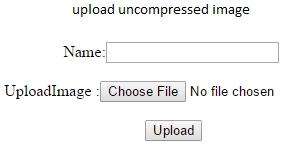
Step 1 - Open Visual Studio -> select New Project -> select Empty ASP.NET Web application
Step 2 - Create a folder named Images.
Step 3 - Here is the code for Default.aspx page.
- <body>
- <form id="form1" runat="server">
- <div align="center">
- <br />
- Name:<asp:TextBox ID="txtname" runat="server"></asp:TextBox>
- <br />
- <br />
- UploadImage :<asp:FileUpload ID="fileupload1" runat="server" />
- <br />
- <br />
- <asp:Button ID="btnupload" runat="server" Text="Upload" OnClick="btnupload_Click" />
- <asp:GridView ID="GridView1" runat="server" AutoGenerateColumns = "false"
- Font-Names = "Arial" >
- <Columns>
- <asp:BoundField DataField = "id" HeaderText = "ID" Visible="false" />
- <asp:BoundField DataField = "Name" HeaderText = "Image Name" />
- <asp:TemplateField>
- <ItemTemplate>
- <img src="<%#Eval("Content")%>" alt="<%#Eval("Name")%>" width="125px" height="150px"/>
- </ItemTemplate>
- </asp:TemplateField>
- </Columns>
- </asp:GridView>
- </div>
- </form>
- </body>
- public partial class Default : System.Web.UI.Page
- {
- SqlConnection con = new SqlConnection(ConfigurationManager.ConnectionStrings["ConStr"].ConnectionString);
- protected void Page_Load(object sender, EventArgs e)
- {
- if (!IsPostBack)
- {
- BindGridView();
- }
- }
- protected void btnupload_Click(object sender, EventArgs e)
- {
- string filename = Path.GetFileName(fileupload1.PostedFile.FileName);
- string storedb = "Images/" + filename + "";
- string targetPath = Server.MapPath("Images/" + filename);
- Stream strm = fileupload1.PostedFile.InputStream;
- var targetFile = targetPath;
- ReduceImageSize(0.5, strm, targetFile);
- //insert reduced size image in db
- con.Open();
- SqlCommand cmd = new SqlCommand("Insert into tblImageInfo(Name,Content)values('"+txtname.Text+"','"+storedb+"')", con);
- cmd.ExecuteNonQuery();
- }
- protected void BindGridView()
- {
- DataTable dt = new DataTable();
- string strQuery = "select * from tblImageInfo order by id desc";
- SqlCommand cmd = new SqlCommand(strQuery);
- SqlDataAdapter da = new SqlDataAdapter();
- cmd.CommandType = CommandType.Text;
- cmd.Connection = con;
- try
- {
- con.Open();
- da.SelectCommand = cmd;
- da.Fill(dt);
- GridView1.DataSource = dt;
- GridView1.DataBind();
- }
- catch (Exception ex)
- {
- Response.Write(ex.Message);
- }
- finally
- {
- con.Close();
- da.Dispose();
- con.Dispose();
- }
- }
- private void ReduceImageSize(double scaleFactor, Stream sourcePath, string targetPath)
- {
- using (var image = System.Drawing.Image.FromStream(sourcePath))
- {
- var newWidth = (int)(image.Width * scaleFactor);
- var newHeight = (int)(image.Height * scaleFactor);
- var thumbnailImg = new Bitmap(newWidth, newHeight);
- var thumbGraph = Graphics.FromImage(thumbnailImg);
- thumbGraph.CompositingQuality = CompositingQuality.HighQuality;
- thumbGraph.SmoothingMode = SmoothingMode.HighQuality;
- thumbGraph.InterpolationMode = InterpolationMode.HighQualityBicubic;
- var imageRectangle = new Rectangle(0, 0, newWidth, newHeight);
- thumbGraph.DrawImage(image, imageRectangle);
- thumbnailImg.Save(targetPath, image.RawFormat);
- }
- }
- }

Ksa123a21 aPosted Jul 14, 2019, 3:51 AM
I have (System.Runtime.InteropServices.ExternalException: '??? ??? ??? ?? +GDI.')
Bhimashankar GangadePosted Feb 1, 2017, 12:27 AM
Http://www.dotnettwitter.com/2012/08/filtering-on-each-column-in-gridview-as.html
Gururaj JewargiPosted Sep 20, 2016, 7:54 AM
Thank you sir, this code is very helpful to me