

In this article, we will explore how to create a document library step by step using JavaScript.
Why we create CEWP
So that we can utilize the client-side computing by using CSOM.
Let's start step by step.
Step 1
Save the below script as a text file and upload it to in Site Assets page.
Step 1
Save the below script as a text file and upload it to in Site Assets page.
Step 2
Add Content Editor Web Part (CEWP) to your SharePoint site page. Create site page >> add CEWP in your page -
Add Content Editor Web Part (CEWP) to your SharePoint site page. Create site page >> add CEWP in your page -
1 Click "Insert" option
2. Select "Media and Content".
3. Select Content Editor > Edit web part.
Step 3
Pass this script file's reference in your CEWP.
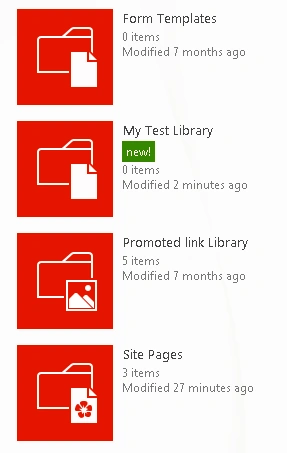
My OUTPUT looks like the below screenshot.
Pass this script file's reference in your CEWP.
- <script language="javascript" type="text/javascript" src="//ajax.googleapis.com/ajax/libs/jquery/1.11.1/jquery.min.js">
- </script>
- <script language="javascript" type="text/javascript">
- $(document).ready(function() {
- SP.SOD.executeFunc('sp.js', 'SP.ClientContext', createDocLib);
- });
- function createDocLib() {
- // Below we will pass Get Client Context and Web Object
- var clientContext = new SP.ClientContext();
- var oWeb = clientContext.get_web();
- //Create Library Creation Information and add it to List Collection
- var libraryCreationInfo = new SP.ListCreationInformation();
- libraryCreationInfo.set_title('My Test Library');
- libraryCreationInfo.set_description('This is a Test Library Using CEWP');
- libraryCreationInfo.set_templateType(SP.ListTemplateType.documentLibrary);
- var oListColl = oWeb.get_lists().add(libraryCreationInfo);
- //how to Load Client Context and Execute batch below
- clientContext.load(oListColl);
- clientContext.executeQueryAsync(QuerySuccess, QueryFailure);
- }
- function QuerySuccess() {
- console.log(" congratYour Document Library created successully.");
- }
- function QueryFailure(sender, args) {
- console.log('Request failed - ' + args.get_message());
- }
- </script>
Try it in your environment.
Soon, we will create more CSOM real-world scenario. So, stay tuned and follow me.
Join the conversation! Your thoughts help the community grow.