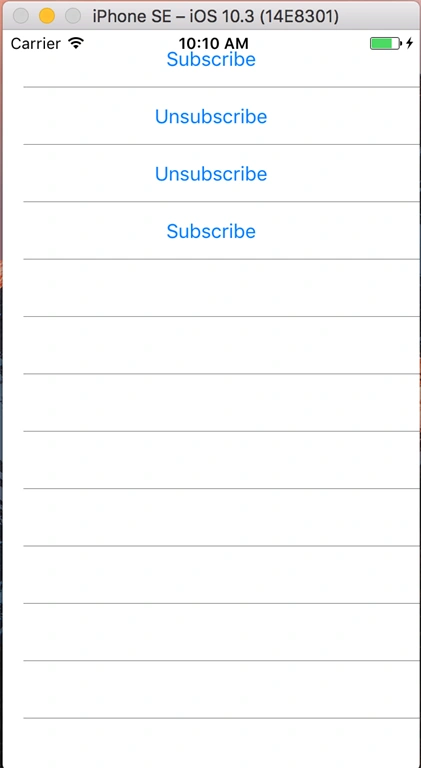
Here I want to show you how to create a 'Subscribe' button that changes text value (Subscribe, Unsubscribe) in a ListView.
First of all, you create your oun button, in this button class you add a BindableProperty that will help us to change the text value of the button :) It should be like this.

In this exemple we use in value, you can use a BOOL type.
  1. public static readonly BindableProperty IsRegistredProperty =
  2. BindableProperty.Create("IsRegistred", typeof(int), typeof(SubscribeBtn), 0);
  3. public int IsRegistred
  4. {
  5. get { return (int)GetValue(IsRegistredProperty); }
  6. set
  7. {
  8. SetValue(IsRegistredProperty, value);
  9. }
  10. }
Now, we change the text value when this property's value is changed. So, our Button looks like,
  1. public class SubscribeBtn : Button
  2. {
  3. public static readonly BindableProperty IsRegistredProperty =
  4. BindableProperty.Create("IsRegistred", typeof(int), typeof(SubscribeBtn), 0);
  5. public int IsRegistred
  6. {
  7. get { return (int)GetValue(IsRegistredProperty); }
  8. set
  9. {
  10. SetValue(IsRegistredProperty, value);
  11. }
  12. }
  13. private string btnText => IsRegistred == 1 ? "Unsubscribe" : "Subscribe";
  14. public SubscribeBtn()
  15. {
  16. this.Text = btnText;
  17. PropertyChanged += SubscribeBtn_PropertyChanged;
  18. Clicked += SubscribeBtn_Clicked;
  19. }
  20. private void SubscribeBtn_Clicked(object sender, EventArgs e)
  21. {
  22. IsRegistred = 1 - IsRegistred; // 1 --> 0 // 0 --> 1
  23. }
  24. private void SubscribeBtn_PropertyChanged(object sender, System.ComponentModel.PropertyChangedEventArgs e)
  25. {
  26. if (e.PropertyName == IsRegistredProperty.PropertyName)
  27. {
  28. this.Text = btnText;
  29. }
  30. }
  31. }
Than, we create our ViewModel (For the ListViewItem). For example,
  1. public class MyViewModel
  2. {
  3. public int Registred { get; set; } = 0; // 1 : yes , 0:no (0 as default)
  4. }
We create also a collection viewmodel, that will be the viewModel of our page (Main page of the list),
  1. public class MyCollection
  2. {
  3. public ObservableCollection<MyViewModel> Items { get; set; }
  4. public MyCollection()
  5. {
  6. Items = new ObservableCollection<MyViewModel>()
  7. {
  8. new MyViewModel(),
  9. new MyViewModel(),
  10. new MyViewModel() {Registred = 1}, //this one is registred
  11. new MyViewModel()
  12. };
  13. }
  14. }
I hope you are enjoying that :) !
Now, we set the BindingContext of our MainPage (In MainPage.xaml.cs),
  1. public partial class MainPage : ContentPage
  2. {
  3. protected MyCollection Collection = null;
  4. public MainPage()
  5. {
  6. InitializeComponent();
  7. Collection = new MyCollection();
  8. BindingContext = Collection;
  9. }
  10. }
Finally, your MainPage.xaml should looks like,
  1. <?xml version="1.0" encoding="utf-8" ?>
  2. <ContentPage xmlns="http://xamarin.com/schemas/2014/forms"
  3. xmlns:x="http://schemas.microsoft.com/winfx/2009/xaml"
  4. xmlns:local="clr-namespace:App3"
  5. x:Class="App3.MainPage">
  6. <ContentPage.Content>
  7. <ListView x:Name="MyListView" ItemsSource="{Binding Items}">
  8. <ListView.ItemTemplate>
  9. <DataTemplate>
  10. <ViewCell>
  11. <local:SubscribeBtn IsRegistred="{Binding Registred}"></local:SubscribeBtn>
  12. </ViewCell>
  13. </DataTemplate>
  14. </ListView.ItemTemplate>
  15. </ListView>
  16. </ContentPage.Content>
  17. </ContentPage>
Dont forget to set the right Binding in line 12 :) As you see, we used our SubscribeBtn.
I hope that helps you!
(Source Code in the attached zip file)
Best regards from Regensburg! Mabrouk Mahdhi