
Suppose you’re building an app that turns release notes into a short audio update. You already have the script in a text field. The next step is to send the text and a voice reference, then track the request until the audio is ready. A small .NET console app is an easy place to learn the API flow before putting it behind a button.
Choose a script and a voice
Start with two short sentences and a voice asset you’re allowed to use. The API accepts a voice asset ID from your media assets or an official public voice asset. Keeping that ID configurable lets you change the voice while listening to the same script. Put the API key and voice asset ID in MEDUX_API_KEY and MEDUX_VOICE_ASSET_ID in your local environment. In an application, use the secret store you already use for service credentials.
The Medux text-to-speech API documents the request and response. The sample below sends a title, text, and voice asset ID. It prints the task ID so you have something to look up when the request finishes processing.
Submit the request from .NET
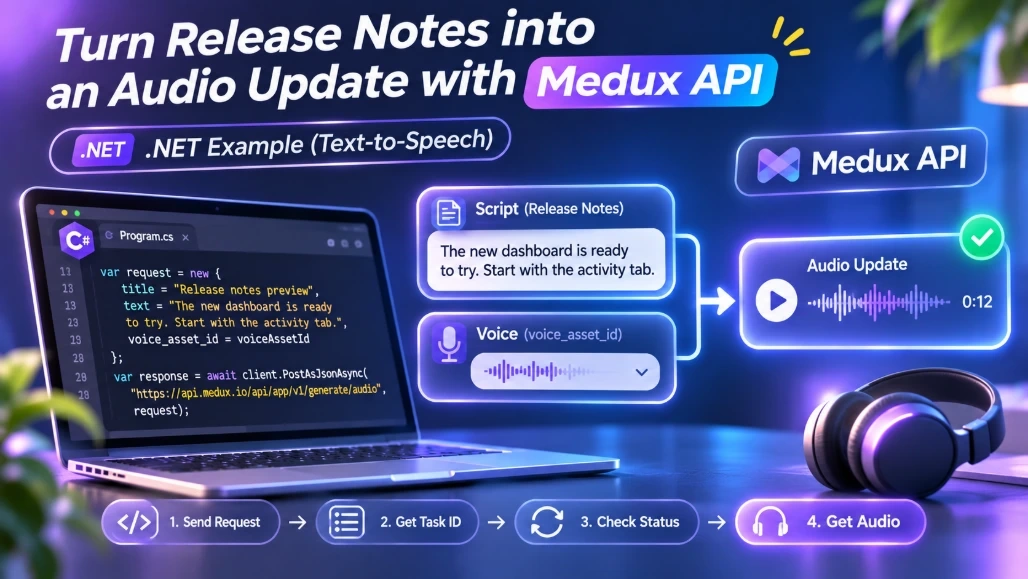
Create a console project with dotnet new console and replace the contents of Program.cs with this example. It uses the standard .NET HTTP and JSON libraries.
using System.Net.Http.Headers;
using System.Net.Http.Json;
using System.Text.Json;

var apiKey = RequiredEnvironmentVariable("MEDUX_API_KEY");
var voiceAssetId = RequiredEnvironmentVariable("MEDUX_VOICE_ASSET_ID");

using var client = new HttpClient
{
    Timeout = TimeSpan.FromSeconds(30)
};

using var request = new HttpRequestMessage(
    HttpMethod.Post,
    "https://api.medux.io/api/app/v1/generate/audio");

request.Headers.Authorization =
    new AuthenticationHeaderValue("Bearer", apiKey);

request.Content = JsonContent.Create(new
{
    title = "Release notes preview",
    text = "The new dashboard is ready to try. Start with the activity tab.",
    voice_asset_id = voiceAssetId
});

using var response = await client.SendAsync(request);
response.EnsureSuccessStatusCode();

await using var body = await response.Content.ReadAsStreamAsync();
using var document = await JsonDocument.ParseAsync(body);

var root = document.RootElement;
if (root.TryGetProperty("code", out var code) &&
    code.ValueKind == JsonValueKind.Number &&
    code.GetInt32() != 0)
{
    throw new InvalidOperationException($"Medux returned API code {code}.");
}

var taskId = root.GetProperty("data")
    .GetProperty("task")
    .GetProperty("id")
    .GetString();

Console.WriteLine($"Submitted narration task {taskId}");

static string RequiredEnvironmentVariable(string name)
{
    return Environment.GetEnvironmentVariable(name)
        ?? throw new InvalidOperationException($"Set {name} before running.");
}
Keep the task ID and check the result
Once the application has the task ID, store it with the script version. A real service can check the task from a background worker and update the UI when the result is ready. A small demo can start by checking the task manually through the documented status endpoint. Either way, “Submitted” is a useful status to display while the provider is still working.
If the request fails at the HTTP level, check the status code before changing the script. An authentication error points to the key or account setup. A valid request that later fails during generation needs a different investigation. Save the task ID and a short error category in your logs so you can tell those cases apart.
Give the resulting audio a quick listen with headphones. Product names, initials, and numbers can be harder to hear than the rest of the script. Adjust those in the narration text and submit a fresh version. Keep the script version alongside the audio so that a teammate can reproduce the approved read.
What to take into an application
Keep three pieces of information for each request: the script version, the voice asset ID, and the generation task ID. That’s enough to link the output to the inputs and show real progress to the user. Once the console example works, put the request in your service layer and let the web or desktop UI read the job status from your application.
Join the conversation! Your thoughts help the community grow.