

In this blog, you will learn how to handle null values in date and numeric fields from an Excel file and save the data in a SharePoint list using Power Automate.
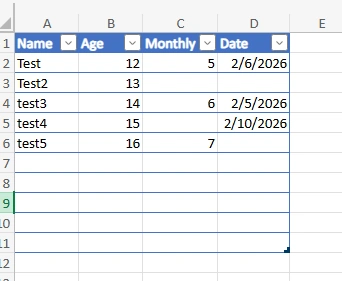
Sample Excel File
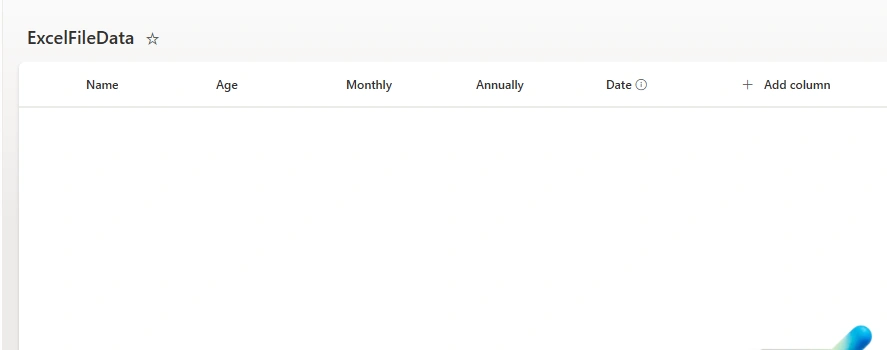
SharePoint List
Stepwise Implementation
1 - Create manual or automated flow (based on your requirement)
Go to make.powerautomate.com
Click on new flow -> manual flow
2 - Get files from OneDrive or SharePoint document library (wherever you have saved file)
Add list files in folder (OneDrive action)

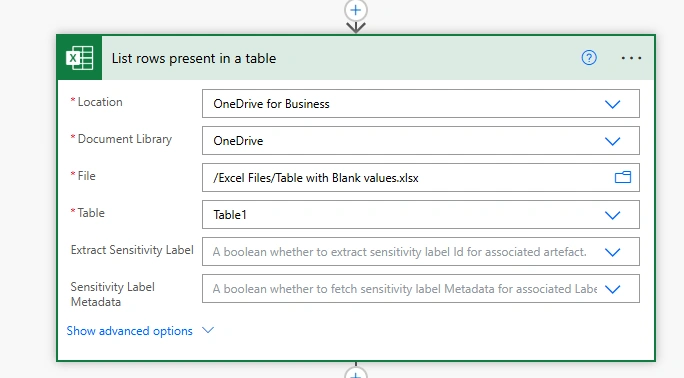
3 - Get rows from excel file
Add List rows action of excel file to get all rows from excel file
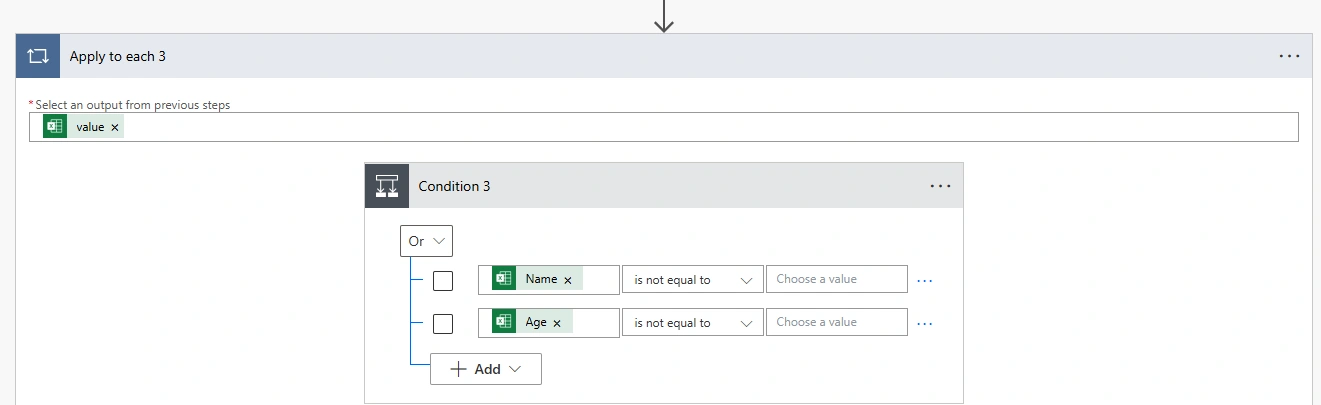
4 - Loop through rows and condition for fetching records where Name or Age is not blank
5 - Add create item action on Yes part
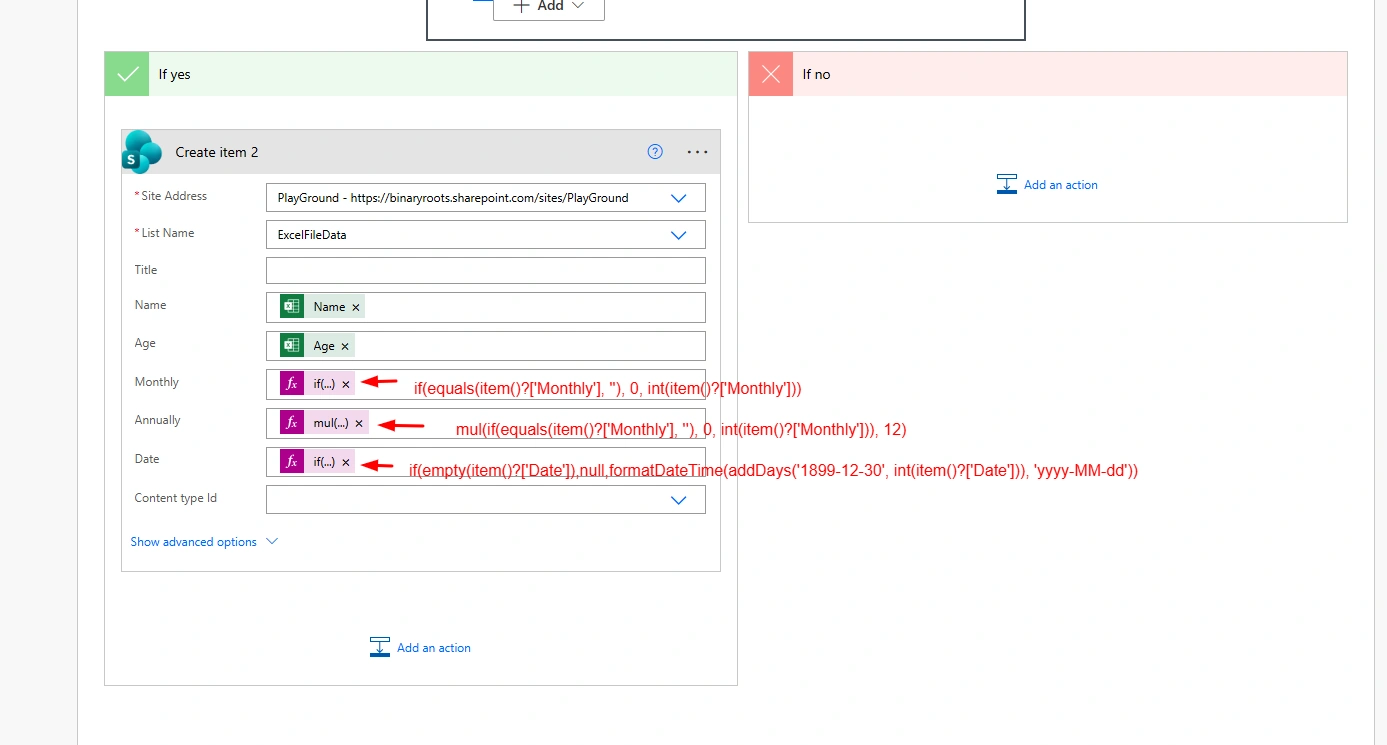
1 - Monthly Expression
if(equals(item()?['Monthly'], ''), 0, int(item()?['Monthly']))This checks if the Monthly value is empty. If it is, the expression assigns a default value of 0. If the Monthly value contains data, it converts the value to an integer using the int() function
2 - Annually Expression
mul(if(equals(item()?['Monthly'], ''), 0, int(item()?['Monthly'])), 12)This checks if the Monthly field is empty, just like the first expression. If the Monthly value is empty, the expression assigns a value of 0. If it contains data, the value is multiplied by 12 using the mul() function, converting the monthly value into an annual value.
3 - Date Expression
if(empty(item()?['Date']),null,formatDateTime(addDays('1899-12-30', int(item()?['Date'])), 'yyyy-MM-dd'))This expression handles date values by checking if the Date field is empty. If it is, the expression returns null, ensuring that no invalid date values are stored. If the Date field has a value, it interprets this as a number of days and uses the addDays() function to add that number of days to the base date 1899-12-30. The result is then formatted into the 'yyyy-MM-dd' format using the formatDateTime() function.
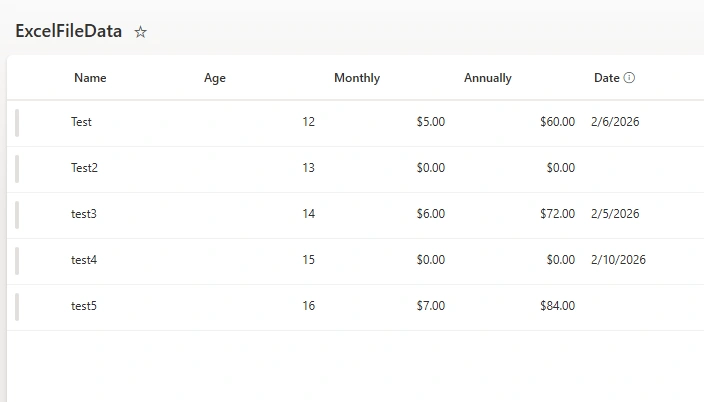
Run the flow & see result on List
Join the conversation! Your thoughts help the community grow.