

Hi Folks! In this blog, we will discuss how we can upload files like image files, word docs to SharePoint document library from PowerApps.
Step 1
Create a document library. Let’s say- TestUploadDemo

Step 2
Go to Power apps. Create a Canvas App. I have chosen here Tablet experience.

Step 3
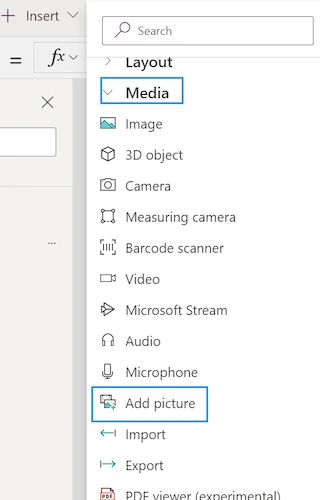
Go to Insert Menu. Click on Media and select ‘Add picture’ option.
Step 4
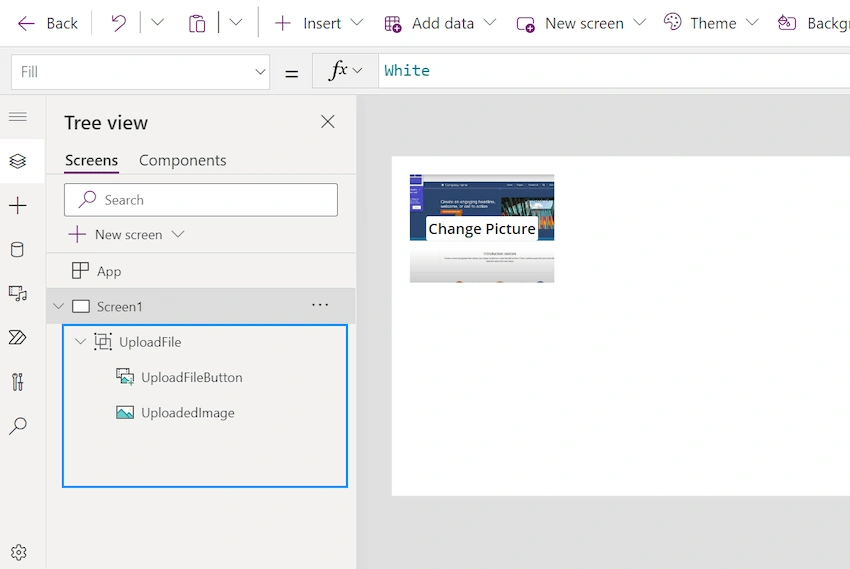
I have renamed it to “UploadFileButton” and “UploadedImage”.
Step 6
Add a button ”Reset” to clear the uploaded Picture.


Step 7
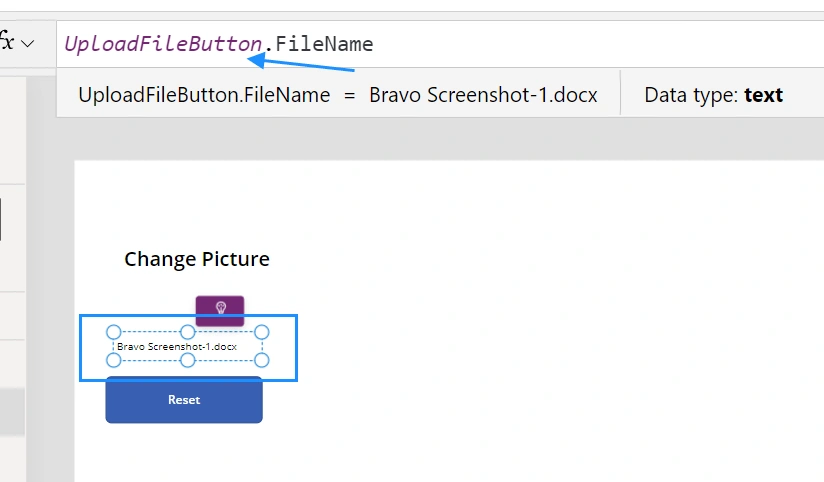
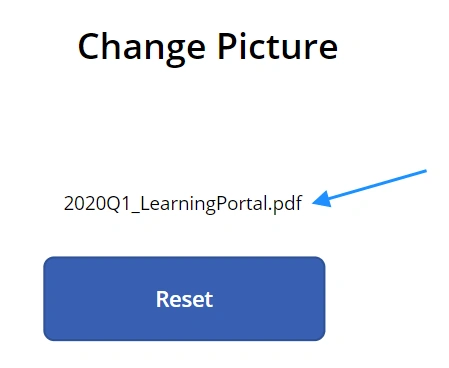
As we discussed above we can upload any type of file. To determine this let us add a label and then move ahead uploading other type of file except image file. This label control will show which type of file has been uploaded.
Step 8
Now we have to upload files from PowerApps, and this file will store in SharePoint Document library. For this add a button and connect it to flow.
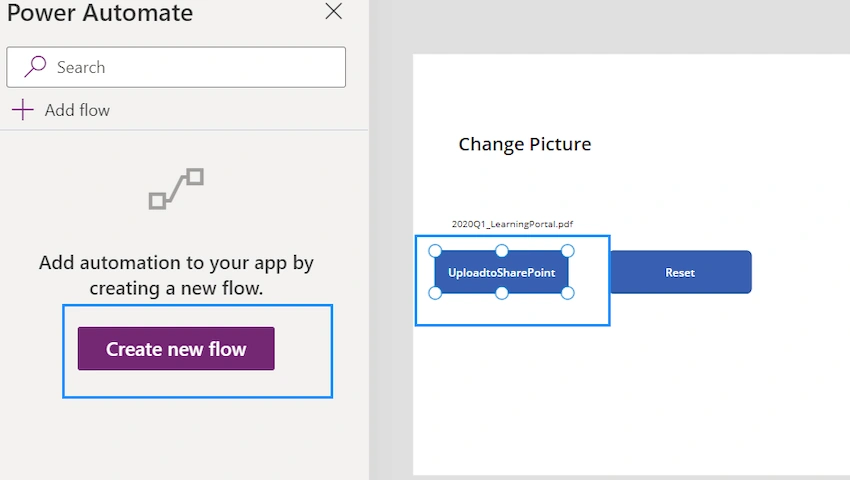
Step 9
Create a flow as shown below.
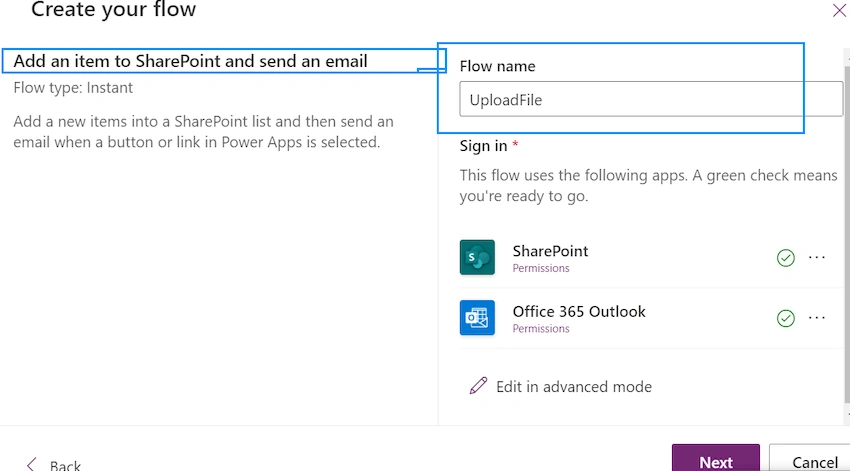
Step 10
Add a condition to the flow If 1 is equal to 2. Obviously, it will come to No block and then add Create a file
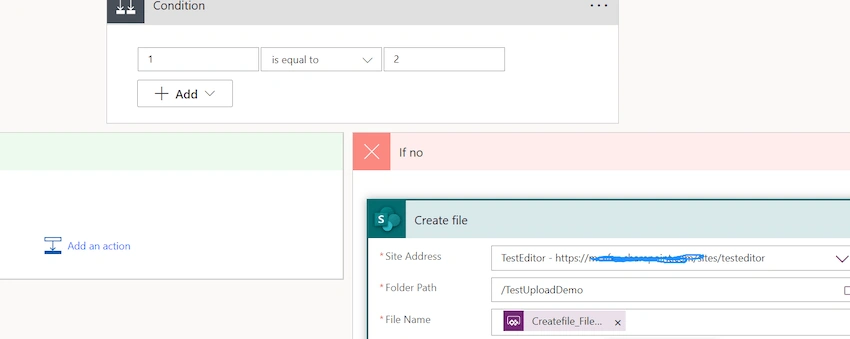
Step 11
Add the formula for “uploadtoSharePoint” button. This will add files to SharePoint document library.
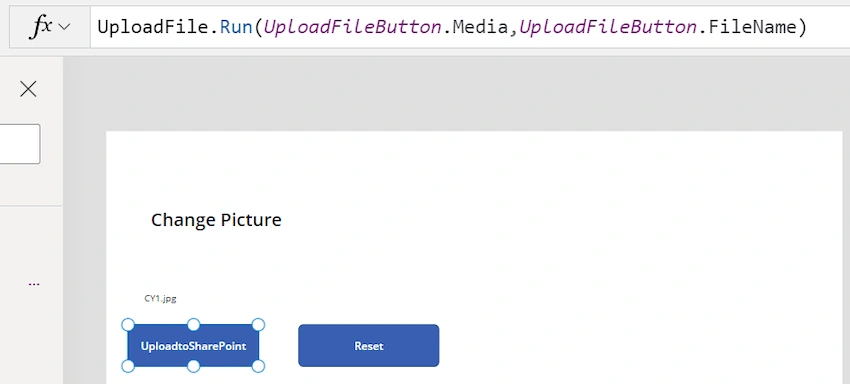

So this way you can upload files from PowerApps to SharePoint document library.
Yash TalaichePosted Jun 16, 2023, 6:39 AM
If we need to update other fields in document library then ?