

Introduction
Microsoft Viva has four modules and Viva Connection is one of them.
Viva Connection is the entry gate to a modern employee experience. Previously, Viva connections for desktop experience is known as home site App.
Users can discover and search relevant content like sites, news from across organizations from Microsoft Team’s application bar using Viva connections along with the organization’s branding and identity.
Learning Objectives
- Prerequisites for Viva Connection Desktop
- Set up SharePoint Home Site
- Enable Global Navigation and customize navigation links
- Create Viva connections app package
- Upload Viva Connections desktop package in Team Admin Center
- Manage and pin the app in teams
Let’s begin,
Prerequisites for Viva Connection Desktop
- SharePoint home site should be used as the landing experience for Viva Connections in Microsoft Teams.
- Only Modern SharePoint Sites and Pages is mandatory.
- Global navigation should be enabled in SharePoint.
Set up SharePoint Home Site
I assume, Intranet with Communication site is already existing in your organization.
If you want to create a new communication site then click here
Set a site Home Site using Power Shell
Run the below command to connect in the Powershell.
PS C:\Github> Connect-SPOService
cmdlet Connect-SPOService at command pipeline position 1
Supply values for the following parameters:
Url: https://<tenent>-admin.sharepoint.com
Run the below command to set Homesite.
PS C:\Github> Set-SPOHomeSite -HomeSiteUrl "https://<tenant>.sharepoint.com/sites/<SiteName>"
Confirm
Before you set a Home site, make sure you review the documentation at https://aka.ms/homesites. Continue?
[Y] Yes [N] No [S] Suspend [?] Help (default is "Y"): Y
Value
-----
The Home site has been set to https://dev1802.sharepoint.com/sites/Home. It may take some time for the change to app...

Enable Global Navigation and customize navigation links
- Open SharePoint Homesite in the browser.
- Click on Gear Icon.
- Click on Global Navigation.
- Click On enable global Navigation.
Create Viva connections app package
Install PnP Module,
Install-Module -Name PnP.PowerShell
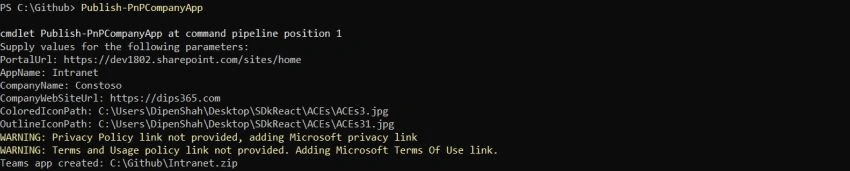
Execute the Publish-PnPComanyApp cmdlet with the following parameters,
Publish-PnPCompanyApp
   -PortalUrl 'https://dev1802.sharepoint.com/sites/home'
   -AppName 'Connections'
   -Description 'Viva Connections'
   -LongDescription 'The landing page for your intranet available from Microsoft Teams'
   -PrivacyPolicyUrl 'https://dips365.com/'
   -TermsAndUsagePolicyUrl 'https://dips365.com/'
   -CompanyName 'Contoso'
   -CompanyWebSiteUrl 'https://dips365.com'
   -ColoredIconPath 'C:\Connections\color.png'
   -OutlineIconPath 'C:\Connections\outline.png'
   -AccentColor '#FFFFFF'
- AppName: Name of the app which will appear in Microsoft Teams
- ColoredIconPath: path to the icon
- CompanyName: Name of Organization
- CompanyWebsiteUrl: Public website of your organization
- Description: Short description for the app
- NoUpload: If specified the app package will not be uploaded to the teams
- OutlineIconPath: Path for Outline icon
- PortalUrl: Url of the site you want to use in the app
- PrivacyPolicyUrl: Privacy policy link for the app
- TermsAndUsagePolicyUrl: The terms of use link for the app.
- Force: This will overwrite an existing zip file if exist
- LongDescription: Long description for the app
Once the command is run successfully, the zip file is created to a physical location.
Upload Viva Connections desktop package in Team Admin Center.

- Open Microsoft Team administrator.
- Click on Teams App
- Click on Manage App
- Click on upload
- Select zip file which is created through Powershell command.

Manage and pin the app in teams.
Here, we addressed all points which are mentioned in the learning objectives
I Hope, You enjoyed it.
Join the conversation! Your thoughts help the community grow.