Introduction
In this blog, we will discuss ListBox creation using a select tag helper. There is a single value and multiple value select option in the ListBox. We will learn how we can bind it to the database with a step-by-step example.
Select Tag Helper: The select tag helper renders as a select tag element. It can be used alternative to Html.DropdownListFor and Html.ListBoxFor of MVC.
Here is the code.
Step 1: Create an ASP.NET web application project in Visual Studio 2019.
Step 2: Create the class 'Language' under the Models folder.
- using Microsoft.AspNetCore.Mvc.Rendering;
- using System.Collections.Generic;
-
- namespace ListBox_Demo.Models
- {
- public class Language
- {
- public List<SelectListItem> ProgrammingSkill { get; } = new List<SelectListItem>
- {
- new SelectListItem { Value = "1", Text = "HTML" },
- new SelectListItem { Value = "2", Text = "CSS" },
- new SelectListItem { Value = "3", Text = "Bootstrap" },
- new SelectListItem { Value = "4", Text = "JavaScript" },
- new SelectListItem { Value = "5", Text = "JQuery" },
- new SelectListItem { Value = "6", Text = "Angular" },
- new SelectListItem { Value = "7", Text = "C#" },
- new SelectListItem { Value = "8", Text = "ASP.Net MVC" },
- new SelectListItem { Value = "9", Text = "ASP.Net Core" },
- new SelectListItem { Value = "10", Text = "Entity Framework" },
- new SelectListItem { Value = "11", Text = "Identity" },
- new SelectListItem { Value = "12", Text = "LINQ" },
- new SelectListItem { Value = "13", Text = "SQL Server" },
- };
- }
- }
Step 3: “Add” controller or use created HomeController.
Step 4: Right-click on index method or use the existing index view which is added under the home folder in view folder.
Step 5: “Add” class Skill in models folder
- using System.ComponentModel.DataAnnotations;
-
- namespace ListBox_Demo.Models
- {
- public class Skill
- {
- [Key]
- public int Id { get; set; }
-
- [Required]
- [StringLength(100)]
- [Display(Name = "Skills")]
- public string ProgrammingLanguage { get; set; }
- }
- }
Step 6: “Add” DbSet in ApplicationDbContext which is located under the data folder of your project.
- using ListBox_Demo.Models;
- using Microsoft.AspNetCore.Identity.EntityFrameworkCore;
- using Microsoft.EntityFrameworkCore;
-
- namespace ListBox_Demo.Data
- {
- public class ApplicationDbContext : IdentityDbContext
- {
- public ApplicationDbContext(DbContextOptions<ApplicationDbContext> options)
- : base(options)
- {
- }
- public DbSet<Skill> Skills { get; set; }
- }
- }
Step 7: Add-migration in the package manager console and update-database. It will be added department table with ID and ProgrammingLanguage.
Step 8: Open the same HomeController or a new controller and write the following code in the controller class.
- using ListBox_Demo.Data;
- using ListBox_Demo.Models;
- using Microsoft.AspNetCore.Mvc;
- using Microsoft.AspNetCore.Mvc.Rendering;
- using System.Linq;
-
- namespace ListBox_Demo.Controllers
- {
- public class HomeController : Controller
- {
- private readonly ApplicationDbContext dbContext;
-
- public HomeController(ApplicationDbContext context)
- {
- dbContext = context;
- }
-
- public IActionResult Index()
- {
- ViewData["Id"] = new SelectList(dbContext.Skills, "Id", "ProgrammingLanguage");
- return View();
- }
-
- public IActionResult Skills()
- {
- var model = new Language();
- model.ProgrammingSkill.ToList();
- return View(model);
- }
-
-
- }
- }
Step 9: Similarly, use the same index view or “Add” a new view if you wish.
- @model ListBox_Demo.Models.Skill
-
- @{
- ViewData["Title"] = "Home";
- }
-
- <div class="form-group col-md-4">
- <select asp-for="Id" asp-items="ViewBag.Id" size="5" multiple class="form-control"></select>
- <span asp-validation-for="ProgrammingLanguage" class="text-danger"></span>
- </div>
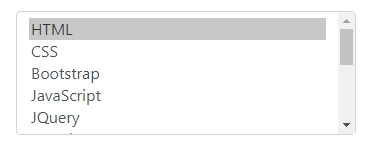
Skills View:
- @model ListBox_Demo.Models.Language
-
- @{
- ViewData["Title"] = "Skills";
- }
-
- <div class="form-group col-md-4">
- <select asp-for="ProgrammingSkill" asp-items="Model.ProgrammingSkill" size="5" multiple class="form-control"></select>
- <span asp-validation-for="ProgrammingSkill" class="text-danger"></span>
- </div>


Jay GracePosted May 27, 2021, 4:27 PM
Did step 1 & 2 can you add more detail to step 3? Thanks in advance from [email protected]