

Introduction
Hi guys, let’s try to understand the easiest way to analyze a List/Library both in Classic and Modern Online SharePoint Environment only.
The following is a cool CSOM PS Script to analyse a List with, including its Item Count, Folder Count, etc. The same code can be used to analyse a Lib, including its Item Count, Files Count, Folder Count, etc.
- #Load SharePoint CSOM Assemblies
- Add-Type -Path "C:\Program Files\Common Files\Microsoft Shared\Web Server Extensions\16\ISAPI\Microsoft.SharePoint.Client.dll"
- Add-Type -Path "C:\Program Files\Common Files\Microsoft Shared\Web Server Extensions\16\ISAPI\Microsoft.SharePoint.Client.Runtime.dll"
- #Config Parameters
- $SiteURL= "https://abcdcorp.sharepoint.com/ltms"
- $ListName = "TestSupplyListPowerApp"
- #Setup Credentials to connect
- $Cred = Get-Credential
- Try {
- #Setup the context
- $Ctx = New-Object Microsoft.SharePoint.Client.ClientContext($SiteURL)
- $Ctx.Credentials = New-Object Microsoft.SharePoint.Client.SharePointOnlineCredentials($Cred.UserName,$Cred.Password)
- #Get the List
- $List= $Ctx.web.lists.GetByTitle($ListName)
- $Ctx.Load($List)
- $Ctx.ExecuteQuery()
- #Define Query to Filter and Get All Files from the list
- $Query = "@
- <View Scope='RecursiveAll'>
- <Query>
- <Where>
- <Eq>
- <FieldRef Name='FSObjType' /><Value Type='Integer'>0</Value>
- </Eq>
- </Where>
- </Query>
- </View>"
- $FilesQuery = New-Object Microsoft.SharePoint.Client.CamlQuery
- $FilesQuery.ViewXml =$Query
- $Files = $List.GetItems($FilesQuery)
- $Ctx.Load($Files)
- $Ctx.ExecuteQuery()
- #Define Query to Filter and Get All Folders from the list
- $Query = "@
- <View Scope='RecursiveAll'>
- <Query>
- <Where>
- <Eq>
- <FieldRef Name='FSObjType' /><Value Type='Integer'>1</Value>
- </Eq>
- </Where>
- </Query>
- </View>"
- $FoldersQuery = New-Object Microsoft.SharePoint.Client.CamlQuery
- $FoldersQuery.ViewXml =$Query
- $Folders = $List.GetItems($FoldersQuery)
- $Ctx.Load($Folders)
- $Ctx.ExecuteQuery()
- #Get List Item Count
- Write-host -f Green "Total Number of Items in the List:"$List.ItemCount
- Write-host -f Green "Total Number of Files in the List:"$Files.Count
- Write-host -f Green "Total Number of Folders in the List:"$Folders.Count
- }
- Catch {
- write-host -f Red "Error Getting List Item Count!" $_.Exception.Message
- }
Just open Windows PowerShell ISE and run the below Script after configuring your List/Library name along with its respective Site Collection.
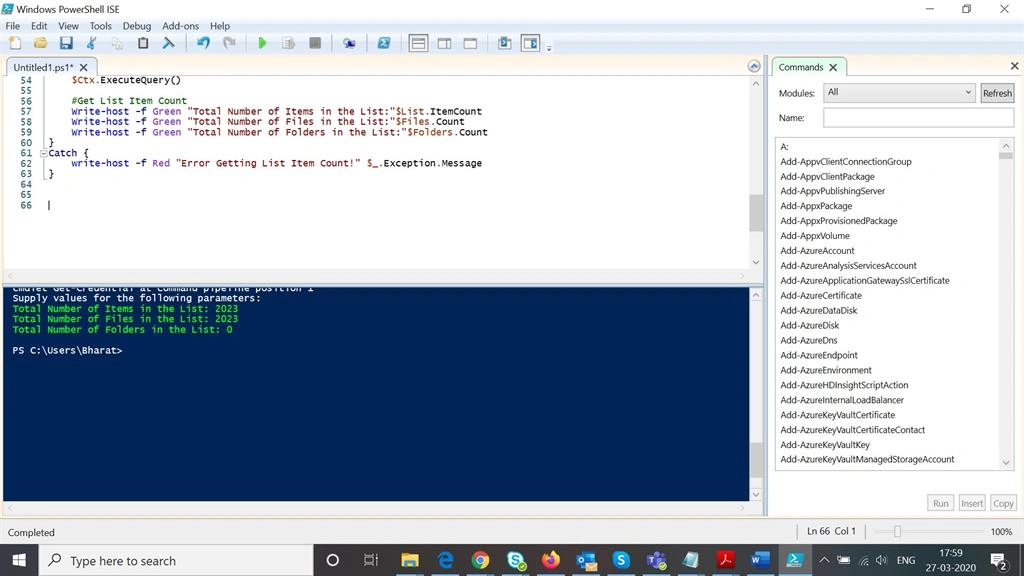
Provide your User Account details when prompted in a Pop-Up. You will get the below result as shown in the below snapshot:
Happy SharePointing!
Join the conversation! Your thoughts help the community grow.