

Today, I am writing about SharePoint Online Management Shell. There are many articles on the same but still many beginners are getting confused. So, I decided to write a simple blog to make you understand it clearly.
We are using SharePoint Online Management Shell for managing the SharePoint users and sites efficiently.
Windows SharePoint Online Management Shell is command line operation used in Windows
PowerShell composed of series of commands to use in Office 365 or SharePoint
Online.
There is a lot to learn about SharePoint Management and Office 365 Shell.
Given is the URL
to learn the same from MSDN.
So, I will start with the use of SharePoint online.
- Download and installation of SharePoint Online Management Shell
- Connect SharePoint site using PowerShell
- Creating site using command
- Viewing site collection and subsite etc.
Let us start with downloading and installing the SP Online Management Shell.
- Download the SharePoint Online Management Shell from below and save the same to local system.
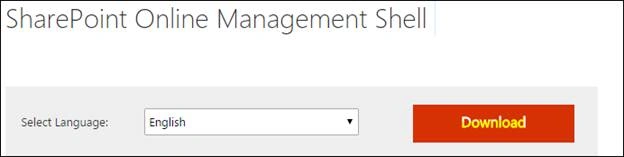
- Install any of the versions from above and install the same to local system.
- Once installed, we will open the SP command using administrator.
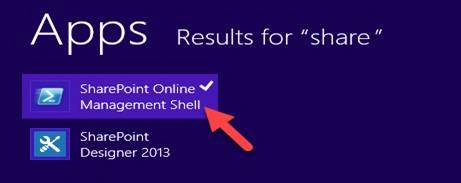
- Once SharePoint Online Management shell gets open, use the below command to connect your site page.
Connect-SPOService -Url https://site-admin.sharepoint.com -credential [email protected]
- Now, enter your site password here and click on OK. Wait for some time till the site gets connected.
Note
In case of getting errors, please refer to the below sites to fix the issue.- https://answers.microsoft.com/en-us/msoffice/forum/msoffice_o365admin-mso_dep365/could-not-connect-to-sharepoint-online-management/c11835b8-656c-480a-8d6a-d961056ca526
- https://ziaahmedshaikh.wordpress.com/2015/09/11/working-around-with-connect-sposervice-current-site-is-not-a-tenant-administration-site/
- https://technet.microsoft.com/en-us/library/fp161392.aspx
- https://answers.microsoft.com/en-us/msoffice/forum/msoffice_o365admin-mso_dep365/could-not-connect-to-sharepoint-online-management/c11835b8-656c-480a-8d6a-d961056ca526
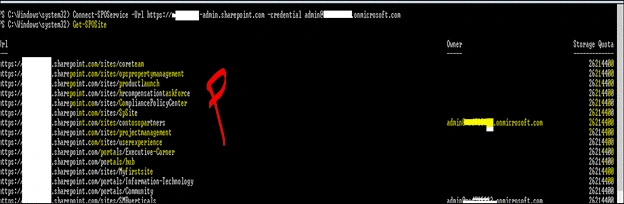
- Viewing sites created on SharePoint site collection using command.
Below is the screenshot for the same.
Run Get-SPOSite
- Run the PowerShell SharePoint Online command prompt and enter the below command to do so for.
New-SPOSite -Url https://mod785983-admin.sharepoint.com/sites/mynewsite -Owner [email protected] -StorageQuota 1000 -Title "My new site collection"

- Once done, we can see the created site on SharePoint admin page or site collection.

So, this is the way to configure and connect or create the site collection using SharePoint Online PowerShell.
We have the list of SharePoint commands from TechNet site.
See the below URL
- https://technet.microsoft.com/en-us/library/fp161364.aspx
Below are the few of command copied from above link
Cmdlet name | Description |
Adds an existing Office 365 user or an Office 365 security group to a SharePoint group. | |
Connects a SharePoint Online global administrator to a SharePoint Online connection (the SharePoint Online Administration Center). This cmdlet must be run before any other SharePoint Online cmdlets can run. | |
Disconnects from a SharePoint Online service. | |
Returns application errors. | |
Returns all installed applications. | |
Returns all deleted site collections that are in the Recycle Bin. | |
Returns external users that are located in the tenant's folder based on specified criteria. | |
Returns one or more site collections. | |
Returns all the groups on the specified site collection. | |
Returns SharePoint Online organization properties. | |
Retrieves SharePoint Online company logs. | |
Returns the time when the SharePoint Online organization logs are collected. | |
Returns the current tenant configuration status. | |
Returns the SharePoint Online user or security group accounts that match given search criteria. | |
Shows all site templates that match the given identity. | |
Creates a new SharePoint Online site collection for the current company. | |
Creates a new group in a SharePoint Online site collection. | |
Removes a SharePoint Online deleted site collection from the Recycle Bin. | |
Permanently removes a collection of external users from the tenant’s folder. | |
Sends a SharePoint Online site collection to the SharePoint Online Recycle Bin. | |
Removes a SharePoint Online group from a site collection. | |
Disables the feature for the tenancy. | |
Removes a user or a security group from a site collection or a group. | |
Checks and repairs the specified site collection and its contents. | |
Requests to create a copy of an existing site collection for the purposes of validating the effects of upgrade without affecting the original site. | |
Restores a SharePoint Online deleted site collection from the Recycle Bin. | |
Sets or updates the values of one or more properties for a site collection. | |
Updates the SharePoint Online owner and permission level on a group inside a site collection. | |
Sets properties on the SharePoint Online organization. | |
Enables the tenancy and sets the domain GUIDs. | |
Configures properties on an existing user. | |
Tests a SharePoint Online site collection. | |
Starts the upgrade process on a site collection. |
Thanks
Join the conversation! Your thoughts help the community grow.