

Introduction
In this blog, we will see how to avoid special characters when taking user input in Power Apps.
Use Case
Suppose you have a Text Input field in Power Apps where a user enters some text. Later, you use this input in a Power Automate flow to do some action. If the user enters a special character such as # or %, the flow may fail or return an error because these characters are not allowed in some contexts.
Steps to Handling Special Characters:
Step 1
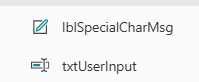
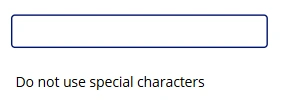
First, add a Text Input control to allow users to enter text. Remove the default value and rename it to txtUserInput.
Next, add a Label to show a message if any special characters are entered. Rename the label to something like lblSpecialCharMsg. You can change the label text to “Do not use special characters” and adjust the position of both controls to fit your app design.
Step 2
Select the Text Input control and go to its OnChange property.
Write the following formula to check for special characters:
IsMatch(Self.Text,".*[\"&Char(34)&"/<>!@#$%^&*()'].*")
Step 3
Select the Label lblSpecialCharMsg and apply label Visible property to the following formula:
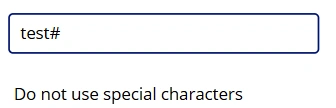
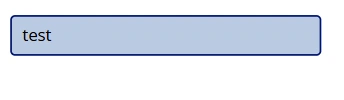
IsMatch(txtUserInput.Text,".*[\\\"&Char(34)&"/<>!@#$%^&*()'].*")With this, the label will show only when the user types a special character. It will stay hidden when the input is correct.
Output
Conclusion
That’s it! By doing this, you can stop users from typing special characters in Power Apps.
Join the conversation! Your thoughts help the community grow.