Introduction
This post will help you in the configuration of external searches in SharePoint 2013 using the BCS, where data is stored on the SQL server.
Prerequisite
Assuming that the following steps have already been completed and are in place for further search configuration,
- Creation of database, table, and view (optional).
- There should be one generic account/user-id having read/write access on the database for access.
- Database server should be accessible from the local server where SharePoint is installed, with port opening if required.
- Service account having administrator rights on SharePoint Central Administrator to perform search configuration.
- SharePoint Designer installed on the server.
- Create Site-Collection where you want to create External Content Type and configure the Search Centre.
Steps to be performed to configure external search on SharePoint 2013,
- Create and configure the Secure Store Service(SSS).
- Create External Content Type(ECT) in SharePoint Designer.
- Create and configure Business Data Connectivity (BDC) Service.
- Create a Search Service Application and run a full crawl.
- Create a Search Centre and start the search.
Step 1 - Create and configure Secure Store Service(SSS)
To create SSS,
- Go-to Central Admin page>> Application Management>> Manage Service Applications.
- Click ‘New’ on the top left in ribbon panel and click on Secure Store Service.
- On new form, fill the required detail and click ‘Ok’ to create new SSS application.
- Now click on newly created SSS application and click on ‘Generate New Key’ on top ribbon panel.
- On key generation page, enter the Pass Phrase in text-box and enter the same string in Confirm Pass Phrase textbox.
- The passphrase you entered is in encrypted form, so make a note of it to recall in future.
- Click ‘Ok’ to submit the form.
- Now the next step is to create Target Application in SSS. The target application is used to store the credential in an encrypted format and it is used on behalf of an authorized user to make any request.
- Click ‘New’ on the top left to create a new Target application.
- In Target Application ID type string, this should be unique.
- Enter Display Name and Contact Email
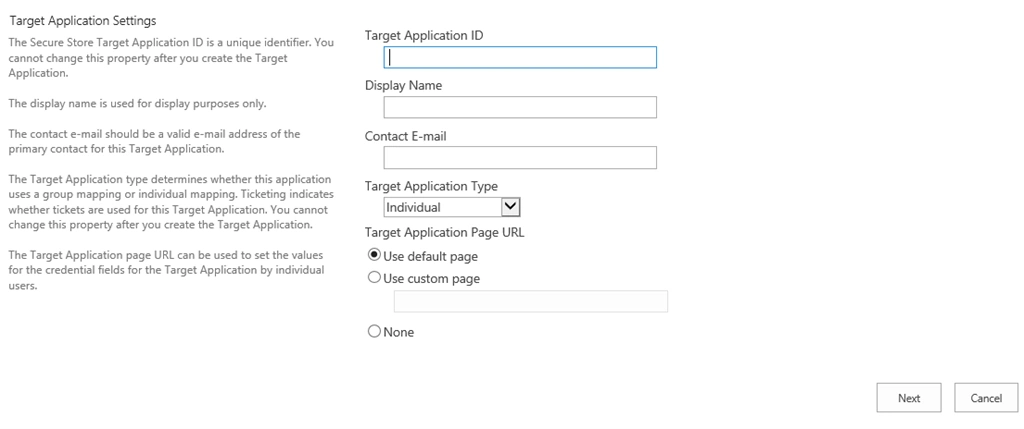
- Click Next
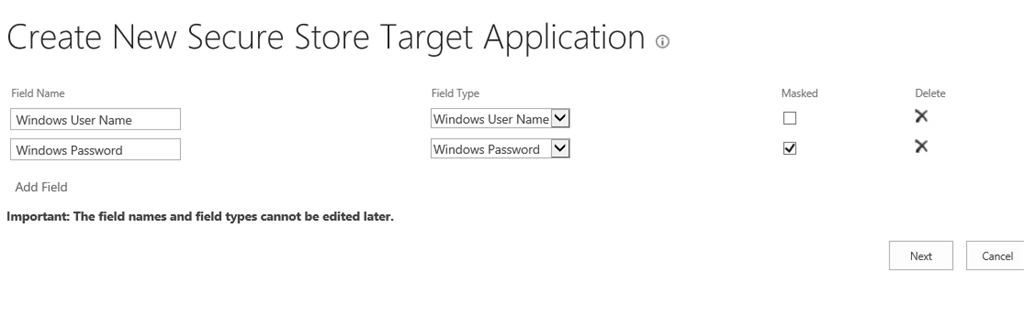
- Click Next
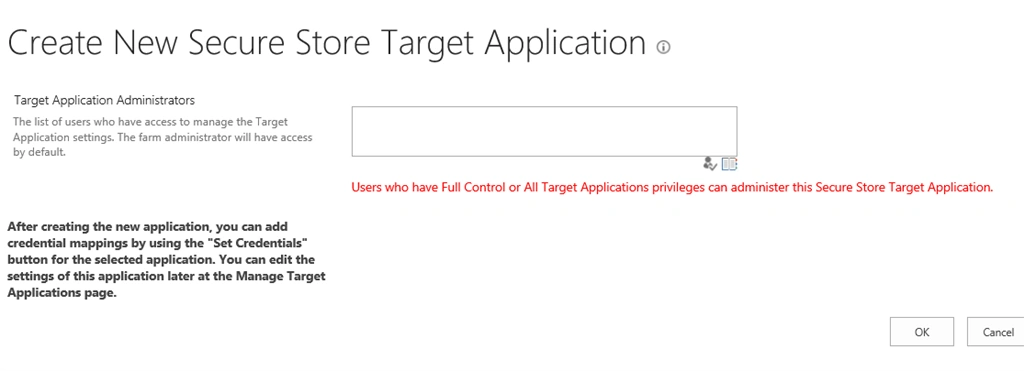
Add all users who have access to manage the target application settings. Click Ok to close the wizard for Target application creation. - Next step is to set credentials of a target application.
- Point to Target application and select ‘Set Credential’ on a menu bar.
- Enter the credential and click ‘Ok’ to close the window.
- Once you have set the credentials for the target application, it is ready to be used by a SharePoint Server service.
Step 2 - Create External Content Type(ECT) in SharePoint Designer
- Open Site Collection in SharePoint designer.
- Click on External Content Type on left navigation bar,
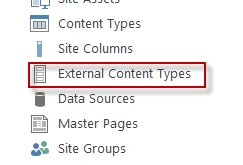
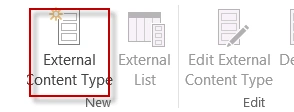
- Click on External Content Type on a top ribbon bar
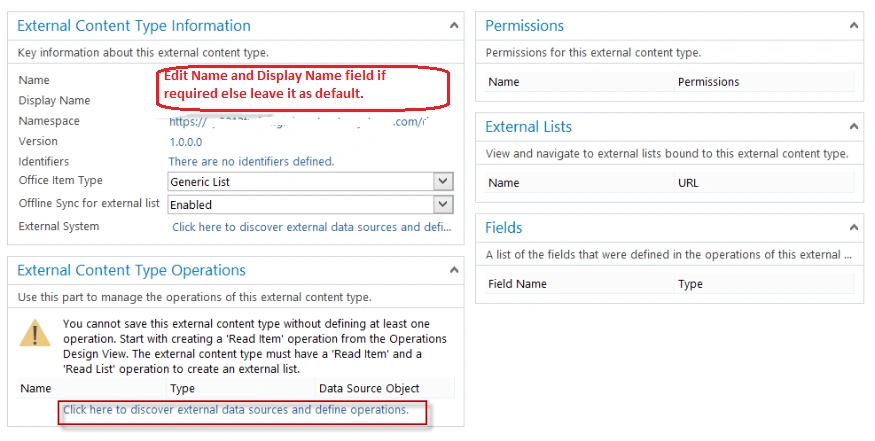
- Make the changes if required in Name and Display Name and click on the bottom to set connection with an external system for data retrieval.
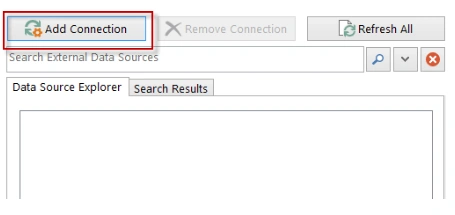
- Click on ‘Add Connection’ to start connection wizard.
- Select Data Source Type to ‘SQL Server’ to connect within external SQL database.
- In the next window add connection property.
a) Database Server: <IP\ Database server name>
b) Database Name: <database name, which you want to connect with>
c) Select the option <Connect with Impersonated Windows Identity>. Once you select it, a field Secure Store Application ID will be enabled.
d) Since we have not configured the Secure store service yet, so you can leave it blank for now and it can be edited later. If you have configured it, then add application ID here.
- Once you click ‘Ok’ to complete this step, it will pop-up for authentication with user\ service account for which you have permission on SQL Server.
- If it authenticates, then it will expand the database on the same window with all tables to select.
- Right click on the table which you want to read from the database and click on ‘New Read Item Operation’ to initiate the wizard.
- No need to change anything (Optionally you can change the Display Name and fields name) click Next and Finish to complete the wizard.
- In the same way, Right click on the same table and click on ‘New Read List Operation’ and compete for the wizard.
- Now we are done with external content type and moving to configure the BDC in the next step.
Step 3 - Create and configure Business Data Connectivity (BDC) Service
- Open Central Administrator(CA) page and go-to>> Application Management>> Manage Service Application.

- Click on New>> Business Data Connectivity Service to create new BDC service.
Enter the name and application pool rest all leave with default values. Press ‘Ok’ button to create BDC. - Now click on new created BDC>> click on ‘Configure’ in top ribbon bar to start the configuration.
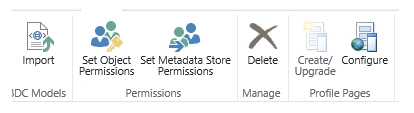
- On the configuration page, enter the site collection where you have created the external content type.
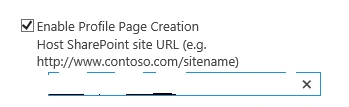
- Now select the BDC to create in the last step and click on ‘Create an Upgrade Profile Page’. It will take a few seconds to configure it. Once it is created you will get a confirmation message like below.
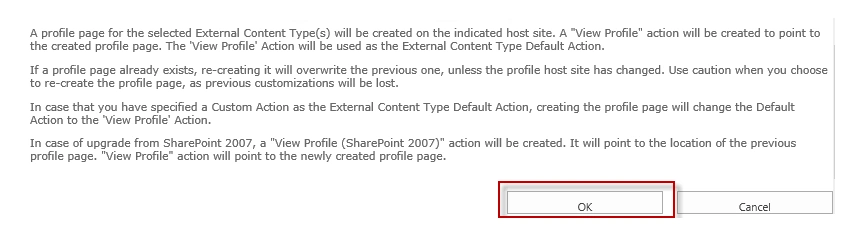
Click ‘ok’ to close the confirmation message.
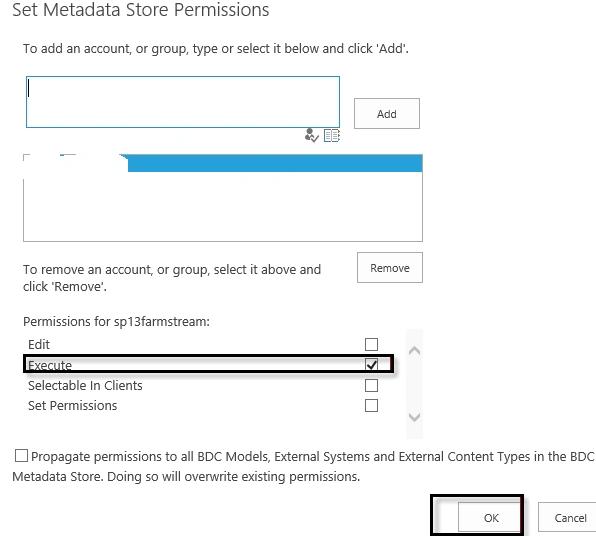
- Now select the created BDC and set the metadata store permission.

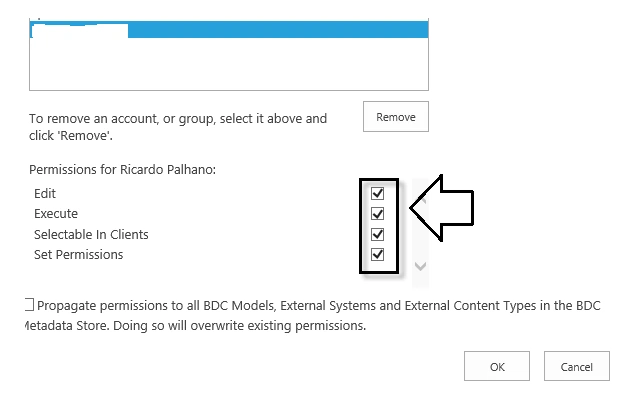
- Now select the ‘Set Object Permission’. Add admin user in a window and grant all permissions.
- Here we are done with BDC configuration. Now moving to configure the Search Service Application to start a search.
Step 4 - Create Search Service Application and run full crawl:
- Open Central Admin Page>> Application management>> Manage Service Applications.

- Click on Search Service Application.
- Create Content Source by clicking in the left navigation panel.
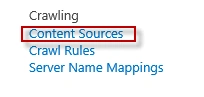
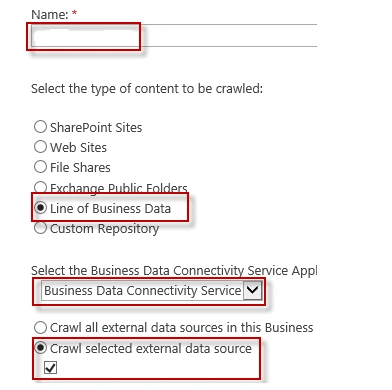
- Click New Content Source to create new.

- Fill the required details.
- Once you have created the Search Service Application, click on it you will get the below options
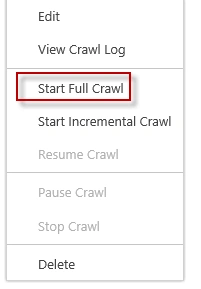
- Start the Full Crawl from here.
- While crawling, you may check the crawl status from Crawl Log available in the left navigation panel.
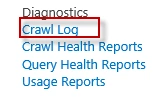
- Once it is completed, it will show the status as Ideal.
- Now you are done with content indexing, the next step is to setup search center.
Step 5 - Create Search Centre and start the search:
- Go-to Central Admin>> Application management>> Create Site Collection.
- Select Enterprise tab and select Enterprise Search Center template to create search center site.
- Open the site collection and Start searching.

Jeevanandham MPosted Oct 31, 2018, 1:20 AM
Thanks for sharing......