

Introduction
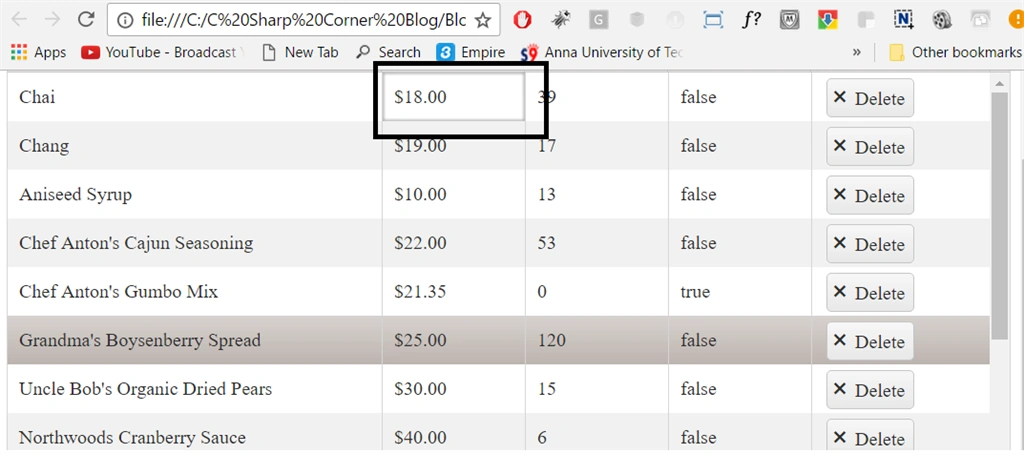
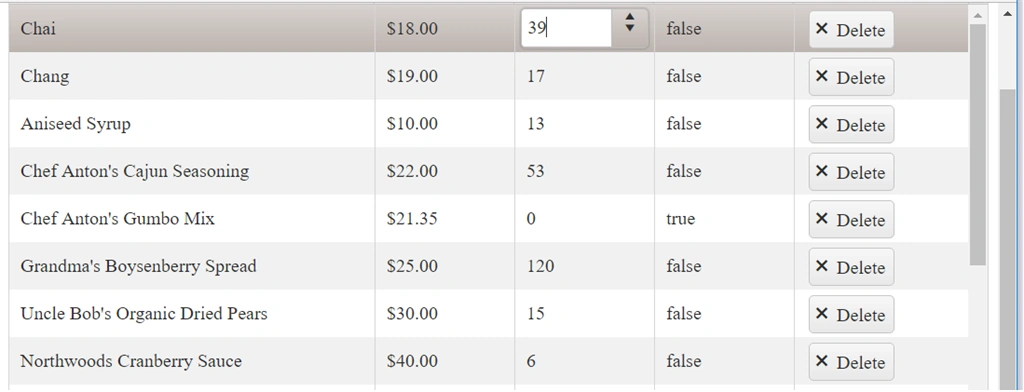
Normally, the navigation in Kendo Grid is enabled using the navigable property, which I have explained in my previous article. By doing this, we can switch from one cell to another cell using the tab key, but this navigation happens in all the cells of the Grid regardless of them being editable or non editable cells. This blog tells you how to skip the non-editable cell during navigation.
Normally, the navigation in Kendo Grid is enabled using the navigable property, which I have explained in my previous article. By doing this, we can switch from one cell to another cell using the tab key, but this navigation happens in all the cells of the Grid regardless of them being editable or non editable cells. This blog tells you how to skip the non-editable cell during navigation.
Kendo Grid With Navigation
Create a new HTML page. In my case, I named it kendoGrid.html.
KendoGrid.html
- <!DOCTYPE html>
- <html>
- <head>
- <meta charset="utf-8">
- <title>Untitled</title>
- <link rel="stylesheet" href="http://kendo.cdn.telerik.com/2017.1.118/styles/kendo.common.min.css">
- <link rel="stylesheet" href="http://kendo.cdn.telerik.com/2017.1.118/styles/kendo.rtl.min.css">
- <link rel="stylesheet" href="http://kendo.cdn.telerik.com/2017.1.118/styles/kendo.default.min.css">
- <link rel="stylesheet" href="http://kendo.cdn.telerik.com/2017.1.118/styles/kendo.mobile.all.min.css">
- <script src="http://code.jquery.com/jquery-1.12.3.min.js"></script>
- <script src="http://kendo.cdn.telerik.com/2017.1.118/js/angular.min.js"></script>
- <script src="http://kendo.cdn.telerik.com/2017.1.118/js/jszip.min.js"></script>
- <script src="http://kendo.cdn.telerik.com/2017.1.118/js/kendo.all.min.js"></script></head>
- <body>
- <div id="example">
- <div id="grid"></div>
- <script>
- $(document).ready(function () {
- var crudServiceBaseUrl = "https://demos.telerik.com/kendo-ui/service",
- dataSource = new kendo.data.DataSource({
- transport: {
- read: {
- url: crudServiceBaseUrl + "/Products",
- dataType: "jsonp"
- },
- update: {
- url: crudServiceBaseUrl + "/Products/Update",
- dataType: "jsonp"
- },
- destroy: {
- url: crudServiceBaseUrl + "/Products/Destroy",
- dataType: "jsonp"
- },
- create: {
- url: crudServiceBaseUrl + "/Products/Create",
- dataType: "jsonp"
- },
- parameterMap: function(options, operation) {
- if (operation !== "read" && options.models) {
- return {models: kendo.stringify(options.models)};
- }
- }
- },
- batch: true,
- pageSize: 20,
- schema: {
- model: {
- id: "ProductID",
- fields: {
- ProductID: { editable: false, nullable: true },
- ProductName: { validation: { required: true } },
- UnitPrice: { type: "number", editable:false },
- Discontinued: { type: "boolean", editable:false },
- UnitsInStock: { type: "number", validation: { min: 0, required: true } }
- }
- }
- }
- });
- $("#grid").kendoGrid({
- dataSource: dataSource,
- navigatable: true,
- pageable: true,
- height: 550,
- toolbar: ["create", "save", "cancel"],
- columns: [
- {field:"ProductName",attributes: { class: "editable-cell" }},
- { field: "UnitPrice", title: "Unit Price", format: "{0:c}", width: 120 },
- { field: "UnitsInStock", title: "Units In Stock", width: 120, attributes: { class: "editable-cell" } },
- { field: "Discontinued", width: 120 },
- { command: "destroy", title: " ", width: 150 }],
- editable: true
- })
- });
- </script>
- </div>
- </body>
- </html>
Chad RichardsonPosted May 18, 2018, 4:21 PM
Hello Gowtham, thanks for putting this together, but I am having an issue with it. The code **if (!current.hasClass("editable-cell"))** is always false, so the code within it will never fire. Which makes sense, because presumably, the current cell is an editable cell that you are in. What am I missing?
Nikhil SanganiPosted Feb 22, 2017, 3:09 AM
Really nice explanation of skip non editable column. thanks for sharing.