
My application was published on local folder and then published on server. The initial deploy worked well. After I made some updates, the migration does not start after updating the files on server.
The EFSQLScripts folder contains the sql script including all migrations and it was automatically created during publish process
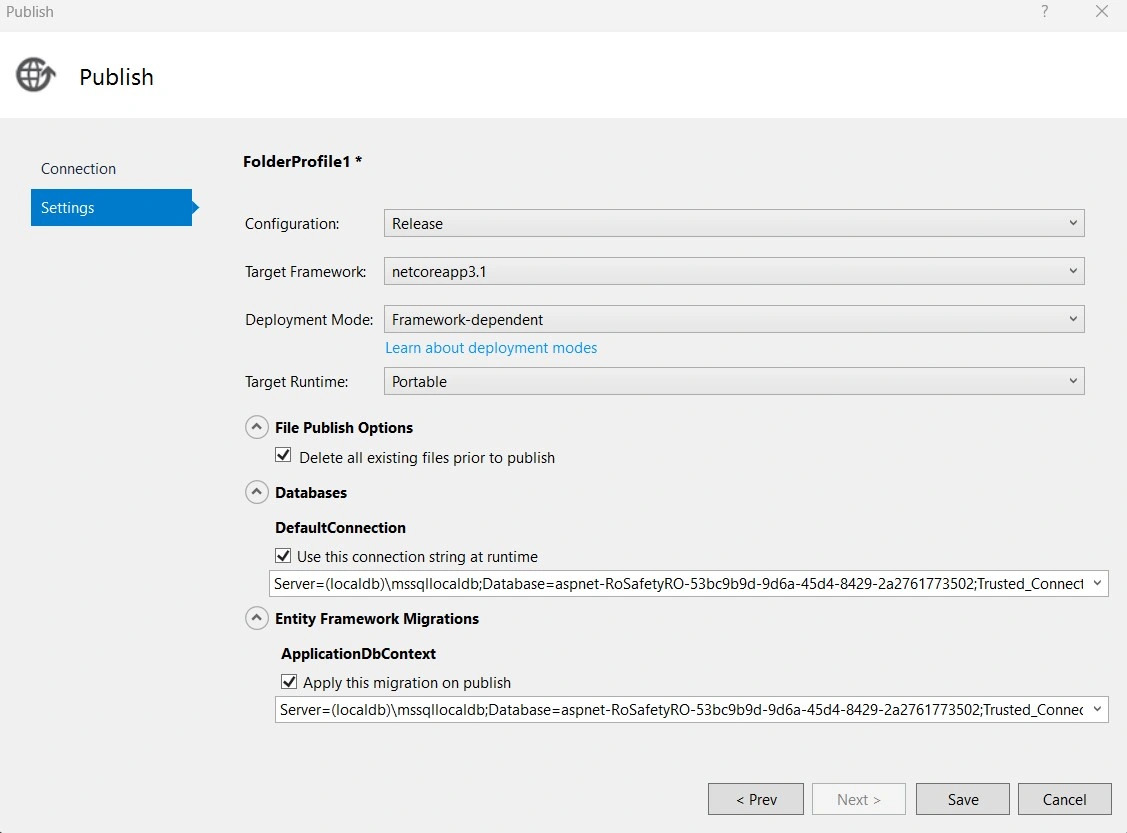
I am using Visual Studio Community 2019. My publish settings are
Naimish MakwanaPosted Feb 20, 2023, 4:13 AM
Hello Marius,
Please check below possiblity for the exception:
Thanks
Naimish Makwana
Marius VasilePosted Feb 20, 2023, 5:02 PM
Naimish
Marius VasilePosted Feb 20, 2023, 5:00 PM
So, I checked my sql file and it has all new added info like
of course from first to migration no.3
Naimish MakwanaPosted Feb 20, 2023, 4:06 AM
Hello Marius,
Please check the server logs. Please see if there are any error messages related to the migration process. This could give you some clues.
Please check below link which might help you.
https://stackoverflow.com/a/59184689/3054222
Thanks
Naimish Makwana
Marius VasilePosted Feb 20, 2023, 3:58 AM
Thank you all for suggestions, The error window is below.
To answer other questions
I am using a shared server services. I created the database but I don't have full access to it, is on a shared drive. EFSQL script is created at publish and contains the migration. I will send a message to admin to check database
Vishal JoshiPosted Feb 20, 2023, 2:55 AM
Hello Marius,
Can you please check the output window for errors or response messages?
Please share if any warning or error in output window.
Thanks
Tuhin PaulPosted Feb 19, 2023, 8:43 PM
Hi Marius,
It seems like there could be a few potential reasons why the migration is not running after the application has been updated on the server.
Please check the following pointers :
1. Check the database connection string: Make sure that the database connection string in the web.config file is correct and matches the settings in the server environment. If the connection string is incorrect, the migration will not run.
2. Verify the Migrations configuration: Check that the database context has migrations enabled and that the migration configuration is correct. Ensure that there is a MigrationHistory table in the database.
3. Check if the automatic migration is enabled: If the automatic migration is disabled, then the migration will not run. Ensure that the AutomaticMigrationsEnabled property is set to true in the database context configuration.
4. Ensure that the EFSQLScripts folder is correctly deployed: The EFSQLScripts folder must be included in the deployment package and copied to the server. Double-check that the folder is being copied to the correct location on the server and that it is not being blocked by any security settings.
5. Check the server environment: Make sure that the server environment meets the requirements for the application to run correctly.
6. Check the migration logs: Check the application logs to see if there are any errors related to the migration. These logs can help identify the root cause of the issue.