I am hiding some columns in datagridview. When transferring data from Datagridview to Excel, hidden columns appear as empty columns. How can we prevent empty columns from appearing?
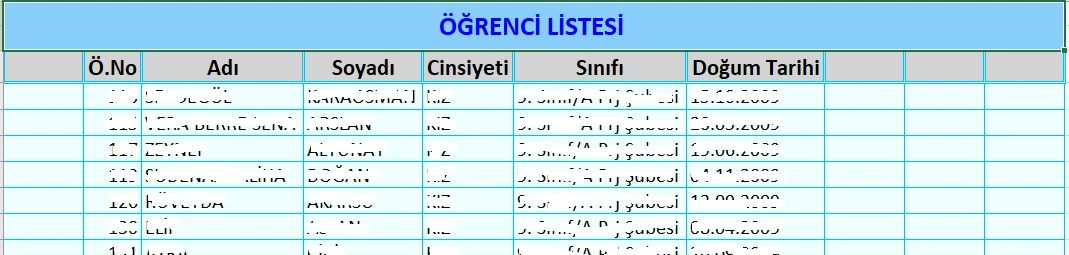
private void ExceleAktar_Load(object sender, EventArgs e)
{
    SinifCek();
    ComboBox1.SelectedIndex = 0;

    DGV.AutoSizeColumnsMode = DataGridViewAutoSizeColumnsMode.AllCells;
    DGV.AutoSizeColumnsMode = DataGridViewAutoSizeColumnsMode.Fill;

    DGV.Columns["tcno"].Visible = tcnochk.Checked;
    DGV.Columns["dtarihi"].Visible = dogchk.Checked;
    DGV.Columns["atel"].Visible = atelchk.Checked;
    DGV.Columns["btel"].Visible = btelchk.Checked;

    DGV.TopLeftHeaderCell.Value = "S.No";
    DGV.Columns[0].HeaderText = "T.C.No";
    DGV.Columns[1].HeaderText = "Ö.No";
    DGV.Columns[2].HeaderText = "Adi";
    DGV.Columns[3].HeaderText = "Soyadi";
    DGV.Columns[4].HeaderText = "Cinsiyeti";
    DGV.Columns[5].HeaderText = "Sinifi";
    DGV.Columns[7].HeaderText = "Anne Tel";
    DGV.Columns[8].HeaderText = "Baba Tel";
}

public void Export_DataGridView_To_Excel(DataGridView DGV, string filename)
{
    string[] Alphabit = { "A", "B", "C", "D", "E", "F", "G", "H", "I", "J", "K", "L", "M", "N", "O", "P", "Q", "R", "S", "T", "U", "V", "W", "X", "Y", "Z" };

    string Range_Letter = Alphabit[DGV.Columns.Count];
    string Range_Row = (DGV.Rows.Count + 1).ToString();

    if (File.Exists(filename))
    {
        File.Delete(filename);
    }

    Excel.Application oApp;
    Excel.Worksheet oSheet;
    Excel.Workbook oBook;

    oApp = new Excel.Application();
    oBook = oApp.Workbooks.Add();
    oSheet = (Excel.Worksheet)oBook.Worksheets.get_Item(1);

    int excelColumn = 2;
    for (int dgvColumn = 0; dgvColumn < DGV.Columns.Count; dgvColumn++)
    {
        if (DGV.Columns[dgvColumn].Visible == true)
        {
            oSheet.Cells[1, excelColumn] = DGV.Columns[dgvColumn].HeaderText;
            excelColumn++;
        }
    }

    for (int i = 0; i < DGV.Rows.Count; i++)
    {
        excelColumn = 2;
        for (int j = 0; j < DGV.Columns.Count; j++)
        {
            if (DGV.Columns[j].Visible == true)
            {
                oSheet.Cells[i + 2, excelColumn] = DGV.Rows[i].Cells[j].Value;
                excelColumn++;
            }
        }
    }

    Range rng1 = oSheet.get_Range("A1", Range_Letter + "1");
    rng1.Font.Size = 14;
    rng1.Font.Bold = true;
    rng1.Cells.Borders.LineStyle = XlLineStyle.xlDouble;
    rng1.Cells.Borders.Color = System.Drawing.Color.DeepSkyBlue;
    rng1.Font.Color = System.Drawing.Color.Black;
    rng1.HorizontalAlignment = XlHAlign.xlHAlignCenter;
    rng1.Interior.Color = System.Drawing.Color.LightGray;

    Range rng2 = oSheet.get_Range("A2", Range_Letter + Range_Row);
    rng2.WrapText = false;
    rng2.Font.Size = 12;
    rng2.Cells.Borders.LineStyle = XlLineStyle.xlContinuous;
    rng2.Cells.Borders.Color = System.Drawing.Color.DeepSkyBlue;
    rng2.VerticalAlignment = XlVAlign.xlVAlignCenter;
    rng2.Interior.Color = System.Drawing.Color.Azure;
    rng2.EntireColumn.AutoFit();
    rng2.EntireRow.AutoFit();

    oSheet.get_Range("A1", Range_Letter + "2").EntireRow.Insert(XlInsertShiftDirection.xlShiftDown, Missing.Value);
    oSheet.Cells[1, 3] = "ÖGRENCI LISTESI ";
    Range rng3 = oSheet.get_Range("A1", Range_Letter + "2");
    rng3.Merge(Missing.Value);
    rng3.Font.Size = 16;
    rng3.Font.Color = System.Drawing.Color.Blue;
    rng3.Font.Bold = true;
    rng3.VerticalAlignment = XlVAlign.xlVAlignCenter;
    rng3.HorizontalAlignment = XlVAlign.xlVAlignCenter;
    rng3.Interior.Color = System.Drawing.Color.LightSkyBlue;

    oBook.SaveAs(filename);
    MessageBox.Show("Your file is saved");
    oBook.Close();
    oApp.Quit();
}

private void ComboBox1_SelectedIndexChanged(object sender, EventArgs e)
{
    using (OleDbConnection conn = new OleDbConnection(@"Provider=Microsoft.ACE.OLEDB.12.0;Data Source = siniflisteleri25.accdb; Jet OLEDB:Database Password = Fatih2541; Mode = ReadWrite"))
    {
        string query = "SELECT tcno,ono,isim,soyisim,cinsiyet,sinifi,dtarihi,atel,btel from ogrencibilgileri25 where sinifi='" + ComboBox1.Text + " '";
        OleDbCommand command = new OleDbCommand(query, conn);
        conn.Open();
        var adapter = new OleDbDataAdapter(command);
        var table = new System.Data.DataTable();
        adapter.Fill(table);
        DGV.DataSource = table;
        conn.Close();
    }
}

private void tcnochk_CheckedChanged(object sender, EventArgs e)
{
    DGV.Columns["tcno"].Visible = tcnochk.Checked;
}

private void dogchk_CheckedChanged(object sender, EventArgs e)
{
    DGV.Columns["dtarihi"].Visible = dogchk.Checked;
}

private void atelchk_CheckedChanged(object sender, EventArgs e)
{
    DGV.Columns["atel"].Visible = atelchk.Checked;
}

private void btelchk_CheckedChanged(object sender, EventArgs e)
{
    DGV.Columns["btel"].Visible = btelchk.Checked;
}
Prasad RaveendranPosted Nov 4, 2023, 10:12 PM
It seems that the code block provided is responsible for formatting the Excel sheet. To adjust this code to accommodate the dynamic column count (which might change based on the data and empty columns), you can modify it to apply formatting based on the actual columns exported. Here is a revised version of the formatting code:
This revised code adapts the formatting section to consider the actual columns that are being included in the export process, and adjusts the range used for formatting the Excel file based on those included columns.
Make sure to test this modification and adapt the formatting as needed to match your specific Excel layout requirements.
Mehmet FatihPosted Nov 4, 2023, 10:44 PM
Thank you very much Prasad. You are fine. In the end, The problem was solved thanks to you. I'm ashamed to say it, but the same problem exists when transferring to word. Can we solve it too?
Mehmet FatihPosted Nov 4, 2023, 9:56 PM
Prasad, I am so sorry. thatI bothered you. In my research, I found that the reason why the code did not work properly was due to the code block below. But I don't know how to change it
Range rng1 = oSheet.get_Range("A1", Range_Letter + "1");
rng1.Font.Size = 14;
rng1.Font.Bold = true;
rng1.Cells.Borders.LineStyle = XlLineStyle.xlDouble;
rng1.Cells.Borders.Color = System.Drawing.Color.DeepSkyBlue;
rng1.Font.Color = System.Drawing.Color.Black;
rng1.HorizontalAlignment = XlHAlign.xlHAlignCenter;
rng1.Interior.Color = System.Drawing.Color.LightGray;
Range rng2 = oSheet.get_Range("A2", Range_Letter + Range_Row);
rng2.WrapText = false;
rng2.Font.Size = 12;
rng2.Cells.Borders.LineStyle = XlLineStyle.xlContinuous;
rng2.Cells.Borders.Color = System.Drawing.Color.DeepSkyBlue;
rng2.VerticalAlignment = XlVAlign.xlVAlignCenter;
rng2.Interior.Color = System.Drawing.Color.Azure;
rng2.EntireColumn.AutoFit();
rng2.EntireRow.AutoFit();
oSheet.get_Range("A1", Range_Letter + "2").EntireRow.Insert(XlInsertShiftDirection.xlShiftDown, Missing.Value);
oSheet.Cells[1, 3] = "ÖGRENCI LISTESI ";
Range rng3 = oSheet.get_Range("A1", Range_Letter + "2");
rng3.Merge(Missing.Value);
rng3.Font.Size = 16;
rng3.Font.Color = System.Drawing.Color.Blue;
rng3.Font.Bold = true;
rng3.VerticalAlignment = XlVAlign.xlVAlignCenter;
rng3.HorizontalAlignment = XlVAlign.xlVAlignCenter;
rng3.Interior.Color = System.Drawing.Color.LightSkyBlue;
Prasad RaveendranPosted Nov 4, 2023, 8:16 PM
Apologies for the confusion earlier. It seems the issue might be related to the method
CheckIfColumnHasData, which might not be accurately determining whether a column is entirely empty. Let's refine the approach to exclude empty columns when exporting to Excel. Try this alternative method:This adjusted code directly checks each cell in the DataGridView to determine if it has non-empty data. If any cell in a column has non-empty data, the entire column will be included in the exported Excel file.
If after making these adjustments, the empty columns are still present in the Excel output, the issue might lie in other parts of the code or the way the DataGridView is populated. Ensure that the DataGridView does not contain empty columns before the export process begins and verify the visibility toggling logic as well.
Mehmet FatihPosted Nov 4, 2023, 8:07 PM
I am sorry, Prasad but the result is the same. There is no change.
Prasad RaveendranPosted Nov 4, 2023, 7:52 PM
Sorry to hear that. Let us try the below approach.
It seems the code is checking for empty cells within each column, but it doesn't remove the empty columns entirely. To remove the empty columns, you need to dynamically adjust the width of the columns or skip writing the empty columns to the Excel file altogether. Here's an adjustment in your existing code to skip writing empty columns:
In this modified version,
columnsToIncludestores the indices of the columns that have non-empty data. During the data export loop, it writes only the columns present in thecolumnsToIncludelist to the Excel file, effectively skipping the empty columns.Ensure that the formatting code after the data export section remains intact and customize it as per your requirements.
This approach will exclude the empty columns from being written to the Excel file while still maintaining the data and formatting for the non-empty columns.
Mehmet FatihPosted Nov 4, 2023, 6:13 AM
Prasad, thanks for your intrest. I modified my codes as in the following. But I am sorry to inform that the result is the same.
public void Export_DataGridView_To_Excel(DataGridView DGV, string filename)
{
string[] Alphabit = { "A", "B", "C", "D", "E", "F", "G", "H", "I", "J", "K", "L", "M",
"N", "O","P", "Q", "R", "S", "T", "U", "V", "W", "X", "Y", "Z" };
string Range_Letter = Alphabit[DGV.Columns.Count];
string Range_Row = (DGV.Rows.Count + 1).ToString();
if (File.Exists(filename))
{
File.Delete(filename);
}
Excel.Application oApp;
Excel.Worksheet oSheet;
Excel.Workbook oBook;
oApp = new Excel.Application();
oBook = oApp.Workbooks.Add();
oSheet = (Excel.Worksheet)oBook.Worksheets.get_Item(1);
int excelColumn = 2;
for (int dgvColumn = 0; dgvColumn < DGV.Columns.Count; dgvColumn++)
{
if (DGV.Columns[dgvColumn].Visible == true && CheckIfColumnHasData(DGV.Columns[dgvColumn]))
{
oSheet.Cells[1, excelColumn] = DGV.Columns[dgvColumn].HeaderText;
excelColumn++;
}
}
for (int i = 0; i < DGV.Rows.Count; i++)
{
excelColumn = 2;
for (int j = 0; j < DGV.Columns.Count; j++)
{
if (DGV.Columns[j].Visible == true && CheckIfColumnHasData(DGV.Columns[j]))
{
oSheet.Cells[i + 2, excelColumn] = DGV.Rows[i].Cells[j].Value;
excelColumn++;
}
}
}
//Add some formatting
Range rng1 = oSheet.get_Range("A1", Range_Letter + "1");
rng1.Font.Size = 14;
rng1.Font.Bold = true;
rng1.Cells.Borders.LineStyle = XlLineStyle.xlDouble;
rng1.Cells.Borders.Color = System.Drawing.Color.DeepSkyBlue;
rng1.Font.Color = System.Drawing.Color.Black;
rng1.HorizontalAlignment = XlHAlign.xlHAlignCenter;
rng1.Interior.Color = System.Drawing.Color.LightGray;
Range rng2 = oSheet.get_Range("A2", Range_Letter + Range_Row);
rng2.WrapText = false;
rng2.Font.Size = 12;
rng2.Cells.Borders.LineStyle = XlLineStyle.xlContinuous;
rng2.Cells.Borders.Color = System.Drawing.Color.DeepSkyBlue;
rng2.VerticalAlignment = XlVAlign.xlVAlignCenter;
rng2.Interior.Color = System.Drawing.Color.Azure;
rng2.EntireColumn.AutoFit();
rng2.EntireRow.AutoFit();
//Add a header row
oSheet.get_Range("A1", Range_Letter + "2").EntireRow.Insert(XlInsertShiftDirection.xlShiftDown, Missing.Value);
oSheet.Cells[1, 3] = "ÖGRENCI LISTESI ";
Range rng3 = oSheet.get_Range("A1", Range_Letter + "2");
rng3.Merge(Missing.Value);
rng3.Font.Size = 16;
rng3.Font.Color = System.Drawing.Color.Blue;
rng3.Font.Bold = true;
rng3.VerticalAlignment = XlVAlign.xlVAlignCenter;
rng3.HorizontalAlignment=XlVAlign.xlVAlignCenter;
rng3.Interior.Color = System.Drawing.Color.LightSkyBlue;
oBook.SaveAs(filename);
MessageBox.Show("Your file is saved");
oBook.Close();
oApp.Quit();
}
private bool CheckIfColumnHasData(DataGridViewColumn column)
{
foreach (DataGridViewRow row in DGV.Rows)
{
if (row.Cells[column.Index].Value != null && !string.IsNullOrEmpty(row.Cells[column.Index].Value.ToString()))
{
return true; // Column has non-empty data
}
}
return false; // Column is empty
}
Prasad RaveendranPosted Nov 4, 2023, 3:45 AM
To exclude empty columns when exporting a DataGridView to Excel, you can modify the logic within the
Export_DataGridView_To_Excelmethod. In this context, you're currently checking for column visibility, but you can further extend this to exclude empty columns based on the data in each column.Here's an example of how you might modify the method:
This adjustment adds a
CheckIfColumnHasDatamethod that checks if a column in the DataGridView has any non-empty data. TheExport_DataGridView_To_Excelmethod is then updated to use this check along with the column visibility condition to exclude empty columns while exporting to Excel.This change ensures that only columns with non-empty data will be exported to the Excel file. Adjust the method according to your exact requirements and test it thoroughly to ensure it fits your needs.