

Introduction
In this article we will learn how to add data to a GridView at run time through the LINQ. Here we will add details of a book such as the name of the author, the book name and its price dynamically using the user's input and this information is added to the GridView. There is no limitation to how many records can be added to the GridView. To create this mini project we will use a generic type List class and an IEnumerable type variable that is necessary to do the LINQ operation.
In the following we are including the entire code of the XAML file and the code behind file to create this mini application.
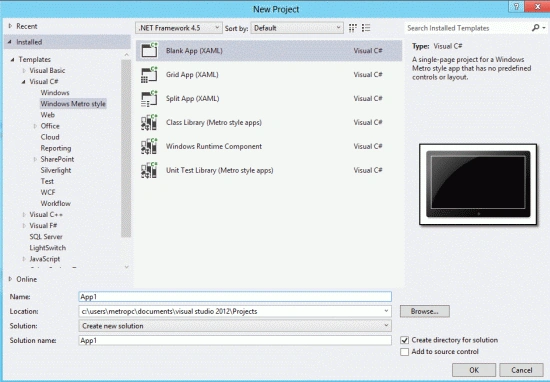
Step 1 : First, you will create a new Metro Style Application. Let us see the description with images of how you will create it.
- Open Visual Studio 2012
- File -> New -> Project
- Choose Template -> Visual C# -> Metro Style Application
- Rename the application
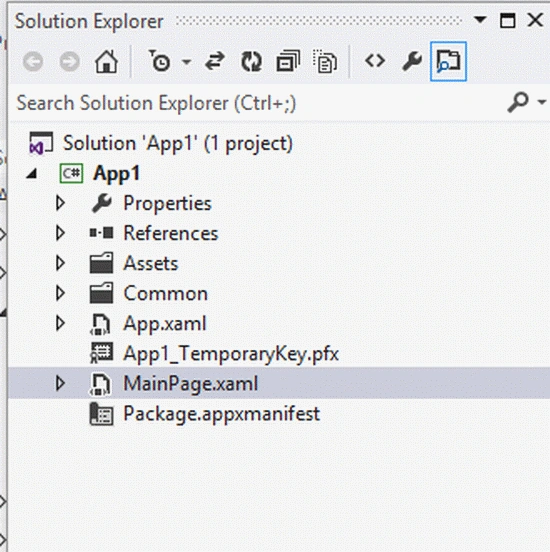
Step 2 : In the Solution Explorer there are two files that we will primarily work with; the MainPage.xaml and MainPage.xaml.cs files.
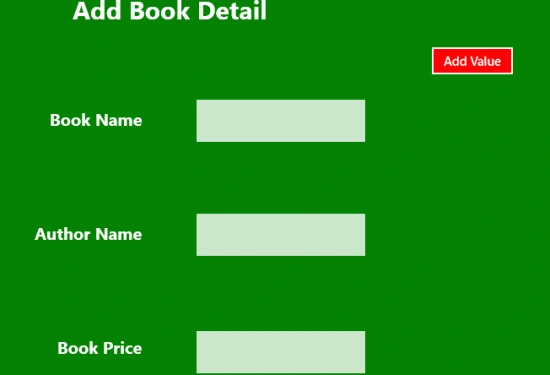
Step 3 : The MainPage.xaml file is as in the following code:
Code :
<Page
x:Class="App1.MainPage"
IsTabStop="false"
xmlns="http://schemas.microsoft.com/winfx/2006/xaml/presentation"
xmlns:x="http://schemas.microsoft.com/winfx/2006/xaml"
xmlns:local="using:App10"
xmlns:d="http://schemas.microsoft.com/expression/blend/2008"
xmlns:mc="http://schemas.openxmlformats.org/markup-compatibility/2006"
mc:Ignorable="d">
<Grid Background="Green">
<Grid.RowDefinitions>
<RowDefinition Height=".333*"></RowDefinition>
<RowDefinition Height=".333*"></RowDefinition>
</Grid.RowDefinitions>
<Grid Grid.Row="0">
<Grid.ColumnDefinitions>
<ColumnDefinition Width=".333*"></ColumnDefinition>
<ColumnDefinition Width=".023*"></ColumnDefinition>
<ColumnDefinition Width=".333*"></ColumnDefinition>
</Grid.ColumnDefinitions>
<Grid.RowDefinitions>
<RowDefinition Height=".333*"></RowDefinition>
<RowDefinition Height=".333*"></RowDefinition>
<RowDefinition Height=".333*"></RowDefinition>
<RowDefinition Height=".333*"></RowDefinition>
</Grid.RowDefinitions>
<Button Content="Add Value" Background="Red" Grid.Column="2" Margin="276,37,0,21" Click="Button_Click_1"></Button>
<TextBlock Grid.Row="0" Grid.Column="0" Grid.ColumnSpan="3" Text="Add Book Detail" FontSize="30" FontWeight="ExtraBold" HorizontalAlignment="Center"></TextBlock>
<TextBlock Text="Book Name" FontSize="20" Grid.Column="0" Grid.Row="1" HorizontalAlignment="Right" FontWeight="Bold"></TextBlock>
<TextBlock Text="Author Name" FontSize="20" Grid.Column="0" Grid.Row="2" HorizontalAlignment="Right" FontWeight="Bold"></TextBlock>
<TextBlock Text="Book Price" FontSize="20" Grid.Column="0" Grid.Row="3" HorizontalAlignment="Right" FontWeight="Bold"></TextBlock>
<TextBox x:Name="txt1" Grid.Column="2" Width="200" Height="50" HorizontalAlignment="Left" Margin="0,83,0,59" Grid.RowSpan="2"/>
<TextBox x:Name="txt2" Grid.Column="2" Grid.Row="1" Width="200" Height="50" HorizontalAlignment="Left" Margin="0,83,0,59" Grid.RowSpan="2"></TextBox>
<TextBox x:Name="txt3" Grid.Column="2" Grid.Row="2" Width="200" Height="50" HorizontalAlignment="Left" Margin="0,87,0,55" Grid.RowSpan="2"></TextBox>
</Grid>

Join the conversation! Your thoughts help the community grow.