

Steps for building/creating a Simple Dictionary Application
Prerequisite
- Microsoft Visual Studio any version (2008/2010/2012/2013)
- MySQL
Step 1: Open Microsoft Visual Studio by clicking on the start button, All programs, then Microsoft Visual Studio.
Step 2: Select File, new, project, then under installed templates select Visual C#. After that select windows option and then choose windows form application and provide the name for the application and select where you wish to save your project
Step 3: There will be default form which will be displayed in the IDE. Now drag and drop the required controls/components from the toolbox which is on the left side of the IDE. If the toolbox is not displayed goto the view tab and there you will find the toolbox
Step 4: After the controls/components are dragged and dropped from the toolbox, simply right click on the control and select the property and change the look and feel of that control according to one’s choice.
Step 5: Once the property of the controls are changed then click on the button which you might have dragged and dropped.
Sample Form is shown below:
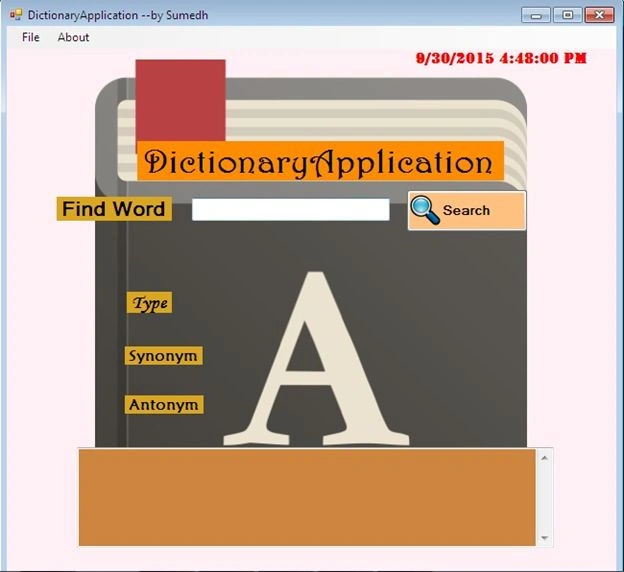
Simply double click on the button and you will be redirected to the Button_Click event and you have to write the following code:
- private void button1_Click(object sender, EventArgs e)
- {
- try
- {
- con.Open();
- s = "select * from dictionary.dictionaryApp where word='" + this.Search_txt.Text + "' ";
- cmd = new MySqlCommand(s, con);
- myReader = cmd.ExecuteReader();
- if (myReader.Read())
- {
- lbl_type.Text = myReader.GetString("type");
- textBox2.Text = myReader.GetString("meaning");
- lbl_synonym.Text = myReader.GetString("synonyn");
- lbl_antonym.Text = myReader.GetString("antonym");
- lbl_sorry.Text = "";
- }
- else
- {
- lbl_sorry.Text = "Sorry no such word found!! Try different word";
- lbl_type.Text = "";
- textBox2.Text = "";
- lbl_synonym.Text = "";
- lbl_antonym.Text = "";
- }
- }
- catch (Exception ex)
- {
- MessageBox.Show(ex.Message);
- }
- finally
- {
- myReader.Close();
- con.Close();
- }
- }
Along with that you also need to write the code for the textbox in the search form, this textbox is not a regular textbox, it will function as autocomplete textbox. For this you will create a user defined function and the code for that function is mentioned below and you need to call this function below the IntializeComponent(); function which is there in the constructor of the form i.e:public Form1().
The code is mentioned below:
- public Form1()
- {
- InitializeComponent();
- AutoCompleteText();
- timer1.Start();
- }
- void AutoCompleteText()
- {
- Search_txt.AutoCompleteMode = AutoCompleteMode.SuggestAppend;
- Search_txt.AutoCompleteSource = AutoCompleteSource.CustomSource;
- AutoCompleteStringCollection col = new AutoCompleteStringCollection();
- string data = "datasource=localhost;port=3306;username=root;password=root";
- string query = "select * from dictionary.dictionaryApp";
- MySqlConnection con = new MySqlConnection(data);
- MySqlCommand cmd = new MySqlCommand(query, con);
- MySqlDataReader myReader;
- try
- {
- con.Open();
- myReader = cmd.ExecuteReader();
- while (myReader.Read())
- {
- string sword = myReader.GetString("word");
- col.Add(sword);
- }
- }
- catch (Exception ex)
- {
- MessageBox.Show(ex.Message);
- }
- Search_txt.AutoCompleteCustomSource = col;
- }
- File
- About
And then in the File tab there should be 4 more sub-tabs which are:
- Add Word
- Update wordlist
- Delete Word
- Exit
And no sub-tab for About tab.
Step 7: Now, simply double click on the Add Word sub-tab and you will find there will be automated event generated for you like this:
- private void addWordToolStripMenuItem_Click(object sender, EventArgs e)
- {
- }
- Simply write the above code into the event which is been generated for you:
- private void addWordToolStripMenuItem_Click(object sender, EventArgs e)
- {
- Form2 f = new Form2();
- f.Show();
- }
Step 9: Once you have completed till this step, drag and drop the labels, textboxes and button according to your desire. For example,

Step 10: Now you need to double click on the add button which you have created in this form and write the following code:
- private void button1_Click(object sender, EventArgs e)
- {
- string str = "datasource=localhost;port=3306;username=root;password=root";
- string query = "insert into dictionary.dictionaryApp(word,type,meaning,synonyn,antonym) values('" + this.txt_word.Text + "','" + this.txt_type.Text + "','" + this.txt_meng.Text + "','" + this.txt_syn.Text + "','" + this.txt_ant.Text + "'); ";
- MySqlConnection con = new MySqlConnection(str);
- MySqlCommand cmd = new MySqlCommand(query, con);
- MySqlDataReader myReader;
- try
- {
- con.Open();
- myReader = cmd.ExecuteReader();
- while (myReader.Read())
- {
- }
- MessageBox.Show("Word Added Succesfully");
- this.Dispose();
- }
- catch (Exception ex)
- {
- MessageBox.Show(ex.Message);
- }
- }
- private void updateWordListToolStripMenuItem_Click(object sender, EventArgs e)
- {
- Form3 f = new Form3();
- f.Show();
- }
Sample form is shown below:
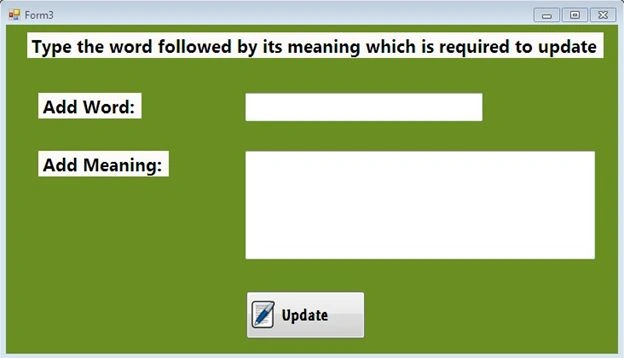
Step 13: Now double click on the button and you will be redirected to the event generated by the button and you need to write the following code which is mentioned below:
- private void button1_Click(object sender, EventArgs e)
- {
- string str = "datasource=localhost;port=3306;username=root;password=root";
- string query = "update dictionary.dictionaryApp set word='" + this.txt_word.Text + "',meaning='" + this.txt_meang.Text + "' where word='" + this.txt_word.Text + "'";
- MySqlConnection con = new MySqlConnection(str);
- MySqlCommand cmd = new MySqlCommand(query, con);
- MySqlDataReader myReader;
- try
- {
- con.Open();
- myReader= cmd.ExecuteReader();
- MessageBox.Show("Data Updated");
- while (myReader.Read())
- {
- }
- this.Dispose();
- }
- catch (Exception ex)
- {
- MessageBox.Show(ex.Message);
- }
- }
- private void deleteWordToolStripMenuItem_Click(object sender, EventArgs e)
- {
- Form4 f = new Form4();
- f.Show();
- }
Sample form is shown below:

Step 16: Now you need to double click on the button and there will be a button-click event which is automatically generated. Simply write this code into that event.
- private void button1_Click(object sender, EventArgs e)
- {
- DialogResult d = MessageBox.Show("Do you really want to delete ", "delete", MessageBoxButtons.YesNo);
- if (d == DialogResult.Yes)
- {
- string str = "datasource=localhost;port=3306;username=root;password=root";
- string query = "delete from dictionary.dictionaryApp where word='" + this.textBox1.Text + "'";
- MySqlConnection conn = new MySqlConnection(str);
- MySqlCommand cmd = new MySqlCommand(query, conn);
- MySqlDataReader myReader;
- try
- {
- conn.Open();
- myReader = cmd.ExecuteReader();
- MessageBox.Show("Word Deleted");
- while (myReader.Read())
- {
- }
- this.Close();
- }
- catch (Exception ex)
- {
- MessageBox.Show(ex.Message);
- }
- }
- else
- {
- MessageBox.Show("You'r word is safe");
- this.Dispose();
- }
- }
- private void exitToolStripMenuItem_Click_1(object sender, EventArgs e)
- {
- Application.Exit();
- }
A sample will look like the following;
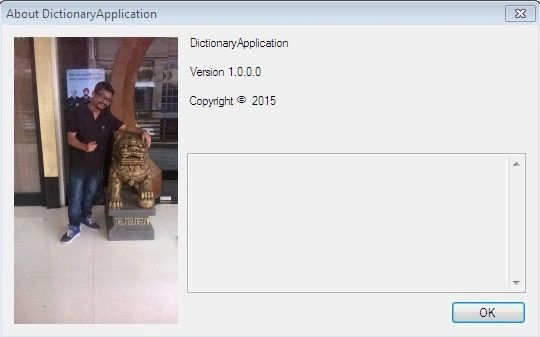
Now this was all about the UserInterface coding or the front end coding but there is still something which is needed. You will require to write the namespace in every form because we are using the database which is “MySql”. This namespace which you will write will allow the visual studio to create a link between visual studio and MySQL.
The namespace which you required is written below:
- using MySql.Data.MySqlClient;
Steps To Create The Database And Required Table
Step 1: Open the MySql Command prompt:
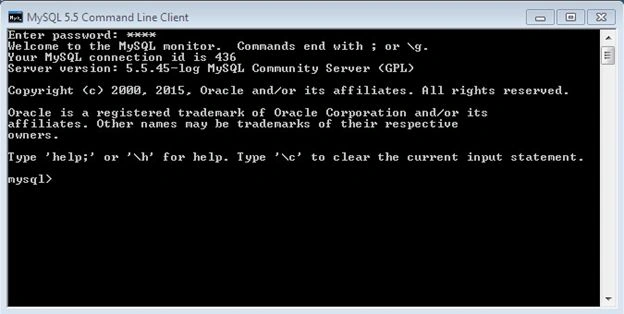
Step 2: Type your password which you have allotted to your MySQL and the above screenshot will be the result when you type the correct password into your MySQL command prompt.
Step 3: Firstly,t you need to create the Database for your application, so you will require to write a query for that that is written below:
CREATE DATABASE <DATABASE-NAME>;
For e.g: we have taken
- CREATE DATABASE DICTIONARY;
Step 4: Now you need to use that Database so write the query which is written below:
USE DICTIONARY;

Step 5: Now you need to create a table in the database or that query is mentioned below:
- CREATE TABLE DICTIONARYAPP (
- WORD VARCHAR(40) PRIMARY KEY NOT NULL,
- TYPE VARCHAR(40) NOT NULL,
- MEANING VARCHAR(1000) NOT NULL,
- SYNONYM VARCHAR(50) NOT NULL,
- ANTONYM VARCHAR(50) NOT NULL
- );
For that the query is mentioned below:

Step 7: Now you can run your application. Once your database and table is created there are some values already into your table so that you can test your application is running well.
Step 8: Ensure, few things which are very significant while running the application like you mentioned the database name and table which you have created into the program accurately. It sometimes gives an error, if one have not appropriately mentioned the database name or table’s name.
Kumar DuttaPosted Apr 19, 2019, 12:48 PM
Zip File of the application is not working.
Jabir Al FatahPosted Feb 6, 2018, 1:33 PM
Hi can I use PhpMySQL database in XAMPP server?
Utsav RupareliyaPosted Apr 2, 2016, 11:41 AM
Appreciate your wok but only .sln sile in download where is rest??
Sibeesh VenuPosted Oct 20, 2015, 3:07 AM
Nice Share
Nilesh JadavPosted Oct 20, 2015, 1:14 AM
Good Share !!
Rupali ShindePosted Oct 20, 2015, 12:12 AM
nice article, Which version of mySQL is used ???
Mohammed IbrahimPosted Oct 19, 2015, 10:00 PM
nice
Priyaranjan K SPosted Oct 19, 2015, 12:40 PM
Good One ...