

Introduction
This article introduces how to have a look at checking out, compare differences, changes, and view history of files in the Solution Explorer in Visual Studio 2013 Preview. As I described earlier, how to connect with Team Foundation Service account and Upload your code in TFS. So, here we will look at what the various types of work are that we can do in our solution and we can also check the changes in our solution.
The following are things we can do:
- Editing Code
Select the area in which you want to change. When you change the code, Visual Studio automatically checks out the file. For example: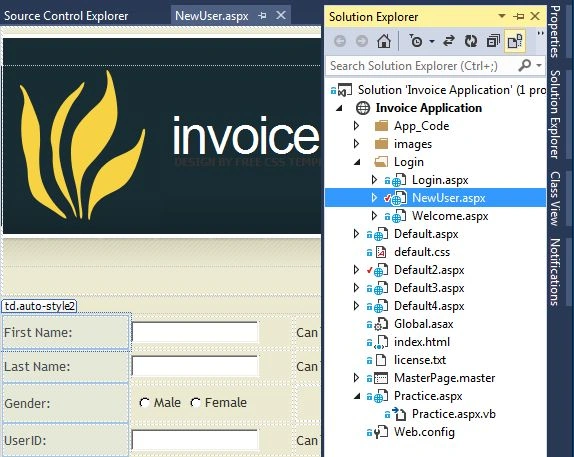
- Compare Code
At first build your solution after editing. Now, if you want to compare your present code to your previous code, just select and right-click on your file and click "Compare".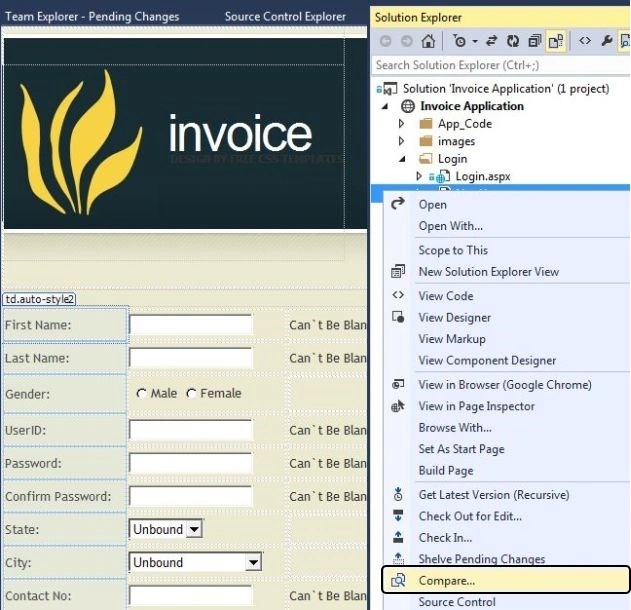
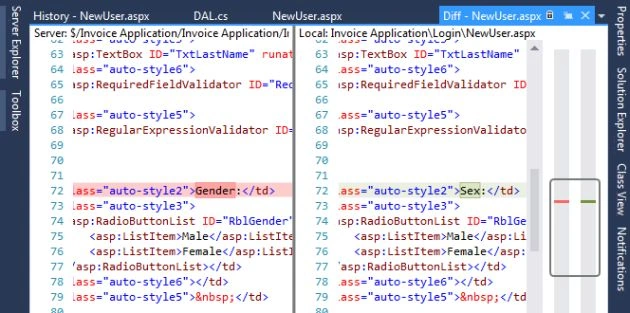
- Check Code
You can also check your code and give the description of the changes in the Comments box. Select the file and right-click and click on "Check In".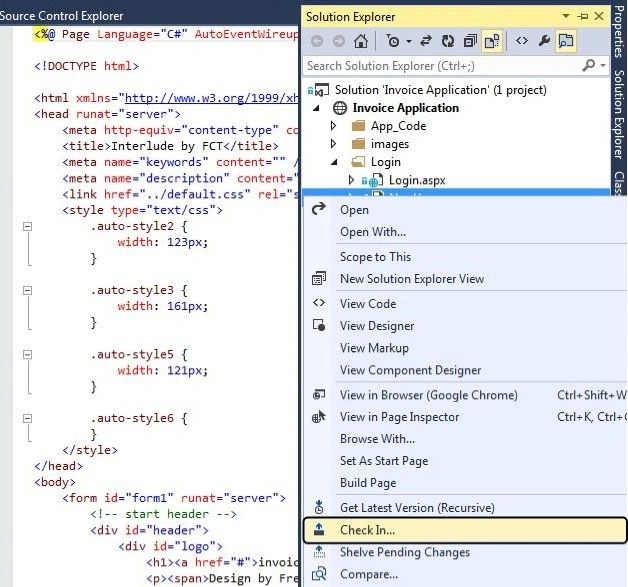
Add a comment and click on "Check In".
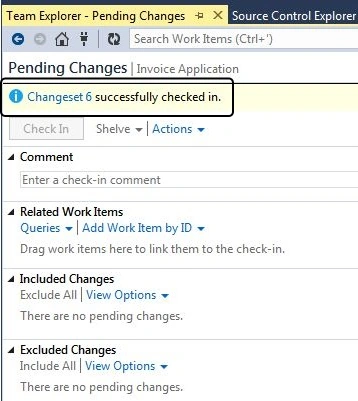
- View History
You can check on the changes in the view history option. For this you need to go to Team Explorer.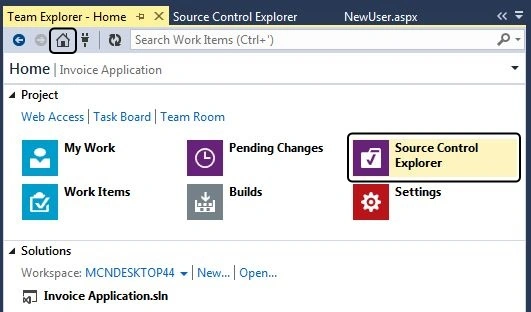
Select your file from the window and click on "View History".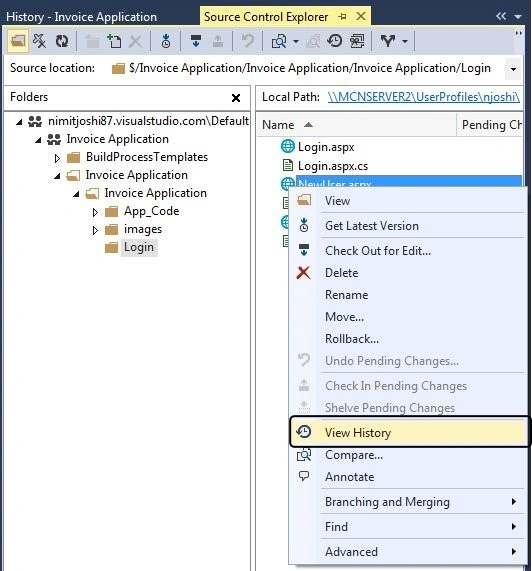
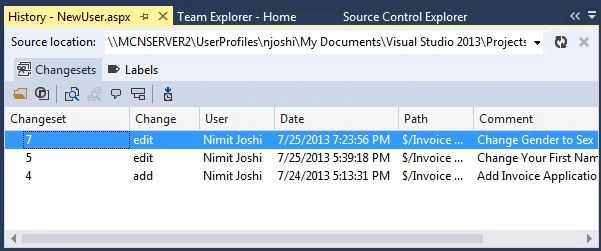
Summary
In this article I introduced how to have a look at your solution, changed code and by the view history option you can view all history related to updates and edits or additins. I really enjoyed doing all of this cool stuff using TFS and Visual Studio 2013 Preview. I'll write more if I find any more new stuff in it.
Join the conversation! Your thoughts help the community grow.