

Introduction
In this article, I am creating an ASP.NET Web Application showing relationships among Countries, States and Cities. I am using ADO.NET to connect SQL Server with ASP.NET. I am creating this application because I think it will be very helpful to you. There are many basic programmers who do not know how to create and display a relationship among a Country, States of that Country and Cities of that State. Friends, If you do not understand me then just proceed for now and at the end of the article you will get my message.
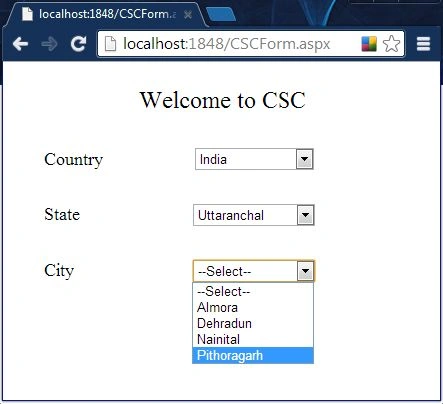
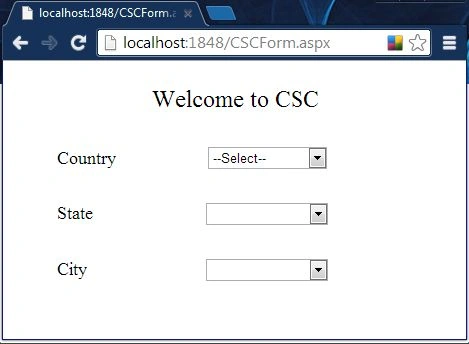
If we have three dropdownlists for each of Country, State and City and we want that when we select a Country like India then the States belonging to that Country will populate the second dropdownlist (suppose Uttaranchal), similarly if we select any State then the Cities of that State will populate the third dropdownlist. Please view the following snapshot for help:
Prerequisites
There are the following prerequisites for creating this application:
- Visual Studio (Front End)
- SQL Server (Back End)
- ADO.NET (For Connectivity)
Create Database
Let's create a database in which three tables are created and also create a relationship among them. I am creating this database in SQL Server 2012. Let's understand this step-by-step.
Note: You must know the Constraints like Primary Key and Foreign Key, that are very useful for creating a relationship among tables.
Step 1: Open SQL Server (any version).
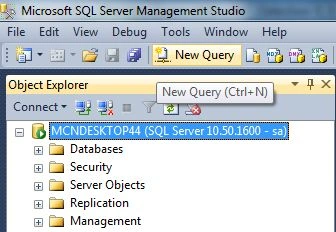
Step 2: In the New Query wizard:
Step 3: Create a database with the following command:
CREATE DATABASE SampleDB
Step 4: Create tables with the names Tbl_Country, Tbl_State and Tbl_City.
- Country Table
- USE SampleDB
- CREATE TABLETbl_Country
- (
- PKCountry_IDint primarykey identity(1,1),
- Country_Namevarchar(50)
- )
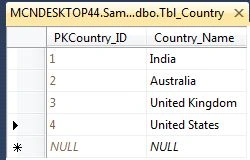
Insert values into this table, after inserting:
-
State Table
Let's create this table with the following procedure.
Step 1: Go to Object Explorer, expand your database and right-click on "Tables" for creating a new table.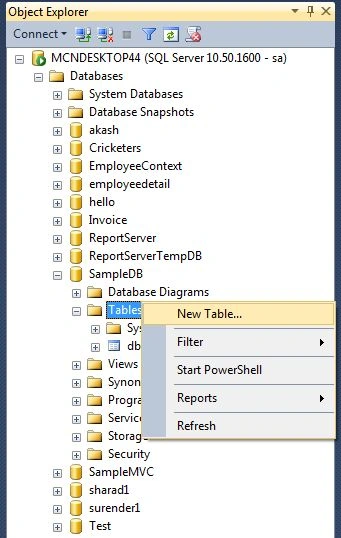
Step 2: Design the table with the fields PKState_ID (Primary Key), FKCountry_ID and State_Name and before saving the table follow the instructions given below.
- In the design wizard, right-click on the FKCountry_ID column for creating a relationship.
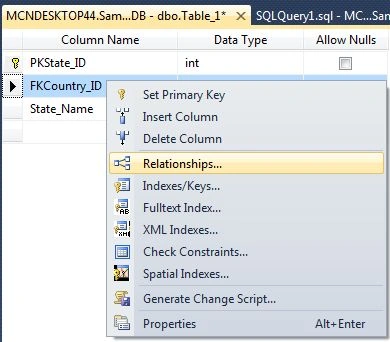
Note: Ensure that you created the FKCountry_ID column as a Primary Key in the Tbl_Country Table. The column name may differ but the values should be the same.
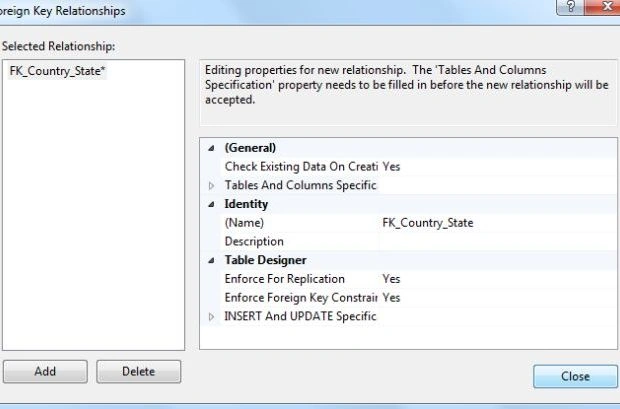
- After you the click on "Relationships", the following wizard will open. Click on "Add".
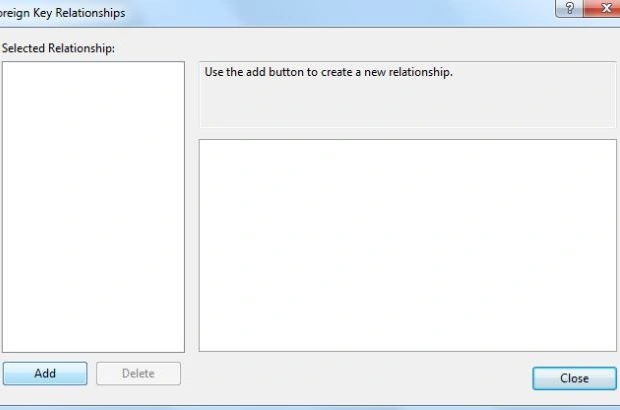
- After clicking on Add provide the name of the Identity (optional) and click on "Tables And Columns Specific" as in the following:
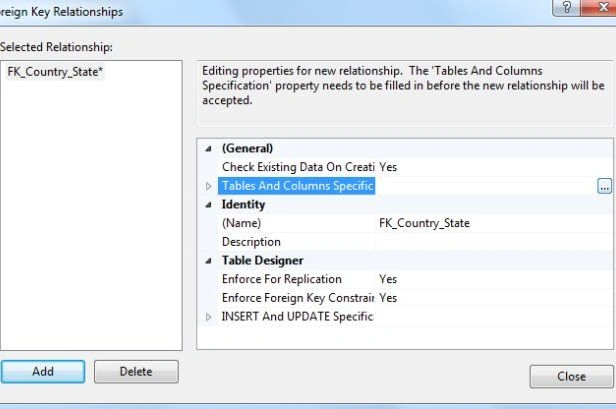
- In the next Tables and Columns wizard, Select Tbl_Country as a Primary Key Table and select PKCountry_ID as a Primary Key column in the columns in the left pane and in the right pane select FKCountry_ID as a Foreign Key column as in the following.
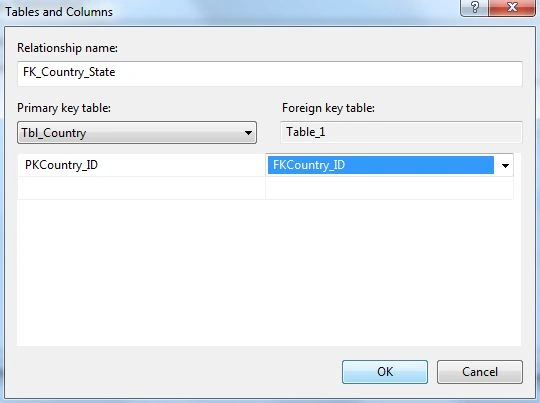
Click on OK.
- In the next wizard, Click "Close".
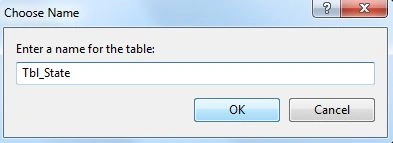
- Save your table and provide the table name.
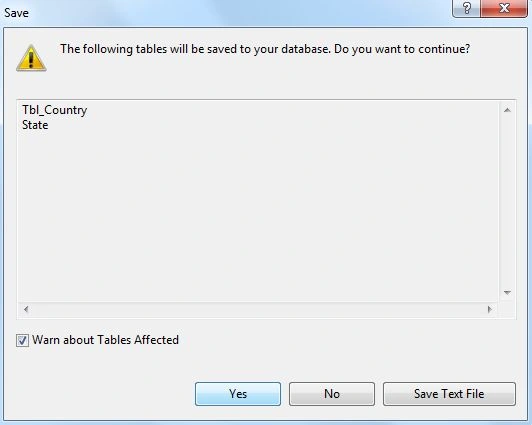
- When you click on "Save", the Save wizard will open. Ignore the warning and click "Yes".
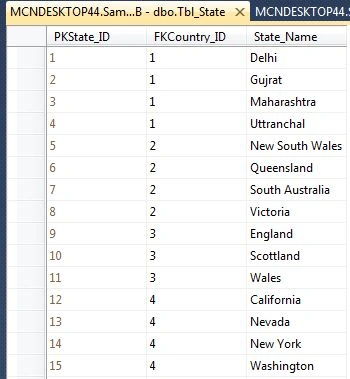
- In the design wizard, right-click on the FKCountry_ID column for creating a relationship.
- City Table
Create this table using the following procedure.
Step 1: Create a new table with design view as I mentioned in the previous Step 1.
Step 2: Design the table with the fields PKCity_ID (Primary Key), FKState_ID, City_Name and before saving the table use the following instructions.
- In the design wizard, right-click on the FKState_ID column to create the relationship.
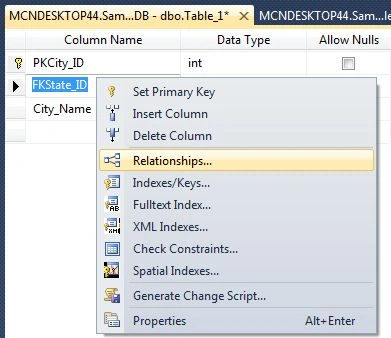
Note: Ensure that you have created the FKState_ID column as a Primary Key in the Tbl_State Table. The column name may differ but the values should be the same.
- After you the click on Relationships, a wizard will open. Click on "Add".
- Provide the name of Identity (optional) and click on "Tables And Columns Specific" as in the following.
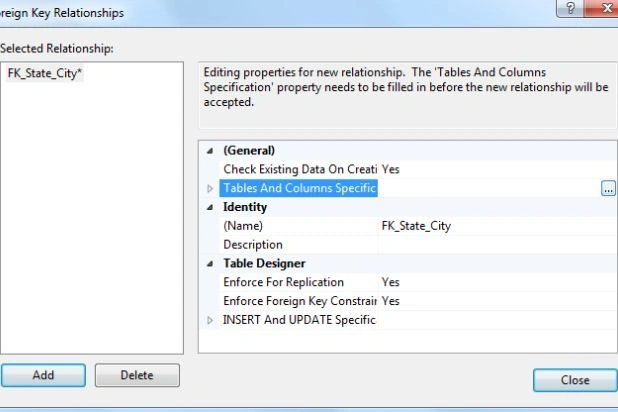
- In the next Tables and Columns wizard, select Tbl_State as a Primary Key of the table and select PKState_ID as a Primary Key column in the columns in the left pane and in the right pane select FKState_ID as a Foreign Key column as in the following:
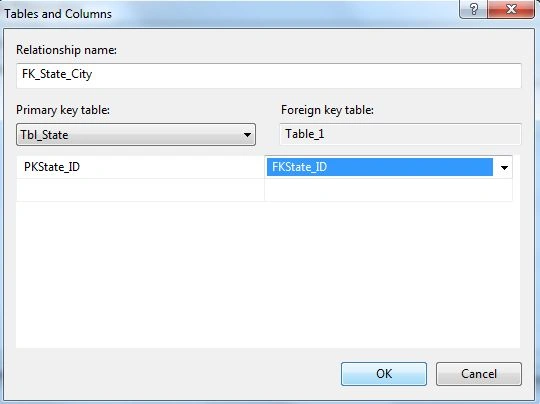
Click on "OK".
- In the next wizard, click "Close".
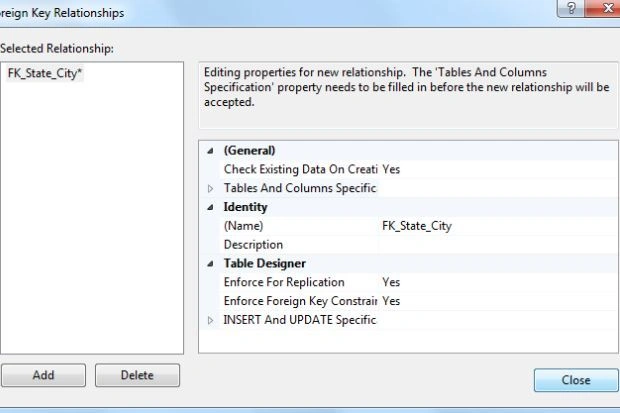
- Save your table and provide the table name.
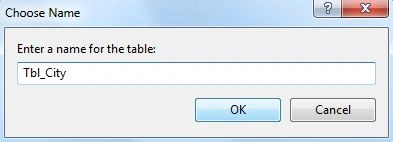
- When you click on "Save", the Save wizard will open. Ignore the warning and click on "Yes".
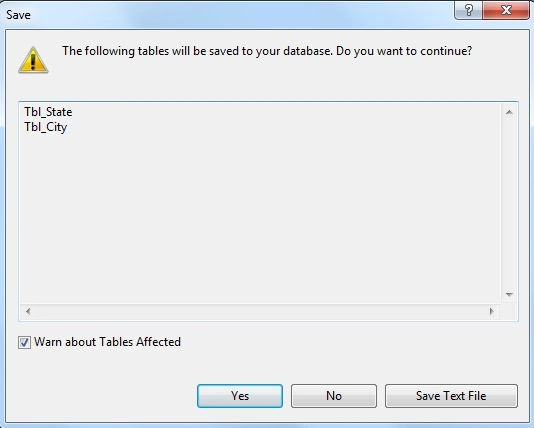
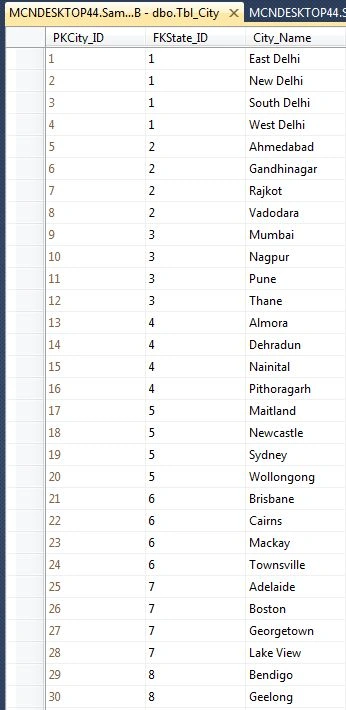
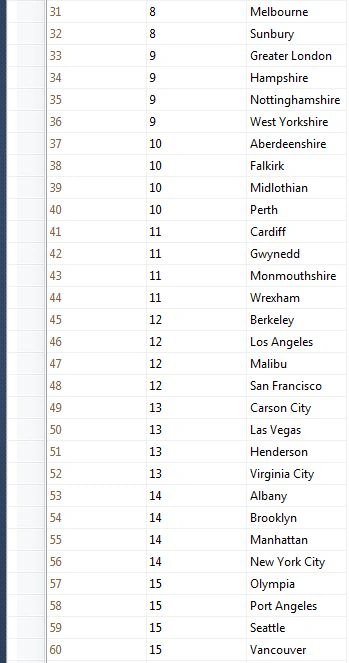
- In the design wizard, right-click on the FKState_ID column to create the relationship.
Create an application on Visual Studio
Let's create an ASP.NET Web Application using ADO.NET for connectivity with the database. I am creating this application with 2-tier architecture on Visual Studio 2013 Preview. Let's create this application step-by-step.
Step 1: "File" -> "New" -> "Project..."
Step 2: Select "ASP.NET Web Application" then provide the application name.
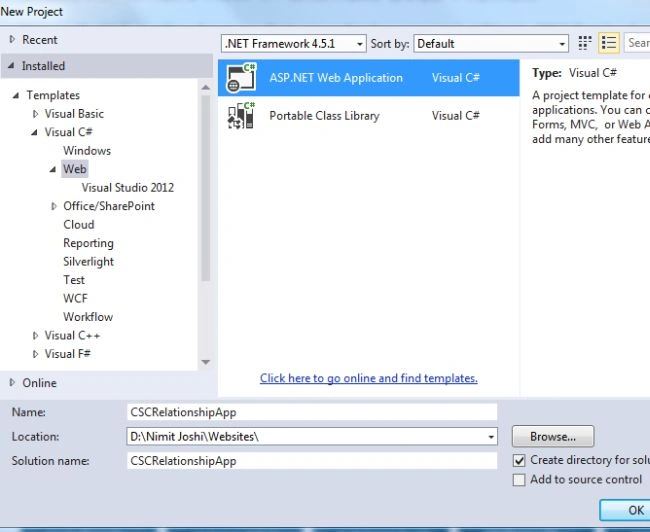
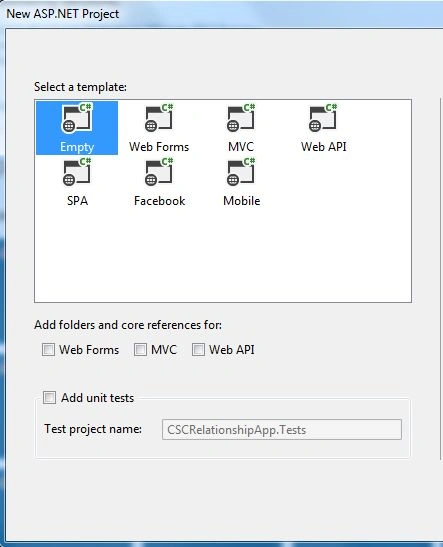
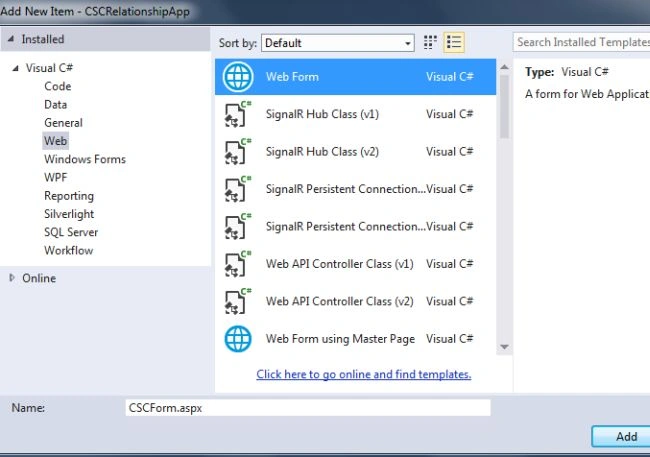
Step 3: Select "Empty Project Template" to create this application.
Harika AdimulamPosted May 14, 2014, 5:56 PM
Thanks, I fixed it.
Dimpy TheWimpyPosted May 13, 2014, 2:44 PM
I am working on a project using asp.net and sql server. I am working on backend creating tables, however in vs 2012 I am unable to save tables. Can you please point out my mistake.
Dimpy TheWimpyPosted May 13, 2014, 2:41 PM
Nice walkthrough