

Introduction
The VisualStateManager has a collection of VisualStateGroups, each one being a set of VisualStates that may apply in a given situation. Each of the groups is independent in the sense that one VisualState from each group might be active at any one time. For simplicity, let's just deal with one VisualStateGroup from which only one VisualState is active.
 In this case, the basic XAML is.
- <VisualStateManager.VisualStateGroups>
- <VisualStateGroup>
List of visual states.
- </VisualStateGroup>
- </VisualStateManager.VisualStateGroups>
- <AdaptiveTrigger property=value />
At the moment the only triggers are MinWindowWidth and MinWindowHeight but it is possible to add custom triggers. These conditions test the current width and height of the window and trigger if the window is larger than the specified value.
Example
- <AdaptiveTrigger MinWindowsWidth=400 />
Is the active window's width, 400 effective pixels or greater.
A Setter takes the form.
- <Setter Target="fully qualified property name"
- Value="value" />
- So for example:
- <Setter Target="Button1.Width"
- Value="200" />
Example
- <VisualState x:Name="Big">
- <VisualState.StateTriggers>
- <AdaptiveTrigger MinWindowWidth="600"/>
- </VisualState.StateTriggers>
- <VisualState.Setters>
- <Setter Target="Button1.Content"
- Value="Wide"/>
- </VisualState.Setters>
- </VisualState>
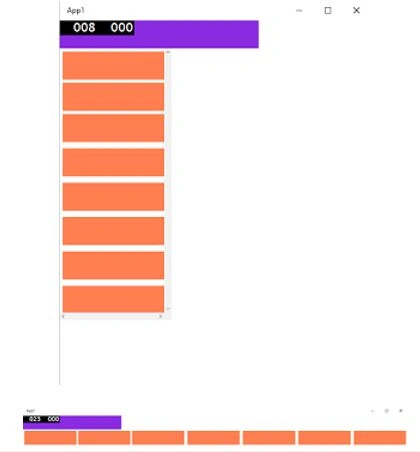
In this case, the trigger is if the window is 600 pixels or wider.
The simple answer is that whatever value the property had before is restored when the trigger isn't active. For example, if the Button's original definition was-
- <Button Name="Button1" Content="Narrow" />
The label on the Button would change to "Wide" as the window was resized to larger than 600 pixels and to "Narrow" when it became smaller than 599 pixels. That is, when none of the VisualStates is active, the system restores the UI to what it was originally specified in the XAML.
If you would rather have the default state included as a part of the VisualStateManager you can include it as-
- <VisualState x:Name="Small">
- <VisualState.StateTriggers>
- <AdaptiveTrigger MinWindowWidth="0" />
- </VisualState.StateTriggers>
- <VisualState.Setters>
- <Setter Target="Button1.Content"
- Value="Narrow" />
- </VisualState.Setters>
- </VisualState>
Putting the entire thing together gives the following-
- <Page
- x:Class="App4.MainPage"
- xmlns="http://schemas.microsoft.com/
- winfx/2006/xaml/presentation"
- xmlns:x="http://schemas.microsoft.com/
- winfx/2006/xaml"
- xmlns:local="using:App4"
- xmlns:d="http://schemas.microsoft.com/
- expression/blend/2008"
- xmlns:mc="http://schemas.openxmlformats.org/
- markup-compatibility/2006"
- mc:Ignorable="d">
- <Grid Background="{ThemeResource
- ApplicationPageBackgroundThemeBrush}">
- <VisualStateManager.VisualStateGroups>
- <VisualStateGroup>
- <VisualState x:Name="Small">
- <VisualState.StateTriggers>
- <AdaptiveTrigger MinWindowWidth="0" />
- </VisualState.StateTriggers>
- <VisualState.Setters>
- <Setter Target="Button1.Content"
- Value="Narrow" />
- </VisualState.Setters>
- </VisualState>
- <VisualState x:Name="Big">
- <VisualState.StateTriggers>
- <AdaptiveTrigger MinWindowWidth="600" />
- </VisualState.StateTriggers>
- <VisualState.Setters>
- <Setter Target="Button1.Content"
- Value="Wide" />
- </VisualState.Setters>
- </VisualState>
- </VisualStateGroup>
- </VisualStateManager.VisualStateGroups>
- <Button x:Name="Button1"
- HorizontalAlignment="Left"
- VerticalAlignment="Top"
- Margin="196,172,0,0"/>
- </Grid>
- </Page>
Summary
In this article, we learned about Windows 10 Universal Apps (UAD) - Adaptive Triggers Creating UI For Multiple Screens.
Gowtham RajamanickamPosted Apr 20, 2016, 8:37 AM
good share...
Asfend YarPosted Feb 27, 2016, 2:02 AM
nice work
Ammar ShaukatPosted Feb 11, 2016, 5:09 AM
time to explore adaptive triggers.
Imran Javed ZiaPosted Dec 5, 2015, 8:07 AM
Nice Work
Gowtham RajamanickamPosted Jul 7, 2015, 6:59 AM
good one..
Sibeesh VenuPosted Jul 7, 2015, 12:50 AM
Nice Article! Thanks for sharing
SharadPosted Jul 7, 2015, 12:19 AM
good one..
Santhakumar MunuswamyPosted Jul 6, 2015, 3:42 PM
Thanks for sharing