
Prerequisite
- An input file (Input.txt) with header and detail records.
- Header & Detail Tables in the database.
Content of Flat file (Input.txt)
- H1100
- D1050P1
- D1050P2
- H2200
- D2100P3
- D2100P4
Flat file Header/Detail Record Specs
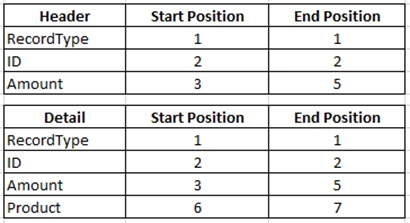
Script for Header & Detail Tables
- CREATE TABLE [dbo].[Header]
- (
- [id] [varchar](50) NOT NULL,[amount] [int] NOT NULL
- )
- CREATE TABLE [dbo].[Detail]
- (
- [id] [varchar](50) NOT NULL,[amount] [int] NOT NULL,[product] [char](100) NOT NULL
- )
Step 1: Add a Data Flow Task to Control Flow.
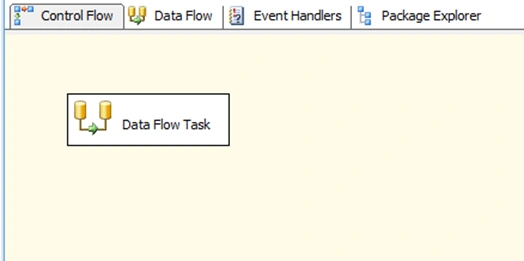
Step 2: Add a Flat File Source to the Data Flow.
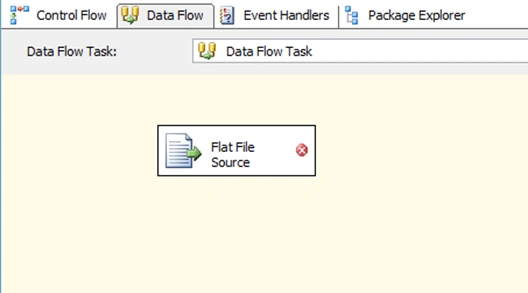
Step 3: Configure Flat File source.
Step 2: Add a Flat File Source to the Data Flow.
Step 3: Configure Flat File source.
- Select file name (Input.txt)
- Set Format as "Ragged right"

Step 4: Add Script Component from Data Flow Transformations and connect Flat File Source to it,
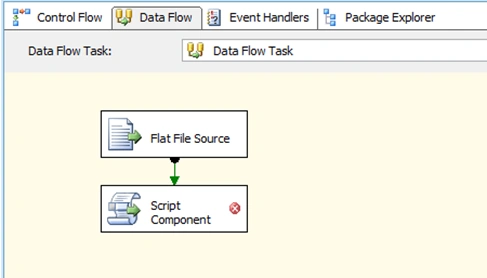
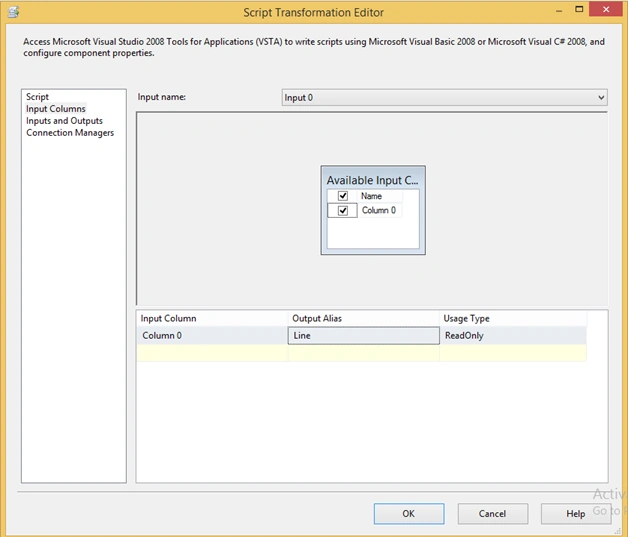
Step 5: Double click on Script component and Configure the Input Columns like the following,
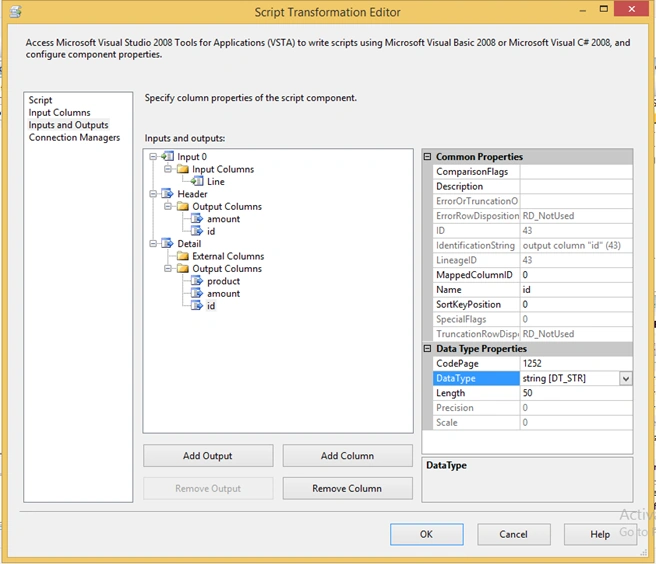
Step 6: Configure Output under Inputs and Outputs tab like the following as per Header & Detail specifications.
Step 7: Click on Edit Script and write the following code in the script window underInput0_ProcessInputRow method:
- public override void Input0_ProcessInputRow(Input0Buffer Row)
- {
- if (Row.Line.Substring(0, 1) == "H")
- {
- HeaderBuffer.AddRow();
- HeaderBuffer.id = Row.Line.Substring(1, 1);
- HeaderBuffer.amount = Convert.ToInt16(Row.Line.Substring(2, 3));
- }
- else if (Row.Line.Substring(0, 1) == "D")
- {
- DetailBuffer.AddRow();
- DetailBuffer.id = Row.Line.Substring(1, 1);
- DetailBuffer.amount = Convert.ToInt16(Row.Line.Substring(2, 3));
- DetailBuffer.product = Row.Line.Substring(5, 2);
- }
- }
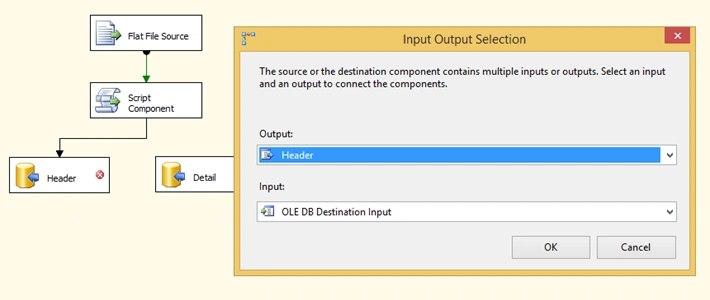
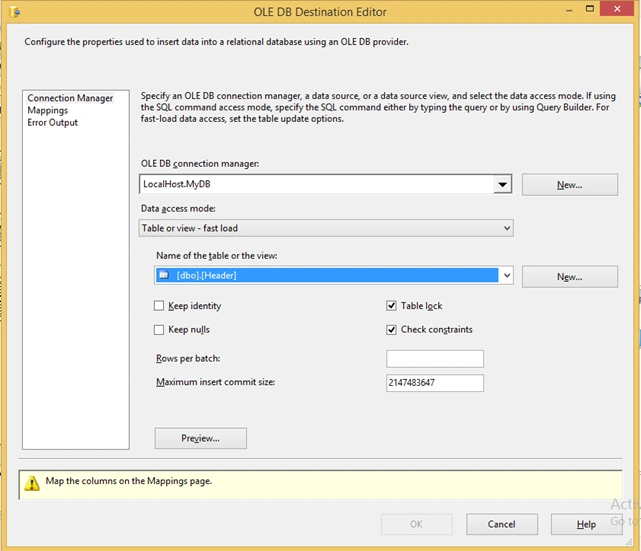
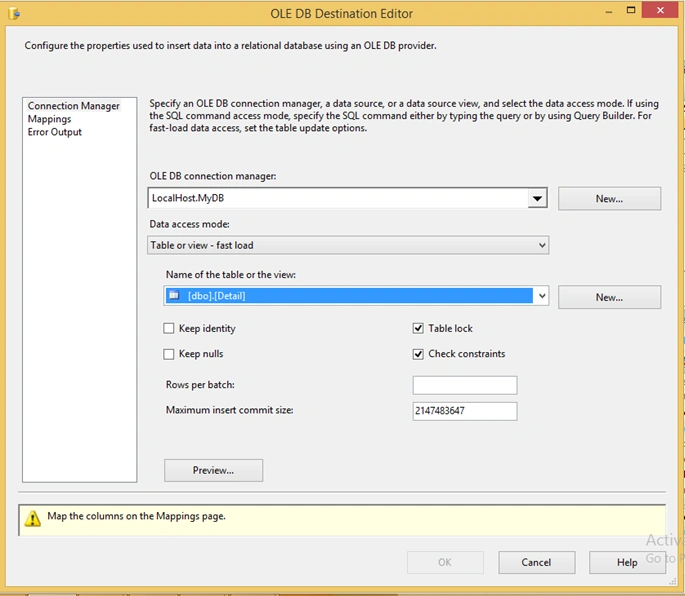
Step 9: Configure OLE DB destination for Header & Detail like the following,
Step 10: Now let's execute the package,
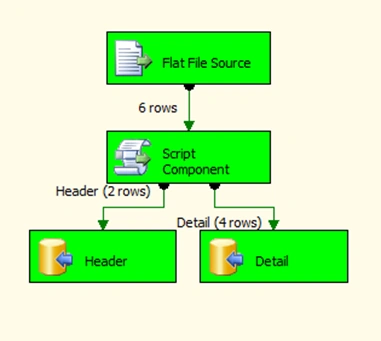
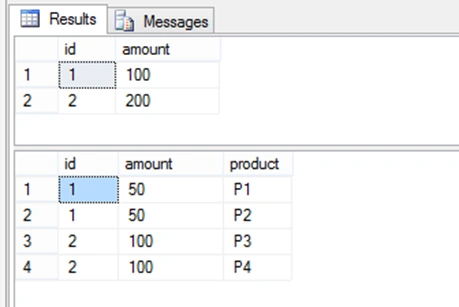
Step 11: Package is executed successfully. Now let's check for the data in the tables.
- select * from Header
- select * from Detail
Yashwant VishwakarmaPosted Dec 16, 2015, 1:41 AM
Nice article dude !!!
Raja TPosted Dec 15, 2015, 9:54 AM
Nice,Thanks for sharing