

Introduction
A developer is asking how to select one radio button at a time if the radio button is inside the GridView. As you may know setting the group name attribute of a radio button will not work if the radio button is located within a data representation control like a GridView. This is because the radio button inside a GridView behaves differently. Since a GridView is rendered as a table element, at run time it will assign a different "name" to each radio button. Hence you are able to select multiple rows.
In this article I'm going to show how to select one radio button at a time in GridView and add a simple validation to it using plain JavaScript. To get started let's go ahead and fire up Visual Studio and then create a new web application / website project. Add a WebForm and then grab GridView. The mark up would look something like this:
- <asp:GridView ID="GridView1" runat="server" AutoGenerateColumns="false" >
- <Columns>
- <asp:TemplateField>
- <ItemTemplate>
- <asp:RadioButton ID="rb" runat="server" />
- </ItemTemplate>
- </asp:TemplateField>
- <asp:BoundField DataField="RowNumber" HeaderText="Row Number" />
- <asp:BoundField DataField="Col1" HeaderText="First Column" />
- <asp:BoundField DataField="Col2" HeaderText="Second Column" />
- </Columns>
- </asp:GridView>
- private DataTable FillData()
- {
- DataTable dt = new DataTable();
- DataRow dr = null;
- //Create DataTable columns
- dt.Columns.Add(new DataColumn("RowNumber", typeof(string)));
- dt.Columns.Add(new DataColumn("Col1", typeof(string)));
- dt.Columns.Add(new DataColumn("Col2", typeof(string)));
- //Create Row for each columns
- dr = dt.NewRow();
- dr["RowNumber"] = 1;
- dr["Col1"] = "A";
- dr["Col2"] = "B";
- dt.Rows.Add(dr);
- dr = dt.NewRow();
- dr["RowNumber"] = 2;
- dr["Col1"] = "AA";
- dr["Col2"] = "BB";
- dt.Rows.Add(dr);
- dr = dt.NewRow();
- dr["RowNumber"] = 3;
- dr["Col1"] = "A";
- dr["Col2"] = "B";
- dt.Rows.Add(dr);
- dr = dt.NewRow();
- dr["RowNumber"] = 4;
- dr["Col1"] = "A";
- dr["Col2"] = "B";
- dt.Rows.Add(dr);
- dr = dt.NewRow();
- dr["RowNumber"] = 5;
- dr["Col1"] = "A";
- dr["Col2"] = "B";
- dt.Rows.Add(dr);
- return dt;
- }
- protected void Page_Load(object sender, EventArgs e)
- {
- if (!IsPostBack)
- {
- GridView1.DataSource = FillData();
- GridView1.DataBind();
- }
- }
- function CheckOtherIsCheckedByGVID(rb)
- {
- var isChecked = rb.checked;
- var row = rb.parentNode.parentNode;
- if (isChecked)
- {
- row.style.backgroundColor = '#B6C4DE';
- row.style.color = 'black';
- }
- var currentRdbID = rb.id;
- parent = document.getElementById("<%= GridView1.ClientID %>");
- var items = parent.getElementsByTagName('input');
- for (i = 0; i < items.length; i++)
- {
- if (items[i].id != currentRdbID && items[i].type == "radio")
- {
- if (items[i].checked)
- {
- items[i].checked = false;
- items[i].parentNode.parentNode.style.backgroundColor = 'white';
- items[i].parentNode.parentNode.style.color = '#696969';
- }
- }
- }
- }
- <asp:RadioButton ID="rb" runat="server" onclick="javascript:CheckOtherIsCheckedByGVID(this);" />
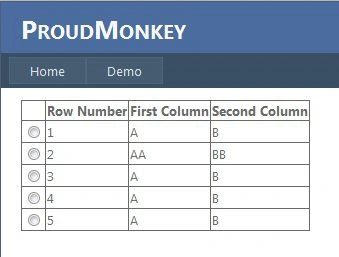
On Load:
After selecting a Radio Button:
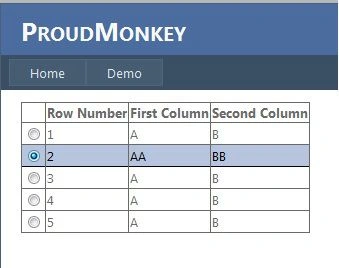
As you can see, on initial load there's no default selected radio in the GridView. Now let's add a simple validation for that. We will basically display an error message if a user clicks a button that triggers a postback without selecting a radio button in the GridView. Here's the JavaScript for the validation:
- unction ValidateRadioButton(sender, args)
- {
- var gv = document.getElementById("<%= GridView1.ClientID %>");
- var items = gv.getElementsByTagName('input');
- for (var i = 0; i < items.length; i++)
- {
- if (items[i].type == "radio")
- {
- if (items[i].checked)
- {
- args.IsValid = true;
- return;
- }
- else
- {
- args.IsValid = false;
- }
- }
- }
- }
- <br />
- <asp:Label ID="lblMessage" runat="server" />
- <br />
- <asp:Button ID="btn" runat="server" Text="POST" onclick="btn_Click" ValidationGroup="GroupA" />
- <asp:CustomValidator ID="CustomValidator1" runat="server" ErrorMessage="Please select row in the grid." ClientValidationFunction="ValidateRadioButton" ValidationGroup="GroupA" style="display:none"></asp:CustomValidator>
- <asp:ValidationSummary ID="ValidationSummary1" runat="server" ValidationGroup="GroupA" HeaderText="Error List:" DisplayMode="BulletList" ForeColor="Red" />
- protected void btn_Click(object sender, EventArgs e)
- {
- lblMessage.Text = "Postback at: " + DateTime.Now.ToString("hh:mm:ss tt");
- }
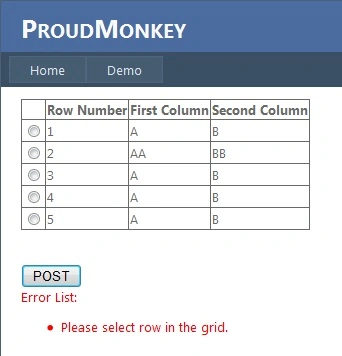
Running the page will show something as in the following in the browser.
When validation triggers
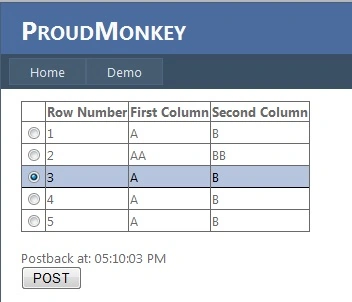
That's it! I hope you find this article useful.
Quinell StruthersPosted Nov 28, 2019, 6:27 AM
This is great, and I used it for a single row item, but now I can't change the state back to false/true depending on what I changed it to.
Tk MahantaPosted Jun 3, 2016, 2:03 AM
Nice
NitinPosted May 5, 2015, 1:41 PM
nice
Karthik Muthu KaruppanPosted May 4, 2015, 2:24 PM
nice
Tom MohanPosted May 2, 2015, 11:31 AM
Nice one.
Former memberPosted May 1, 2015, 3:24 AM
Nice Articals
Santhakumar MunuswamyPosted Apr 30, 2015, 4:15 PM
Thanks for sharing