

In this article I will show you how to take backup of sharepoint site and restore it to another sharepoint site.
In layman terms this backup and restore is just like copy and paste. Backup means taking copy of a sharepoint site and restore means paste to another.
There are two ways of doing this or we can say that two set of commands.
- Backup - Restore
- Import - Export
Both ways are having their own advantage and disadvantages.
In this article I will show you Backup and restore command.
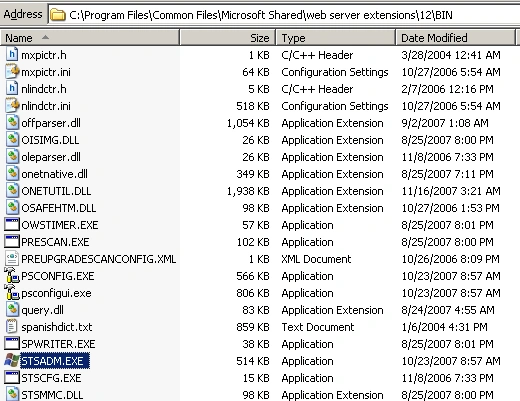
To achieve this we will use STSADM utility. This utility is present in the below mentioned path.
C:\Program Files\Common Files\Microsoft Shared\Web Server Extensions\12\BIN
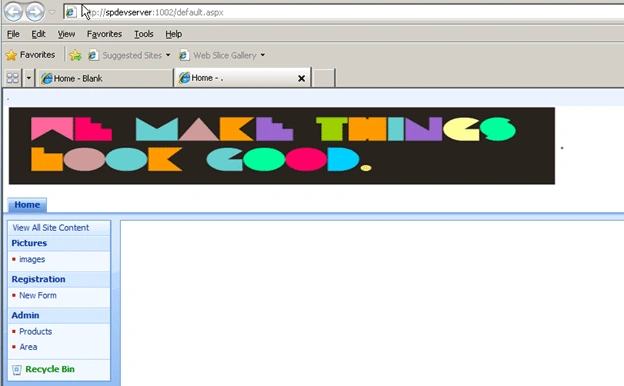
I have created two web application. One is with some customization and other is blank site.
Website 1: Site with some customization having address http://spdevserver:1002/default.aspx
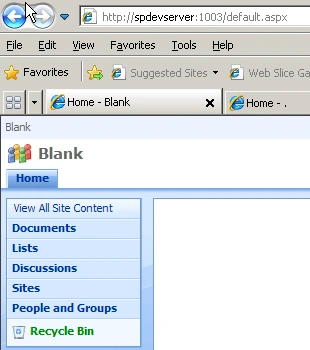
WebSite 2: Blank site having address http://spdevserver:1003/default.aspx
Now we will take the backup from http://spdevserver:1002/default.aspx and restore it to http://spdevserver:1003/default.aspx
Steps to take site Backup:
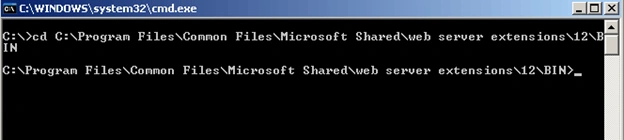
Step 1: Open Command prompt and go to location as shown in the below screenshot.
Step 2: Write the STSADM command for taking the site backup.
stsadm -o backup -url http://spdevserver:1002/ -filename C:\Backup.bak
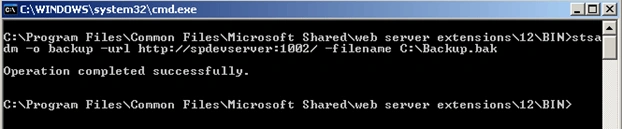
This command will save Backup.bak file in C:\
This file is the complete backup for http://spdevserver:1002/default.aspx
Now next step is to Restore this backup file to http://spdevserver:1003/default.aspx
To do this we need to write the STSADM command for Restore.
RESTORE COMMAND
stsadm -o restore -url http://spdevserver:1003/ -filename C:\Backup.bak -overwrite
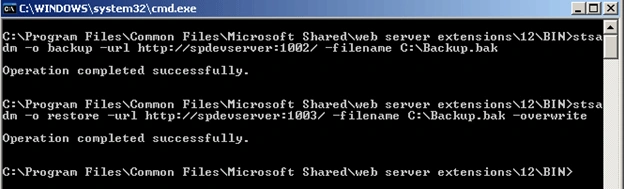
Now after completing this operation we are having http://spdevserver:1003/default.aspx site which is exactly the replica of http://spdevserver:1002/default.aspx site.
Just refresh the page and you will see it.
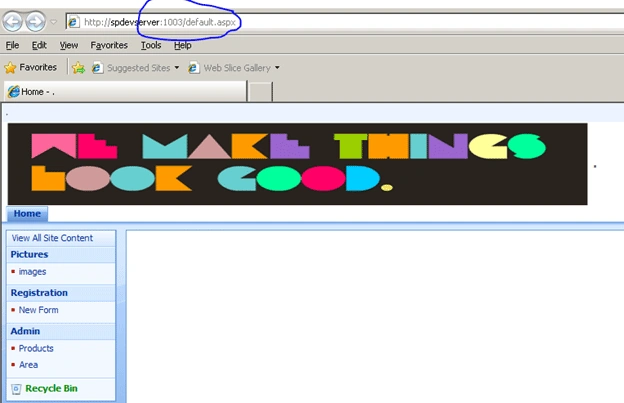
In this way we can take a backup of sharepoint site and restore it to another sharepoint site.
Gowtham RajamanickamPosted Apr 28, 2016, 2:16 AM
good work..
David OtalPosted Jun 15, 2010, 4:22 AM
This procedure backups the database too?