

In this article we will be seeing how to export the certificate and import into
SharePoint Trusted Root Certificate Authority.
Export the Security Certificate:
- Access SharePoint https site in the browser.
- Click on the lock sign.
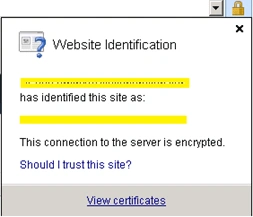
- Click on View Certificates link.
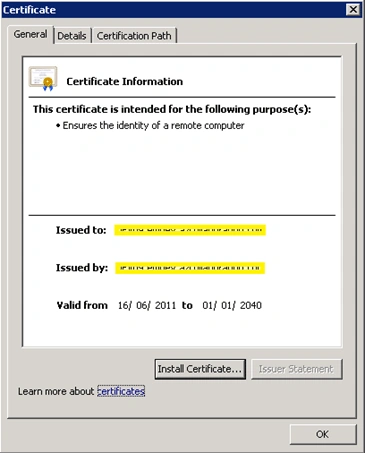
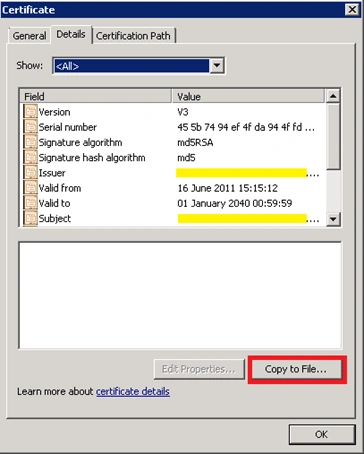
- Click on the Details tab and then click on
Copy to File....
- Certificate Export wizard will pop up as
shown in the following
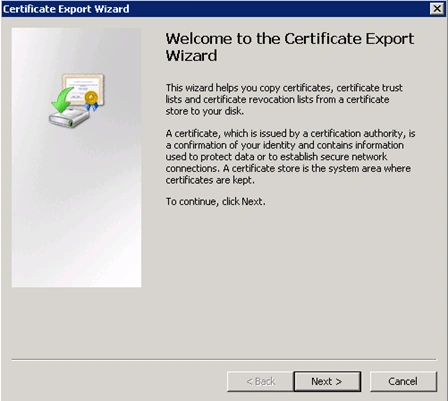
- Click on Next.
- In the Export File Format select DER
encoded binary X.509 (.CER) format.
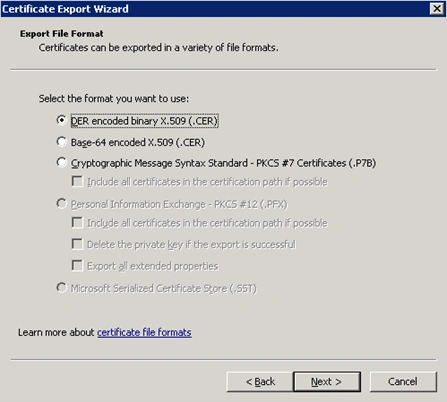
- Click on Next.
- In the File to Export click on browse,
select the location and enter the Name.
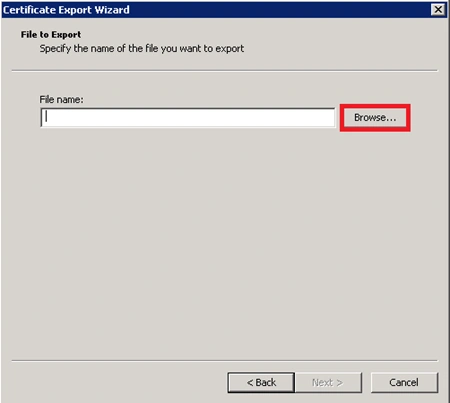
- Click on Save, the certificate will be saved.
- In the Certificate Export Wizard, click on
Finish.
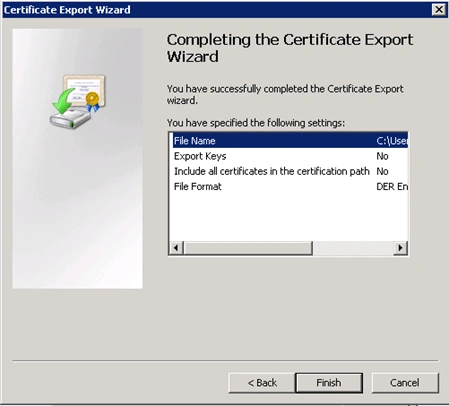
- You will be getting the following pop up,
click on Ok.
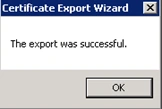
- The certificate is exported successfully.

Import the Security Certificate into SharePoint Trusted Root Certificate authority:
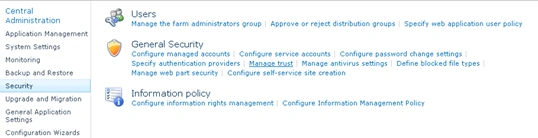
- Go to Central Administration =>Security
=>Manage Trust.
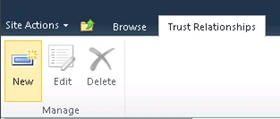
- In the ribbon interface, go to Trust
Relationships Tab =>Manage group =>Click on New button.
- In the Root Certificate to trust
relationship section, click on Browse.
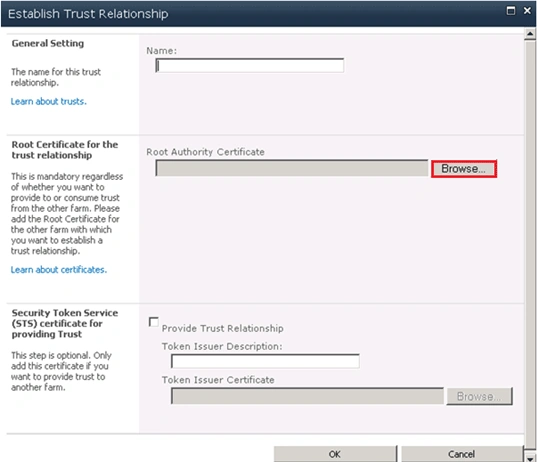
- Select the certificate that we have exported.
- Click on Ok.
- Certificate is imported to the SharePoint
Trusted root Authority.

Join the conversation! Your thoughts help the community grow.