

In this article we will see how to create a profile page for BCS in SharePoint 2010.
Steps Involved:
- Go to Central Administration => Application management => Manage service applications =>Business data connectivity services.
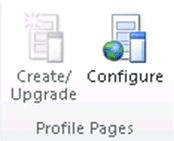
- In the "Profile Pages" group in the ribbon, click on Configure.
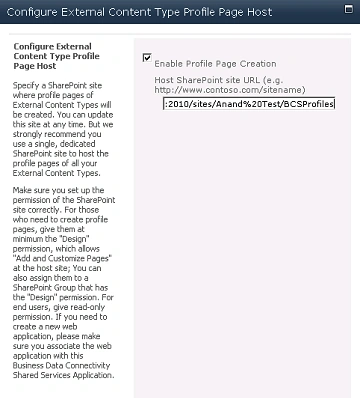
- Select the "Enable Profile Page Creation" and enter the URL of the profile site( I have created a new site using "Team Site" template and I am referring that URL).
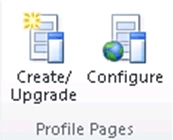
- In the "Profile Pages" group in the ribbon, click on Create/Upgrade.
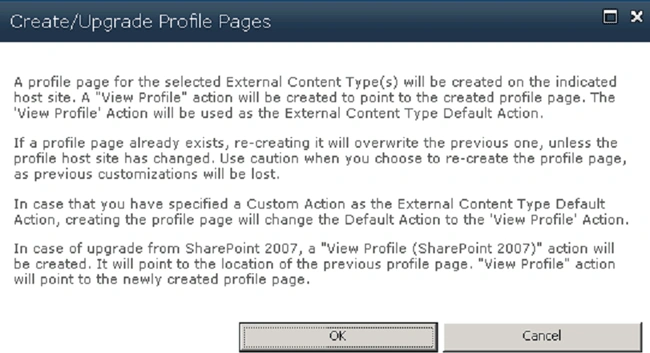
- "Create/Upgrade Profile Pages" wizard will pop up, click on Ok.
- A new Profile page is created successfully.
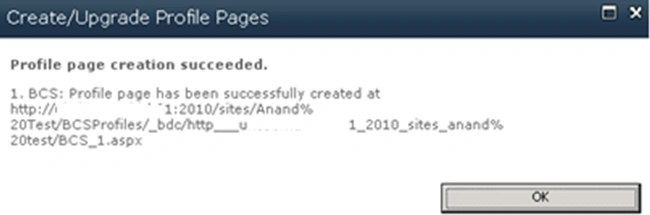
- And a default action will be created as shown in the following.

Start the full crawl:
- Go to Central Administration => Application Management => Manage service applications => Search Service Application => Crawling => Content Sources.
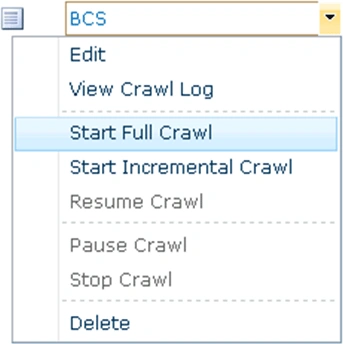
- Select BCS, go to the ECB menu and click on Start Full crawl.
Search for a data from the external content type:
- Go to the root site and if you see by default in the search scope dropdown list BCS will be selected.

- Enter a search term that will return the result from the external content type.
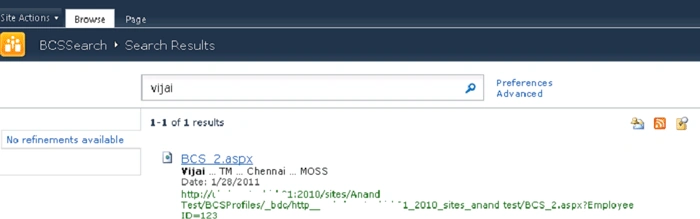
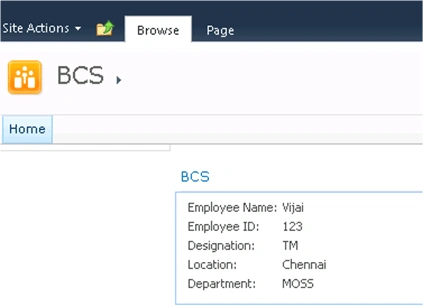
- Click on BCS_2.aspx it will be redirected to the profile page displaying the complete search result as shown in the following.
Join the conversation! Your thoughts help the community grow.