

In this article we will be seeing how to remove the ribbon tabs, groups and item
from the SharePoint Ribbon List interface.
The following is the ribbon interface available in the SharePoint list.
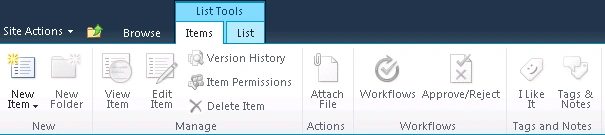
Steps Involved:
- Open Visual Studio 2010.
- Create Empty SharePoint Project.
- Right click on the solution and add a new item.
- Select the "Empty Element" template from SharePoint 2010 installed templates.
- The solution looks like the following.
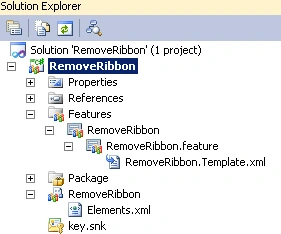
- Replace the Elements.xml with the
following code.
- Removing the ribbon tab:
<?xml version="1.0" encoding="utf-8"?>
<Elements xmlns="http://schemas.microsoft.com/sharepoint/">
<CustomAction
Id="RemoveTab"
Location="CommandUI.Ribbon"
RegistrationId="100"
RegistrationType="List">
<CommandUIExtension>
<CommandUIDefinitions>
<CommandUIDefinition
Location="Ribbon.List" />
</CommandUIDefinitions>
</CommandUIExtension>
</CustomAction>
<CustomAction
</Elements>
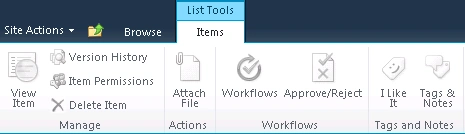
- Removing the ribbon group:
<?xml version="1.0" encoding="utf-8"?>
<Elements xmlns="http://schemas.microsoft.com/sharepoint/">
<CustomAction
Id="RemoveNewGroup"
Location="CommandUI.Ribbon"
RegistrationId="100"
RegistrationType="List">
<CommandUIExtension>
<CommandUIDefinitions>
<CommandUIDefinition
Location="Ribbon.ListItem.New" />
</CommandUIDefinitions>
</CommandUIExtension>
</CustomAction>
</Elements>
- Removing the ribbon button:
<?xml version="1.0" encoding="utf-8"?>
<Elements xmlns="http://schemas.microsoft.com/sharepoint/">
<CustomAction
Id="RemoveButton"
Location="CommandUI.Ribbon"
RegistrationId="100"
RegistrationType="List">
<CommandUIExtension>
<CommandUIDefinitions>
<CommandUIDefinition
Location="Ribbon.ListItem.Manage.EditProperties" />
</CommandUIDefinitions>
</CommandUIExtension>
</CustomAction>
</Elements>
Join the conversation! Your thoughts help the community grow.