

In this article we will see how to search the data from the external content
type in SharePoint 2010.
Steps Involved:
- Create a new content source
- Start the full crawl
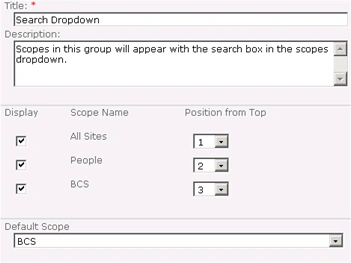
- Create a new search scope
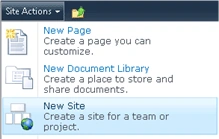
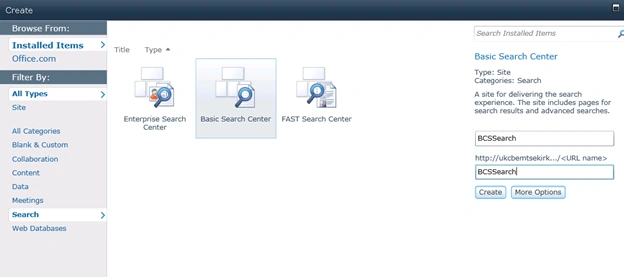
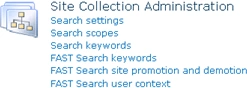
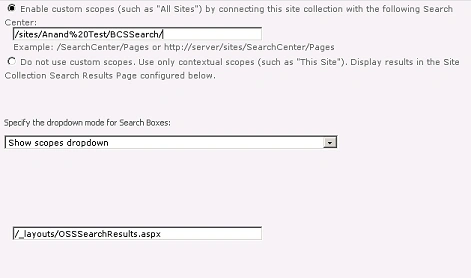
- Create a new search center site and configure the search scopes
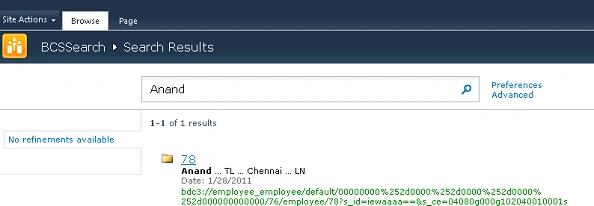
- Search for a data from the external content type
Create a new content source:
- Go to Central Administration =>
Application Management => Manage service applications => Search Service
Application => Crawling => Content Sources.
- Click on "New Content Source".

- Enter the Name, and select "Line of
Business data" option in the Content Source Type section.
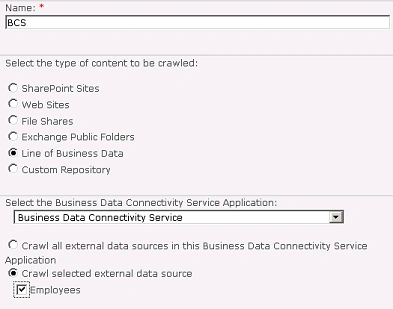
- In the External Data Source section, select "Business Data Connectivity Service" from the drop down and select "Crawl selected external data source".
- Click on Ok.
- A new content source is created
successfully.

Start the full crawl:
- Go to Central Administration => Application Management => Manage service applications => Search Service Application => Crawling => Content Sources.
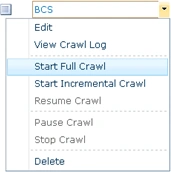
- Select BCS, go to the ECB menu and click
on Start Full crawl.
Create a new search scope:
- Go to Central Administration =>
Application Management => Manage service applications => Search Service
Application => Queries and Results => Scopes.
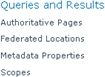
- Click on New Scope.

- Enter the Title and click Ok.
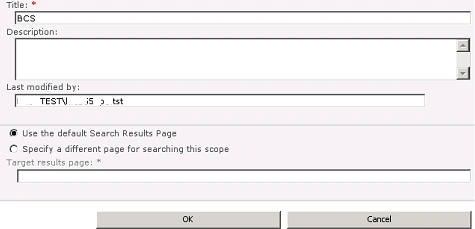
- A new scope is created successfully.
- Click on "Add Rules".
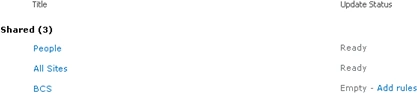
- In the "Scope Rule Type" section, select Content Source option.
- In the "Content Source" section, select
BCS from the drop down.
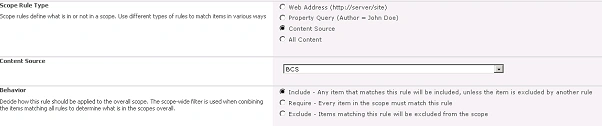
- Click on Ok.
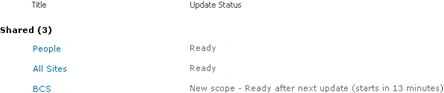
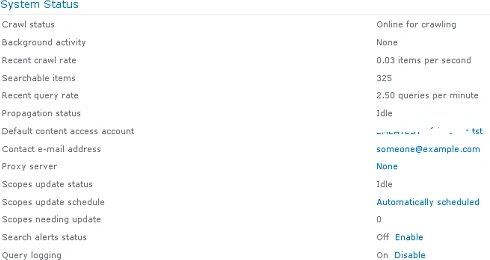
- It will be updated after a particular
interval, if you want update now go to Administration => Search
Administration => System Status =>Scopes needing update => click on "Start
update now".
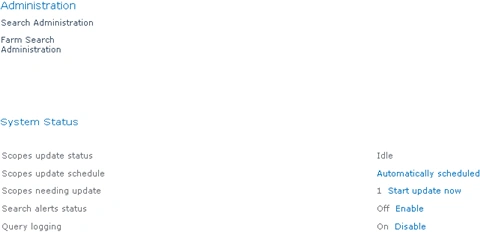
- Refresh the page until the scope update
process completes.


Join the conversation! Your thoughts help the community grow.