

Content: First create a new Silverlight Application name "LiveVideoCatchUp".
Step1: Open the MainPage.xaml and paste the code below.
<UserControl x:Class="LiveVideoCatchUp.MainPage"
xmlns="http://schemas.microsoft.com/winfx/2006/xaml/presentation"
xmlns:x="http://schemas.microsoft.com/winfx/2006/xaml"
xmlns:d="http://schemas.microsoft.com/expression/blend/2008"
xmlns:mc="http://schemas.openxmlformats.org/markup-ompatibility/2006"
mc:Ignorable="d"
d:DesignHeight="453" d:DesignWidth="694">
<Grid x:Name="LayoutRoot">
<Grid.Background>
<LinearGradientBrushEndPoint="1,0.5"StartPoint="0,0.5">
<GradientStop Color="Black" Offset="0" />
<GradientStop Color="#FFD1AEAE" Offset="1" />
</LinearGradientBrush>
</Grid.Background>
<Grid x:Name="LayoutRoot1" Background="White" Margin="0,0,-14,-23">
<Grid.RowDefinitions>
<RowDefinition Height="439*" />
<RowDefinition Height="14*" />
</Grid.RowDefinitions>
<StackPanelHorizontalAlignment="Center" Margin="109,20,142,6" Width="443"Grid.RowSpan="2">
<Rectangle x:Name="rectWebCamView" Width="488" Height="409"/>
<StackPanel Orientation="Horizontal" Height="34" Width="416">
<Button x:Name="btnCaptureDevice" Content="Capture Device" Margin="5"/>
<Button x:Name="btnPlayCapture" Content="Start Capture" Margin="5"/>
<Button x:Name="btnStopCapture" Content="Stop Capture" Margin="5"/>
<Button x:Name="btnSaveClip" Content="SaveClip" Height="23" Width="89" Click="btnSaveClip_Click" />
</StackPanel>
</StackPanel>
</Grid>
</Grid>
</UserControl>
The screen will look like Fig 1:
Step 2:
Now we have 4 Button- 1) Captute Device 2) Start Capture 3) Stop Capture 4) SaveClip.
Now in the page Load Method we have the "TryCaptureDevice()" method. In this method we have the "VideoCaptureDevice" Class.
This class is for detecting a VideoCaptute device such as a webcam or any external camera. So now we have the complete method of "TryCaptureDevice".
privatevoidTryCaptureDevice()
{
// Get the default video capture device
VideoCaptureDevicevideoCaptureDevice = CaptureDeviceConfiguration.GetDefaultVideoCaptureDevice();
if (videoCaptureDevice == null)
{
// Default video capture device is not setup
btnPlayCapture.IsEnabled = false;
btnStopCapture.IsEnabled = false;
btnCaptureDevice.IsEnabled = true;
MessageBox.Show("You don't have any default capture device");
}
else
{
btnPlayCapture.IsEnabled = false;
btnStopCapture.IsEnabled = false;
// Set the Capture Source to the VideoBrush of the rectangle
VideoBrushvideoBrush = newVideoBrush();
videoBrush.SetSource(captureSource);
rectWebCamView.Fill = videoBrush;
//SaveCaptureDevice();
// Check if the Silverlight has already access to the device or grant access from the user
if (CaptureDeviceConfiguration.AllowedDeviceAccess || CaptureDeviceConfiguration.RequestDeviceAccess())
{
btnPlayCapture.IsEnabled = true;
btnStopCapture.IsEnabled = false;
btnCaptureDevice.IsEnabled = false;
}
}
}
Step 3:
Now we have a class named "MemoryStreamVideoSink.cs". This class is for saving your capture clip while you press the "SaveClip" Button.
The code of that class is:
using System;
using System.Net;
using System.Windows;
using System.Windows.Controls;
using System.Windows.Documents;
using System.Windows.Ink;
using System.Windows.Input;
using System.Windows.Media;
using System.Windows.Media.Animation;
using System.Windows.Shapes;
using System.IO;
namespace LiveVideoCatchUp
{
publicclassMemoryStreamVideoSink:VideoSink
{
publicVideoFormatCapturedFormat { get; privateset; }
publicMemoryStreamCapturedVideo { get; privateset; }
protectedoverridevoidOnCaptureStarted()
{
CapturedVideo = newMemoryStream();
}
protectedoverridevoidOnCaptureStopped()
{
}
protectedoverridevoidOnFormatChange(VideoFormatvideoFormat)
{
if (CapturedFormat != null)
{
thrownewInvalidOperationException("Can't cope with change!");
}
CapturedFormat = videoFormat;
}
protectedoverridevoidOnSample(longsampleTime, longframeDuration, byte[] sampleData)
{
CapturedVideo.Write(sampleData, 0, sampleData.Length);
}
}
}
Step 4:
Now the complete code of the mainpage.xaml.cs is:
using System;
using System.Collections.Generic;
using System.Linq;
using System.Net;
using System.Windows;
usingSystem.Windows.Controls;
usingSystem.Windows.Documents;
usingSystem.Windows.Input;
usingSystem.Windows.Media;
usingSystem.Windows.Media.Animation;
usingSystem.Windows.Shapes;
namespace LiveVideoCatchUp
{
publicpartialclassMainPage : UserControl
{
privateCaptureSourcecaptureSource = newCaptureSource();
//CaptureSourcecaptureSource;
MemoryStreamVideoSinkvideoSink;
publicMainPage()
{
InitializeComponent();
this.Loaded += newRoutedEventHandler(MainPage_Loaded);
btnPlayCapture.Click += newRoutedEventHandler(btnPlayCapture_Click);
btnStopCapture.Click += newRoutedEventHandler(btnStopCapture_Click);
btnCaptureDevice.Click += newRoutedEventHandler(btnCaptureDevice_Click);
}
voidbtnCaptureDevice_Click(object sender, RoutedEventArgs e)
{
TryCaptureDevice();
}
voidbtnStopCapture_Click(object sender, RoutedEventArgs e)
{
// Stop capturing
captureSource.Stop();
btnPlayCapture.IsEnabled = true;
btnStopCapture.IsEnabled = false;
}
voidbtnPlayCapture_Click(object sender, RoutedEventArgs e)
{
// If the device is already capturing Stop it
if (captureSource.State == CaptureState.Started)
{
captureSource.Stop();
}
// Start capturing
captureSource.Start();
btnPlayCapture.IsEnabled = false;
btnStopCapture.IsEnabled = true;
}
voidMainPage_Loaded(object sender, RoutedEventArgs e)
{
TryCaptureDevice();
}
privatevoidTryCaptureDevice()
{
// Get the default video capture device
VideoCaptureDevicevideoCaptureDevice = CaptureDeviceConfiguration.GetDefaultVideoCaptureDevice();
if (videoCaptureDevice == null)
{
// Default video capture device is not setup
btnPlayCapture.IsEnabled = false;
btnStopCapture.IsEnabled = false;
btnCaptureDevice.IsEnabled = true;
MessageBox.Show("You don't have any default capture device");
}
else
{
btnPlayCapture.IsEnabled = false;
btnStopCapture.IsEnabled = false;
// Set the Capture Source to the VideoBrush of the rectangle
VideoBrushvideoBrush = newVideoBrush();
videoBrush.SetSource(captureSource);
rectWebCamView.Fill = videoBrush;
//SaveCaptureDevice();
// Check if the Silverlight has already access to the device or grant access from the user
if (CaptureDeviceConfiguration.AllowedDeviceAccess || CaptureDeviceConfiguration.RequestDeviceAccess())
{
btnPlayCapture.IsEnabled = true;
btnStopCapture.IsEnabled = false;
btnCaptureDevice.IsEnabled = false;
}
}
}
//getting the Video bit stream
privatevoidSaveCaptureDevice()
{
bool ok = CaptureDeviceConfiguration.AllowedDeviceAccess;
if (!ok)
{
ok = CaptureDeviceConfiguration.RequestDeviceAccess();
}
if (ok)
{
if (videoSink == null)
{
captureSource = newCaptureSource()
{
VideoCaptureDevice = CaptureDeviceConfiguration.GetDefaultVideoCaptureDevice()
};
VideoBrushvideoBrush = newVideoBrush();
videoBrush.SetSource(captureSource);
rectWebCamView.Fill = videoBrush;
videoSink = newMemoryStreamVideoSink();
videoSink.CaptureSource = captureSource;
}
videoSink.CaptureSource.Start();
}
}
privatevoidbtnSaveClip_Click(object sender, RoutedEventArgs e)
{
SaveCaptureDevice();
}
}
}
Step 5:
Now go to the "OutofBrowser" setting under the properties folder of your project just like Fig 2 (marked with red) and paste the code below.
<OutOfBrowserSettingsShortName="LiveVideoCatchUp Application"EnableGPUAcceleration="False"ShowInstallMenuItem="True">
<OutOfBrowserSettings.Blurb>LiveVideoCatchUp Application on your desktop; at home, at work or on the go.</OutOfBrowserSettings.Blurb>
<OutOfBrowserSettings.WindowSettings>
<WindowSettingsTitle="LiveVideoCatchUp Application" />
</OutOfBrowserSettings.WindowSettings>
<OutOfBrowserSettings.Icons />
</OutOfBrowserSettings>
Fig 2:
Step 6:
Now run the application. It will look like fig 3:
Fig 3:
Now when you will press the capture device the Silverlight will ask a message to allow the microphone or video device just like Fig 4. You have to press yes.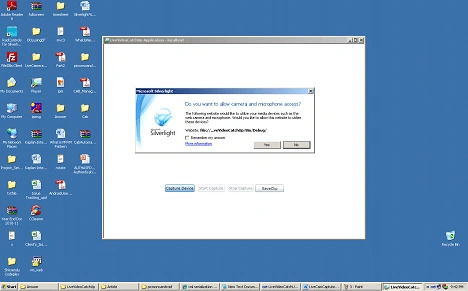
Step 6:
After that you have to press the Button "StartCapture". It will look like Fig 4:
Fig 4: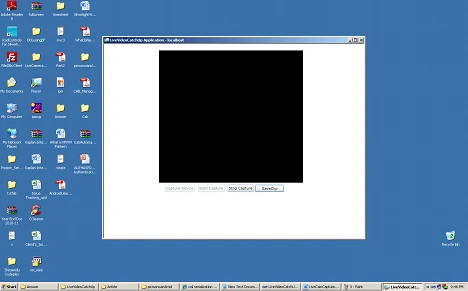
Right now I don't have the Web cam or Web camera simulator. If I did then you would see my Image instead of the black spot.
When you press the Stop Button, it will stop to capture your image.
veeraiyan paramasivamPosted Sep 2, 2016, 3:00 AM
Pls let me tell u soon..
veeraiyan paramasivamPosted Sep 2, 2016, 3:00 AM
Where is the saving file
veeraiyan paramasivamPosted Sep 2, 2016, 3:00 AM
Exception of type 'System.OutOfMemoryException' was thrown. While clicking on Save click button How to solve this because i am totally new on this.
deepak rajPosted Aug 11, 2014, 3:11 AM
Exception of type 'System.OutOfMemoryException' was thrown. While clicking on Save click button How to solve this because i am totally new on this.
nader jamaliPosted Jun 6, 2014, 2:42 PM
How do I record/saving a captured fim to specified path in Windos form using C ?
Shiv NarayanPosted May 9, 2014, 3:06 AM
while saving video clip getting error in SaveCaptureDevice() in this line videoSink.CaptureSource.Start();
Shiv NarayanPosted May 9, 2014, 3:05 AM
invalidopertaionException was unhandled by usercode
suresh kumarPosted Mar 2, 2013, 12:44 AM
where is it saving video file....????
Alan ManciniPosted May 26, 2011, 4:46 AM
ffmpeg need every frame saved as jpeg, right? so how to "byteStream -> jpeg frames" ?? there is no other way in SL5 to save a compressed video? any lib to do that ?
annele cabalanPosted May 4, 2011, 9:46 AM
i'm currently doing an OOB using silverlight 4.0 i want to save a video clip from a video playing in my media element and how to retrieve the saved video? can you help me thanks
yasir haleemPosted Apr 2, 2011, 10:35 AM
Assalam O Aliqum!! i wants to open this project in vb 2010 plz help me what steps i have to follow to open that.
James RobinPosted Apr 1, 2011, 8:05 PM
Where does the video go when you press Save Capture?