

Introduction
In my previous articles you had already learned about:
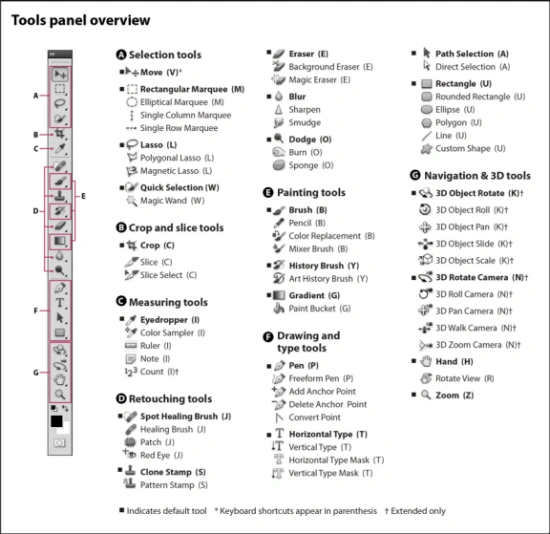
In this article you will learn about Measuring Tools.
- Measuring Tools
- Eyedropper Tool
- Color Sampler Tool
- Ruler Tool
- Note Tool
- Count Tool
Eyedropper Tool
We can use this tool for matching a color and we also match a color from a web page or something else while working in Photoshop. Just click with the eyedropper tool somewhere in your Photoshop file, and drag the cursor off to sample colors from anything visible on your screen. Your color will be selected.
Color Sampler Tool
The Color Sampler Tool can used to match colors in an image, like the Eyedropper tool, but its values can be stored in the Info palette for future reference. The keyboard shortcut key for this tool is " I " .
It's quite helpful when adjusting an image's colors. The Color Sampler tool is bundled with the Eyedropper tool in the Toolbox. It works differently from the Eyedropper tool in that you use it to click and place sample points in an image. The color values at a sample point are stored in the Info palette for as long as the sample point remains in the image. You can place up to four sample points per image.
Ruler Tool
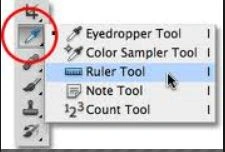
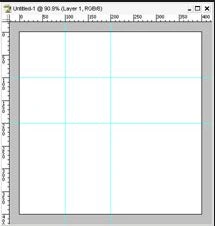
- The starting location (X and Y)
- The horizontal (W) and vertical (H) distances traveled from the x and y axes
- The angle measured relative to the axis (A)
- The total length traveled (L1)
Note Tool
The Note Tool is a Toolbox. Through the Note Tool we can attach little notes to your .psd files. There are two versions of Photoshop Notes: text and audio.

To create a text note:
- Click on the Note Tool when it is shaped as a sheet of notepaper.
- If it's shaped like a loudspeaker then right-click and toggle it to the notepaper. Your mouse pointer will now become a note icon. Now click anywhere on your document. A note window will pop up.
- If you look just below the top menu of Photoshop, you will see how you can adjust the author, font, font size, and color of the note.
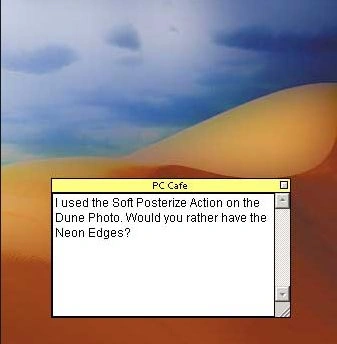
You can drag and drop your note around like any other object, and double-clicking will allow you to edit and view it.
Count Tools
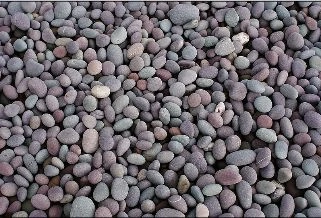
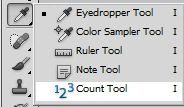
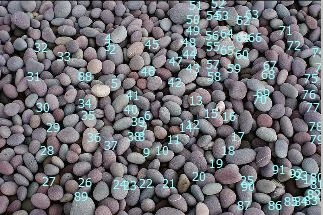
When we click on an image after selecting the Count tool, a click number is displayed on the item. Count numbers are saved when you save a file. Photoshop can also automatically count multiple selected areas in an image, and records are stord in the Measurement Log panel . Let's see an example and how to keep a count.
First of all, open any image in Photoshop, then choose the count Tool. After choosing the Count Tools, whenever you click on an image you will find a number until you have not selected any other tool.
Santhakumar MunuswamyPosted Jul 8, 2015, 3:44 PM
Thanks for sharing