

Data binding provides a simple way for Silverlight-based applications to display
and interact with data. The way data is displayed is separated from the
management of the data. A connection, or binding, between the UI and a data
object allows data to flow between the two. When a binding is established and
the data changes, the UI elements that are bound to the data can reflect changes
automatically. Similarly, changes made by the user in a UI element can be
reflected in the data object. For example, if the user edits the value in a
TextBox, the underlying data value is automatically updated to reflect that
change.
Some common binding scenarios include binding a ListBox to a list of headlines,
an input form's TextBox to a customer data object, or an Image to the current
user's photo.
Connecting User Interface Elements with Data
Every binding must specify a source and a target. The following illustration
shows the basic concepts of a binding.
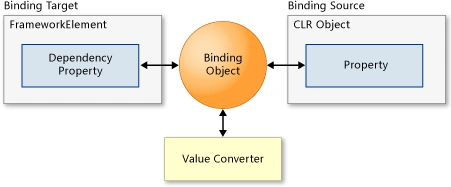
Figure 1
The binding engine gets information from the Binding object about the following:
- The target UI property that displays and
possibly allows user changes to the data. The target can be any
DependencyProperty of a FrameworkElement. The target can also be a
DependencyProperty of a DependencyObject in the following cases:
- The DependencyObject is the value of a property of a FrameworkElement.
- The DependencyObject is in a collection that is the value of a FrameworkElement property (for example, the Resources property).
- The DependencyObject is in a DependencyObjectCollection<(Of <(<'T>)>)>.
- The source object that contains the data that flows between the source and target. The source can be any CLR object, including the target element itself or other UI elements. If the target is in a data template, the source can be the UI element to which the template is applied.
- The direction of the data flow. The direction is specified by setting the Mode property on the Binding object.
- The optional value converter that applies to the data as it is passed. The value converter is a class that implements IValueConverter.
<ComboBox
x:Name="cmbEmployeeName"
VerticalAlignment="Top"
Margin="261,72,279,0"
Height="24"
Width="200">
<ComboBox.ItemTemplate>
<DataTemplate>
<StackPanel>
<TextBlock
Text="{Binding
EmployeeName}"
Foreground="{Binding EmployeeStatus}"/>
</StackPanel>
</DataTemplate>
</ComboBox.ItemTemplate>
</ComboBox>
Listing

Figure 2
As you see in the above listing and figure, the Foreground property of a
TextBlock can be bound to a SolidColorBrush so that the color of the text can
change based on the data. In this scenario, the Foreground property is the
target, and the SolidColorBrush object is the source for the binding.
The binding is created in XAML using the {Binding ...} syntax. The source is set
in code by setting the DataContext property for the TextBlock.
Data context is inherited. If you set the data context on a parent element, all
it's children will use the same data context. A child element can override this
behavior by setting the Source property on it's binding object or by setting
it's DataContext, which will then apply to all it's children.
Setting the data context is useful when you want to have multiple bindings that
all use the same source. To set the source for a single binding, set the Source
property on the Binding object.
You can also use the ElementName property or the RelativeSource property to
specify the binding source. The ElementName property is useful when you are
binding to other elements in your application, such as when you are using a
slider to adjust the width of a button. The RelativeSource property is useful
when the binding is specified in a ControlTemplate or a Style.
Altogether, the preceding example causes the binding engine to create a binding,
which is OneWay by default, connecting the Foreground property of the TextBlock
to the EmployeeStatus property of the Employee object.
Direction of the Data Flow
Each binding has a Mode property, which determines how and when the data flows.
Silverlight enables three types of bindings:
-
OneTime bindings update the target with the source data when the binding is created.
-
OneWay bindings update the target with the source data when the binding is created and anytime the data changes. This is the default mode.
-
TwoWay bindings update both the target and the source when either changes. Alternately, you can disable automatic source updates and update the source only at times of your choosing.
In order for automatic target updates to occur,
the source object must implement the INotifyPropertyChanged interface.
public
class Employee:
INotifyPropertyChanged
{
#region
INotifyPropertyChanged Members
public event
PropertyChangedEventHandler PropertyChanged;
#endregion
public int EmployeeID { get; set; }
private string _EmployeeName;
public string
EmployeeName
{
get
{
return _EmployeeName;
}
set
{
_EmployeeName = value;
NotifyPropertyChanged("EmployeeName");
}
}
public
SolidColorBrush EmployeeStatus { get;
set; }
public void
NotifyPropertyChanged(string propertyName)
{
if (PropertyChanged !=
null)
{
PropertyChanged(this,
new
PropertyChangedEventArgs(propertyName));
}
}
}
Listing
To get change notification for collections bound to an ItemsControl, implement
INotifyCollectionChanged in addition to INotifyPropertyChanged. If you implement
INotifyCollectionChanged, changes to the collection, such as adding or removing
an object, will propagate to the target. To get property change notification for
objects in the collection, the objects must implement INotifyPropertyChanged.
Before implementing your own collection, consider using the ObservableCollection<(Of
<(<'T>)>)> class, which has a built-in implementation of
INotifyCollectionChanged and INotifyPropertyChanged.
Updating the Data Source
In TwoWay bindings, changes to the target automatically update the source,
except when binding to the Text property of a TextBox. In this case, the update
occurs when the TextBox loses focus.
You can disable automatic source updates and update the source at times of your
choosing. For example, you can do this to validate user input from multiple
controls before you update the bound data sources.
To disable automatic source updates, set the UpdateSourceTrigger property to
Explicit. This setting affects all bindings that use the same Binding object
(for example, when using an inherited data context). You must update the source
for each binding individually, however. To update a binding, first call the
FrameworkElement.GetBindingExpression method of a target element, passing in the
target DependencyProperty. You can then use the return value to call the
BindingExpression.UpdateSource method.
<Button
x:Name="btnSubmit"
HorizontalAlignment="Left"
VerticalAlignment="Top"
Width="100"
Content="Submit"
Click="btnSubmit_Click"
Margin="82,191,0,0"
Height="24"/>
<TextBox
x:Name="txtEmployeeName"
HorizontalAlignment="Left"
Text="{Binding
EmployeeName,
Mode=TwoWay,
UpdateSourceTrigger=Explicit}"
VerticalAlignment="Top"
TextWrapping="Wrap"
Margin="82,100,0,0"
Width="207"/>
<TextBlock
x:Name="txtStatus1"
HorizontalAlignment="Left"
VerticalAlignment="Top"
TextWrapping="Wrap"
Margin="82,134,0,0"/>
<TextBlock
x:Name="txtStatus2"
HorizontalAlignment="Left"
Margin="82,157,0,0"
VerticalAlignment="Top"
TextWrapping="Wrap"/>
Listing
public
MainPage()
{
InitializeComponent();
emp = new
Employee
{
EmployeeID = 1,
EmployeeName = "Mahesh",
EmployeeStatus = new
SolidColorBrush(Colors.Green)
};
txtEmployeeName.DataContext = emp;
}
private
void btnSubmit_Click(object
sender, RoutedEventArgs e)
{
BindingExpression
expression =
txtEmployeeName.GetBindingExpression(TextBox.TextProperty);
txtStatus1.Text = "Before UpdateSource, Employee
Name = " +
emp.EmployeeName;
expression.UpdateSource();
txtStatus2.Text = "After UpdateSource, Employee Name = " +
emp.EmployeeName;
}
Listing
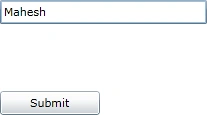
Figure 3
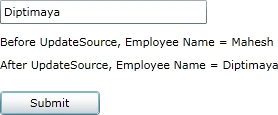
Figure 4
Binding to Collections
A binding source object can be treated either as a single object whose
properties contain data or as a collection of objects. For example, you might
want to display a list of items, such as monthly credit card bills. To do this,
use an ItemsControl and repeat over a DataTemplate to display each item in a
collection.
You can enumerate over any collection that implements IEnumerable. If you want
the target to update the ItemsSource when the collection changes, implement
INotifyCollectionChanged. For more information on change notification, see the
Change Notification section earlier in this topic.
We have already seen binding a collection of data to a ComboBox, and it would
display a specific property out of the particular entity.
Data Validation
Silverlight supports simple data validation in TwoWay bindings for
target-to-source updates. Additionally, Silverlight supports validation with
IDataErrorInfo and INotifyDataErrorInfo regardless of the binding mode.
Silverlight reports a validation error whenever the Validation.Errors attached
property of a binding contains errors. Errors are added to this collection in
the following cases:
-
Exceptions are thrown from the binding engine's type converter.
-
Exceptions are thrown from the binding object's set accessor.
-
Exceptions are thrown from a validation attribute that is applied to a data object or member.
-
The binding object implements IDataErrorInfo and it's Item property returns a value that is not null or Empty.
-
The binding object implements INotifyDataErrorInfo and it's GetErrors method returns a value that is not null. The GetErrors return value can change as a result of the completion of asynchronous validation operations.
Silverlight provides visual feedback for validation errors in the following cases:
-
The ValidatesOnExceptions property value is true.
-
The ValidatesOnDataErrors property value is true. However, the ValidatesOnDataErrors property is ignored for a source property if the ValidatesOnExceptions property value is true and the source property setter throws an exception.
-
The ValidatesOnNotifyDataErrors property is true. This property can work in combination with either ValidatesOnExceptions or ValidatesOnDataErrors.
<TextBox
x:Name="txtEmployeeName"
HorizontalAlignment="Left"
Text="{Binding
EmployeeName,
Mode=TwoWay,
UpdateSourceTrigger=Explicit,
NotifyOnValidationError=True,
ValidatesOnExceptions=True}"
VerticalAlignment="Top"
TextWrapping="Wrap"
Margin="82,100,0,0"
Width="207"/>
Listing
private
string _EmployeeName;
public
string EmployeeName
{
get
{
return _EmployeeName;
}
set
{
if (string.IsNullOrEmpty(value))
{
throw
new Exception("Employee
Name is Required");
}
_EmployeeName = value;
NotifyPropertyChanged("EmployeeName");
}
}
Listing
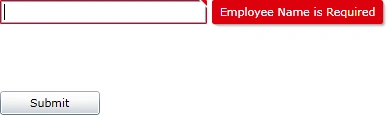
Figure 5
As you see in above figure the Validation error is thrown. The visual feedback
indicates the control that contains the error, and displays the error message
nearby, as shown in the above illustration.
In order to receive notification that a validation error has occurred, you must
also set the NotifyOnValidationError property to true on the binding object.
Setting ValidatesOnExceptions to true tells the binding engine to create a
validation error when an exception occurs. Setting NotifyOnValidationError to
true tells the binding engine to raise the BindingValidationError event when a
validation error occurs and resolves. For example, you can handle the error
event to log the error or provide additional visual feedback.
To handle the BindingValidationError event, create an event handler on the
target object or any of it's parents. The BindingValidationError event is a
routed event, so if you do not handle it on the element that raised the event,
it will continue to bubble up until it is handled.
public
MainPage()
{
InitializeComponent();
LayoutRoot.BindingValidationError += new
EventHandler<ValidationErrorEventArgs>
(LayoutRoot_BindingValidationError);
emp = new
Employee
{
EmployeeID = 1,
EmployeeName = "Mahesh",
EmployeeStatus = new
SolidColorBrush(Colors.Green)
};
txtEmployeeName.DataContext = emp;
}
void
LayoutRoot_BindingValidationError(object sender,
ValidationErrorEventArgs e)
{
if (e.Action ==
ValidationErrorEventAction.Added)
{
txtEmployeeName.Background = new
SolidColorBrush(Color.FromArgb(23,242,67,67));
}
else if
(e.Action == ValidationErrorEventAction.Removed)
{
txtEmployeeName.Background = new
SolidColorBrush(Colors.White);
}
}
Listing
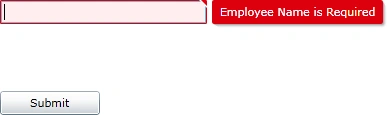
Figure 6
As you see in above figure the error TextBox has a background associated with it
when it has the error.
Data Conversions
You may need to display data in a format that differs from how it is stored.
Some examples are the following:
-
Storing a color as an RGBA value but displaying it as a string name.
-
Storing a number as a floating-point value but displaying it as a currency value.
-
Storing a date as DateTime but displaying it in a calendar.
-
Storing a null value, but displaying a friendly default value.
You can format any String value for display by
setting the StringFormat property. For information on formatting codes, see
Formatting Types.
You can display a friendly default value for null backing values by setting the
TargetNullValue property.
You can also set a converter on any binding. The converter is customized for
each scenario by creating a class and implementing the IValueConverter
interface. The following example shows how to implement IValueConverter.
The binding engine calls the Convert and ConvertBack methods if the Converter
parameter is defined for the binding. When data is passed from the source, the
binding engine calls Convert and passes the returned data to the target.
When
data is passed from the target, the binding engine calls ConvertBack and passes
the returned data to the source.
The converter also has optional parameters: ConverterCulture, which allows
specifying the culture to be used in the conversion, and ConverterParameter,
which allows passing a parameter for the conversion logic. For an example using
these parameters, see IValueConverter.
If there is an error in the conversion, do not throw an exception. Instead,
return DependencyProperty.UnsetValue, which will stop the data transfer.
To display a default value that appears whenever the binding source cannot be
resolved, set the FallbackValue property. This is useful to handle conversion
and formatting errors. It is also useful to bind to source properties that might
not exist on all objects in a bound collection.
Mamta MPosted Jul 11, 2011, 6:40 AM
This was really useful, keep up the good work.