

Introduction
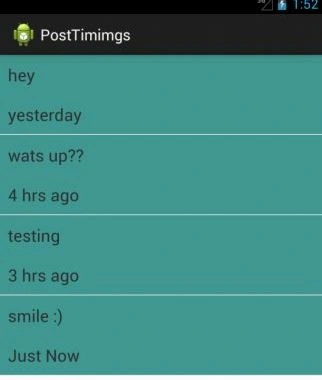
In this article, you will learn how to show when a post was posted, as you see on Facebook. In Facebook, you can see the time of the status, comments and so on as "Just Now", "1 day ago", "2 months ago and so on".
For doing this we will first store the post text and its time in a database. Later, while displaying, we will determine the difference between the present time and post time and display it accordingly.
Step 1
Create a new layout file.
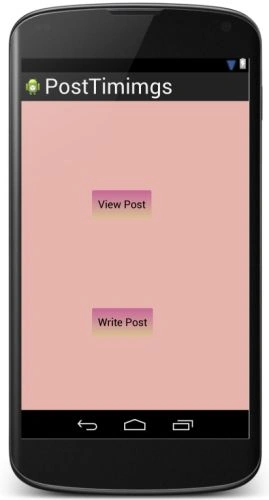
Right-click on layout then select "New" -> "Layout resource file". Name it "first_layout" and add the following code to it:
- <LinearLayout xmlns:android="http://schemas.android.com/apk/res/android"
- android:orientation="vertical"
- android:layout_width="match_parent"
- android:layout_height="match_parent"
- android:background="#e6b4ac">
- <Button
- android:layout_width="wrap_content"
- android:layout_height="wrap_content"
- android:layout_marginTop="150dp"
- android:layout_marginLeft="120dp"
- android:text="View Post"
- android:id="@+id/view"
- android:background="@drawable/button_lay"
- android:paddingRight="10dp"
- android:paddingLeft="10dp"/>
- <Button
- android:layout_width="wrap_content"
- android:layout_height="wrap_content"
- android:layout_marginTop="150dp"
- android:layout_marginLeft="120dp"
- android:text="Write Post"
- android:id="@+id/write"
- android:background="@drawable/button_lay"
- android:paddingRight="10dp"
- android:paddingLeft="10dp"/>
- </LinearLayout>
The layout looks like:
Step 2
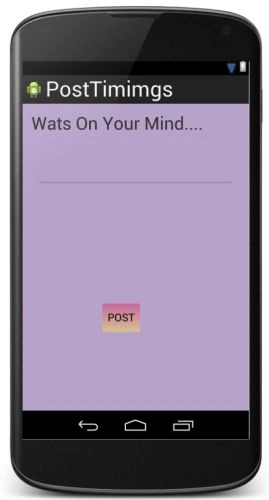
Open "activity_main" and add the following code to it:
- <LinearLayout xmlns:android="http://schemas.android.com/apk/res/android"
- xmlns:tools="http://schemas.android.com/tools"
- android:layout_width="match_parent"
- android:layout_height="match_parent"
- android:paddingLeft="@dimen/activity_horizontal_margin"
- android:paddingRight="@dimen/activity_horizontal_margin"
- android:paddingTop="@dimen/activity_vertical_margin"
- android:paddingBottom="@dimen/activity_vertical_margin"
- tools:context=".MainActivity"
- android:background="#b7a3ca"
- android:orientation="vertical">
- <TextView
- android:layout_width="wrap_content"
- android:layout_height="wrap_content"
- android:text="@string/wats"
- android:textSize="30dp"
- />
- <EditText
- android:layout_height="wrap_content"
- android:layout_width="fill_parent"
- android:layout_marginLeft="10dp"
- android:layout_marginTop="50dp"
- android:layout_marginRight="10dp"
- android:scrollbars="vertical"
- android:id="@+id/postTxt"
- />
- <Button
- android:layout_width="wrap_content"
- android:layout_height="wrap_content"
- android:layout_marginTop="200dp"
- android:layout_marginLeft="120dp"
- android:text="POST"
- android:background="@drawable/button_lay"
- android:id="@+id/submit"
- />
- </LinearLayout>
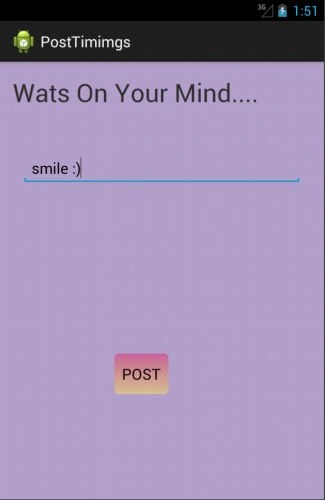
The layout looks like:
Step 3
Create a new layout file for viewing the thoughts/posts.
Right-click on layout then select "New" -> "Layout resource file". Name it as "view_layout2" and add the following code to it:
- <?xml version="1.0" encoding="utf-8"?>
- <TextView xmlns:android="http://schemas.android.com/apk/res/android"
- android:layout_width="fill_parent"
- android:layout_height="wrap_content"
- android:padding="10dp"
- android:textSize="20sp"
- android:background="#459890"
- >
- </TextView>
The layout looks like:
Step 4
Open "MainActivity" and add the following code to it:
- package com.chhavi.posttimimgs;
- import android.content.Context;
- import android.content.Intent;
- import android.os.Bundle;
- import android.app.Activity;
- import android.util.Log;
- import android.view.Menu;
- import android.view.View;
- import android.widget.Button;
- import java.sql.Date;
- import java.text.SimpleDateFormat;
- import java.util.Calendar;
- public class MainActivity extends Activity {
- Button view;
- Button write;
- final Context context=this;
- @Override
- protected void onCreate(Bundle savedInstanceState) {
- super.onCreate(savedInstanceState);
- setContentView(R.layout.first_layout);
- view=(Button)findViewById(R.id.view);
- write=(Button)findViewById(R.id.write);
- view.setOnClickListener(new View.OnClickListener() {
- @Override
- public void onClick(View v) {
- Intent i=new Intent(context,ViewPost.class);
- startActivity(i);
- }
- });
- write.setOnClickListener(new View.OnClickListener() {
- @Override
- public void onClick(View v) {
- Intent i=new Intent(context,WritePost.class);
- startActivity(i);
- }
- });
- }
- @Override
- public boolean onCreateOptionsMenu(Menu menu) {
- // Inflate the menu; this adds items to the action bar if it is present.
- getMenuInflater().inflate(R.menu.main, menu);
- return true;
- }
- }
Step 5
Create a new Java file.
Right-click on the same package then select "New" -> "Java class". Name this "WritePost" and add the following code to it:
- package com.chhavi.posttimimgs;
- import android.app.Activity;
- import android.content.ContentValues;
- import android.database.sqlite.SQLiteDatabase;
- import android.os.Bundle;
- import android.util.Log;
- import android.view.View;
- import android.widget.Button;
- import android.widget.EditText;
- import android.widget.Toast;
- import java.util.Calendar;
- public class WritePost extends Activity {
- Button submit;
- EditText txt;
- static int count=1;
- private ThoughtsDataSource dataSource;
- @Override
- protected void onCreate(Bundle savedInstanceState) {
- super.onCreate(savedInstanceState);
- setContentView(R.layout.activity_main);
- txt=(EditText)findViewById(R.id.postTxt);
- submit=(Button)findViewById(R.id.submit);
- dataSource = new ThoughtsDataSource(WritePost.this);
- submit.setOnClickListener(new View.OnClickListener() {
- @Override
- public void onClick(View v) {
- try{
- dataSource.open();
- Calendar cal=Calendar.getInstance();
- ThoughtData data = new ThoughtData();
- data.setThought(txt.getText().toString());
- data.setDateTimeString(cal.getTime().toString());
- int date= Calendar.DAY_OF_MONTH;
- int hr=Calendar.HOUR_OF_DAY;
- int amPm=Calendar.AM_PM;
- int day=Calendar.DAY_OF_WEEK;
- if(dataSource.createThought(data)>0)
- {
- Toast.makeText(WritePost.this, "Thought posted successfully", 1000).show();
- finish();
- }
- }
- catch(Exception e)
- {
- Log.i("exception in creating.........",e+"");
- }
- }
- });
- }
- }
Step 6
Right-click on the same package then select "New" -> "Java class". Name this "SQLiteHelper" and add the following code to it:
- package com.chhavi.posttimimgs;
- import android.content.Context;
- import android.database.sqlite.SQLiteDatabase;
- import android.database.sqlite.SQLiteDatabase.CursorFactory;
- import android.database.sqlite.SQLiteOpenHelper;
- public class SQLiteHelper extends SQLiteOpenHelper {
- public static final String TABLE_TIMING = "timing";
- public static final String COLUMN_ID = "_id";
- public static final String COLUMN_THOUGHT = "thought";
- public static final String COLUMN_DATETIME = "dateTime";
- private static final String DATABASE_NAME = "timingDB.db";
- private static final int DATABASE_VERSION = 1;
- private static final String DATABASE_CREATE = "create table "
- + TABLE_TIMING + "(" + COLUMN_ID
- + " integer primary key AUTOINCREMENT NOT NULL , " + COLUMN_THOUGHT
- + " text not null, " + COLUMN_DATETIME
- + " text not null);";
- public SQLiteHelper(Context context, String name, CursorFactory factory, int version) {
- super(context, name, factory, version);
- // TODO Auto-generated constructor stub
- }
- public SQLiteHelper(Context context) {
- super(context, DATABASE_NAME, null, DATABASE_VERSION);
- }
- @Override
- public void onCreate(SQLiteDatabase db) {
- // TODO Auto-generated method stub
- db.execSQL(DATABASE_CREATE);
- }
- @Override
- public void onUpgrade(SQLiteDatabase db, int oldVersion, int newVersion) {
- // TODO Auto-generated method stub
- db.execSQL("DROP TABLE IF EXISTS " + TABLE_TIMING);
- onCreate(db);
- }
- }
Join the conversation! Your thoughts help the community grow.