

Introduction
As a child, I used to love the Tic Tac Toe game. Even now it is the best way to pass time between boring lectures :p. So let us make our own Tic Tac Toe today.
Step 1
Make the following changes in "string.xml":
- <string name="app_name" >TicTacToefinal</string>
- <string name="action_settings" >Settings </string>
- <string name="hello_world" >Tic Tac Toe</string>
Step 2
Make the following changes in "dimens.xml":
- <dimen name="activity_horizontal_margin">16dp</dimen>
- <dimen name="activity_vertical_margin">16dp</dimen>
- <dimen name="heading">50dp</dimen>
- <dimen name="congo">35dp</dimen>
Step 3
For adding colors let us make a new resource file. Right-click on "Values" -> "New" -> "Values resource file". Name this file as "color" and add the following code to it:
- <resources>
- <color name="player">#360ec5</color>
- <color name="gamecol">#e7d39e</color>
- <color name="bgwin">#000000</color>
- <color name="drawbg">#977897</color>
- </resources>
Now let us start making the layouts.
Step 4
Making the first screen of our game.
Add the following code in "activity_main.xml" in "layout":
- <LinearLayout xmlns:android="http://schemas.android.com/apk/res/android"
- xmlns:tools="http://schemas.android.com/tools"
- android:layout_width="match_parent"
- android:layout_height="match_parent"
- android:paddingLeft="@dimen/activity_horizontal_margin"
- android:paddingRight="@dimen/activity_horizontal_margin"
- android:paddingTop="@dimen/activity_vertical_margin"
- android:paddingBottom="@dimen/activity_vertical_margin"
- tools:context=".MainActivity"
- android:background="@drawable/images">
- <TextView
- android:layout_width="wrap_content"
- android:layout_height="wrap_content"
- android:text="@string/hello_world"
- android:layout_marginLeft="50dp"
- android:paddingTop="20dp"
- android:textSize="@dimen/heading"
- />
- <Button
- android:layout_width="fill_parent"
- android:layout_height="wrap_content"
- android:text="Clich Here"
- android:layout_marginTop="400dp"
- android:layout_marginLeft="-100dp"
- android:background="@drawable/button_lay"
- android:id="@+id/clickHere"/>
- </LinearLayout>
Note that I have added an image for the background. The process of adding the image is simple. Copy the required image to the clipboard and paste it in "drawables".
The layout looks like:

Step 5
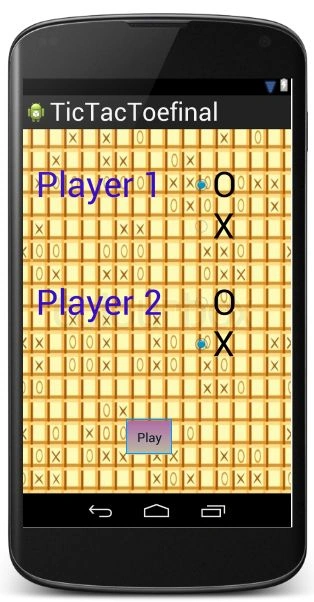
For making the menu, create a new layout file. Right-click on "Layout" -> "New" -> "Layout resource file". Name this file as "menu_layout" and add the following to it:
- <LinearLayout xmlns:android="http://schemas.android.com/apk/res/android"
- android:orientation="vertical"
- android:layout_width="match_parent"
- android:layout_height="match_parent"
- android:background="@drawable/menu_back" >
- <RelativeLayout
- android:layout_height="wrap_content"
- android:layout_width="fill_parent">
- <TextView
- android:layout_height="wrap_content"
- android:layout_width="wrap_content"
- android:text="Player 1 "
- android:textSize="@dimen/heading"
- android:layout_marginTop="50dp"
- android:layout_marginLeft="20dp"
- android:textColor="@color/player"
- android:id="@+id/t1"/>
- <RadioGroup
- android:layout_height="wrap_content"
- android:layout_width="fill_parent"
- android:id="@+id/player1"
- android:layout_marginTop="50dp"
- android:layout_marginLeft="240dp">
- <RadioButton
- android:layout_height="wrap_content"
- android:layout_width="wrap_content"
- android:text="O"
- android:textSize="@dimen/heading"
- android:checked="true"
- android:id="@+id/zero"/>
- <RadioButton
- android:layout_height="wrap_content"
- android:layout_width="wrap_content"
- android:text="X"
- android:textSize="@dimen/heading"
- android:id="@+id/cross"/>
- </RadioGroup>
- </RelativeLayout>
- <RelativeLayout
- android:layout_height="wrap_content"
- android:layout_width="fill_parent">
- <TextView
- android:layout_height="wrap_content"
- android:layout_width="wrap_content"
- android:text="Player 2 "
- android:textSize="@dimen/heading"
- android:layout_marginTop="50dp"
- android:layout_marginLeft="20dp"
- android:textColor="@color/player"
- android:id="@+id/t2"/>
- <RadioGroup
- android:layout_height="wrap_content"
- android:layout_width="fill_parent"
- android:id="@+id/player2"
- android:layout_marginTop="50dp"
- android:layout_marginLeft="240dp">
- <RadioButton
- android:layout_height="wrap_content"
- android:layout_width="wrap_content"
- android:text="O"
- android:textSize="@dimen/heading"
- android:id="@+id/zero"/>
- <RadioButton
- android:layout_height="wrap_content"
- android:layout_width="wrap_content"
- android:text="X"
- android:checked="true"
- android:textSize="@dimen/heading"
- android:id="@+id/cross"/>
- </RadioGroup>
- </RelativeLayout>
- <Button
- android:id="@+id/play"
- android:layout_height="wrap_content"
- android:layout_width="wrap_content"
- android:text="Play"
- android:layout_marginTop="80dp"
- android:layout_marginLeft="150dp"
- android:paddingLeft="10dp"
- android:paddingRight="10dp"
- android:background="@drawable/button_lay"/>
- </LinearLayout>
The layout looks like:
Step 6
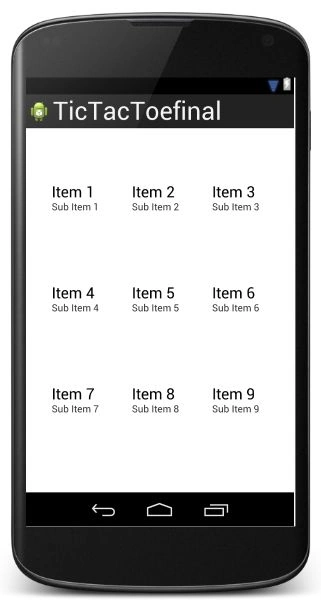
The layout for displaying the main game screen will be a Grid. Create a new layout file. Name it as "game_layout" and add the following code to it:
- <GridView xmlns:android="http://schemas.android.com/apk/res/android"
- android:orientation="vertical"
- android:layout_width="match_parent"
- android:layout_height="match_parent"
- android:id="@+id/gridview1"
- android:numColumns="3"
- android:layout_marginTop="30dp"
- android:layout_marginLeft="30dp"
- android:layout_marginRight="30dp"
- android:layout_marginBottom="30dp"
- android:gravity="center"
- android:horizontalSpacing="20dip"
- android:verticalSpacing="80dp"
- android:paddingTop="40dp"
- android:paddingBottom="40dp">
- </GridView>
The layout looks like:
Step 7
Inside the Grid View I will use the text view. So, create a new layout file and name it as "game_layout2". Add the following code to it:
- <TextView xmlns:android="http://schemas.android.com/apk/res/android"
- android:orientation="vertical"
- android:layout_width="match_parent"
- android:layout_height="match_parent"
- android:background="@color/gamecol"
- android:id="@+id/txt"
- android:gravity="center">
- </TextView>
The layout looks like

Step 8
Make a new layout file and name it as "win_layout". Add the following to it:
- <LinearLayout xmlns:android="http://schemas.android.com/apk/res/android"
- android:orientation="vertical"
- android:layout_width="match_parent"
- android:layout_height="match_parent"
- android:background="@color/bgwin">
- <Button
- android:layout_height="wrap_content"
- android:layout_width="wrap_content"
- android:text="Play Again"
- android:layout_marginTop="10dp"
- android:layout_marginLeft="10dp"
- android:background="@drawable/button_lay"
- android:paddingRight="10dp"
- android:paddingLeft="10dp"
- android:id="@+id/back"/>
- <ImageView
- android:id="@+id/trophy"
- android:layout_height="150dp"
- android:layout_width="150dp"
- android:layout_marginLeft="10dp"
- android:layout_marginTop="30dp"/>
- <TextView
- android:layout_height="wrap_content"
- android:layout_width="fill_parent"
- android:textColor="@color/gamecol"
- android:textSize="@dimen/congo"
- android:layout_marginLeft="20dp"
- android:text="CONGRATULATIONS"
- android:layout_marginTop="30dp"
- />
- <TextView
- android:layout_height="wrap_content"
- android:layout_width="fill_parent"
- android:textSize="@dimen/congo"
- android:layout_marginTop="40dp"
- android:layout_marginLeft="100dp"
- android:id="@+id/wintxt"
- android:textColor="@color/gamecol"
- />
- <TextView
- android:layout_height="wrap_content"
- android:layout_width="fill_parent"
- android:text="WON!!!"
- android:textSize="@dimen/congo"
- android:layout_marginLeft="90dp"
- android:layout_marginTop="30dp"
- android:textColor="@color/gamecol"/>
- </LinearLayout>
The layout looks like

Step 9
Make a new layout file and name it as "draw_layout". Add the following to it:
- <LinearLayout xmlns:android="http://schemas.android.com/apk/res/android"
- android:orientation="vertical"
- android:layout_width="match_parent"
- android:layout_height="match_parent"
- android:background="@color/drawbg">
- <Button
- android:layout_width="wrap_content"
- android:layout_height="wrap_content"
- android:text="Play again"
- android:background="@drawable/button_lay"
- android:paddingLeft="10dp"
- android:paddingRight="10dp"
- android:layout_marginLeft="30dp"
- android:layout_marginTop="30dp"
- android:id="@+id/drawBack"/>
- <TextView
- android:layout_width="fill_parent"
- android:layout_height="wrap_content"
- android:text="No One Wins"
- android:layout_marginTop="150dp"
- android:layout_marginLeft="30dp"
- android:textSize="@dimen/heading"/>
- <TextView
- android:layout_width="fill_parent"
- android:layout_height="wrap_content"
- android:text="Game DRAW!!"
- android:layout_marginTop="80dp"
- android:layout_marginLeft="70dp"
- android:textSize="@dimen/congo"/>
- </LinearLayout>
The layout looks like

Step 10:
For beautification, all my buttons will use the following drawable resource as their background. Right-click on "Drawable" -> "New" -> "Drawable resource file". Name this file as "admin_design" and add the following to it:
- <selector xmlns:android="http://schemas.android.com/apk/res/android">
- <item android:state_enabled="false" >
- <shape android:shape="rectangle">
- <gradient
- android:startColor="#454545"
- android:endColor="#454545"
- android:angle="-90"
- android:type="linear"
- />
- <corners android:radius="5dp" />
- </shape>
- </item>
- <!-- pressed -->
- <item android:state_pressed="true" android:state_enabled="true" >
- <shape android:shape="rectangle">
- <gradient
- android:startColor="#64334C"
- android:endColor="#300019"
- android:angle="-90"
- android:type="linear"
- />
- <corners android:radius="5dp" />
- </shape>
- </item>
- <!-- focused -->
- <item android:state_focused="true">
- <shape android:shape="rectangle">
- <gradient
- android:startColor="#C76699"
- android:endColor="#d9c292"
- android:angle="-90"
- android:type="linear"
- />
- <corners android:radius="5dp" />
- <stroke android:width="2dp" android:color="#dddddd"/>
- </shape>
- </item>
- <!-- default -->
- <item>
- <shape android:shape="rectangle">
- <gradient
- android:startColor="#C76699"
- android:endColor="#d9c292"
- android:angle="-90"
- android:type="linear"
- />
- <corners android:radius="5dp" />
- </shape>
- </item>
- </selector>
Now let us start with the Java part.
Step 11
Add the following code to "MainActivity.java":
- package com.tictactoefinal;
- import android.content.Context;
- import android.content.Intent;
- import android.os.Bundle;
- import android.app.Activity;
- import android.view.Menu;
- import android.view.View;
- import android.widget.Button;
- import android.widget.RadioButton;
- import android.widget.RadioGroup;
- public class MainActivity extends Activity {
- Button b;
- RadioGroup g1;
- RadioGroup g2;
- RadioButton rd;
- String p1;
- String p2;
- Button click;
- final Context context = this;
- @Override
- protected void onCreate(Bundle savedInstanceState) {
- super.onCreate(savedInstanceState);
- setContentView(R.layout.activity_main);
- click = (Button) findViewById(R.id.clickHere);
- click.setOnClickListener(new View.OnClickListener() {
- @Override
- public void onClick(View v) {
- setContentView(R.layout.menu_layout);
- b = (Button) findViewById(R.id.play);
- g1 = (RadioGroup) findViewById(R.id.player1);
- g2 = (RadioGroup) findViewById(R.id.player2);
- b.setOnClickListener(new View.OnClickListener() {
- @Override
- public void onClick(View v) {
- int sel = g1.getCheckedRadioButtonId();
- rd = (RadioButton) findViewById(sel);
- p1 = rd.getText().toString();
- sel = g2.getCheckedRadioButtonId();
- rd = (RadioButton) findViewById(sel);
- p2 = rd.getText().toString();
- Intent i = new Intent(context, Game.class);
- i.putExtra("Player1", p1);
- i.putExtra("Player2", p2);
- startActivity(i);
- }
- });
- }
- });
- }
- @Override
- public boolean onCreateOptionsMenu(Menu menu) {
- getMenuInflater().inflate(R.menu.main, menu);
- return true;
- }
- }
Step 12
For the actual game, make a new activity. In the same package make a new activity and name it as "Game". Add the following code to it:
- package com.tictactoefinal;
- import android.app.Activity;
- import android.content.Context;
- import android.content.Intent;
- import android.os.Bundle;
- import android.view.View;
- import android.widget.*;
- public class Game extends Activity {
- String p1;
- String p2;
- static int i=0;
- int j;
- GridView gridview;
- static final String[] symbols=new String[]{"","","","","","","","",""};
- int visitedp1[]={-1,-1,-1,-1,-1,-1,-1,-1,-1};
- int visitedp2[]={-1,-1,-1,-1,-1,-1,-1,-1,-1};
- final Context context=this;
- public void check(int visitedp1[], int visitedp2[])
- {
- int flag=0;
- String winner=null;
- //player1
- if((visitedp1[0]==1)&& (visitedp1[4]==1) &&(visitedp1[8]==1))
- {
- flag=1;
- winner="Player 1";
- }
- else if((visitedp1[2]==1)&& (visitedp1[4]==1) &&(visitedp1[6]==1))
- {
- flag=1;
- winner="Player 1";
- }
- else if((visitedp1[0]==1)&& (visitedp1[3]==1) &&(visitedp1[6]==1))
- {
- flag=1;
- winner="Player 1";
- }
- else if((visitedp1[1]==1)&& (visitedp1[4]==1) &&(visitedp1[7]==1))
- {
- flag=1;
- winner="Player 1";
- }
- else if((visitedp1[2]==1)&& (visitedp1[5]==1) &&(visitedp1[8]==1))
- {
- flag=1;
- winner="Player 1";
- }
- else if((visitedp1[0]==1)&& (visitedp1[1]==1) &&(visitedp1[2]==1))
- {
- flag=1;
- winner="Player 1";
- }
- else if((visitedp1[3]==1)&& (visitedp1[4]==1) &&(visitedp1[5]==1))
- {
- flag=1;
- winner="Player 1";
- }
- else if((visitedp1[6]==1)&& (visitedp1[7]==1) &&(visitedp1[8]==1))
- {
- flag=1;
- winner="Player 1";
- }
- //player2
- if((visitedp2[0]==1)&& (visitedp2[4]==1) &&(visitedp2[8]==1))
- {
- flag=1;
- winner="Player 2";
- }
- else if((visitedp2[2]==1)&& (visitedp2[4]==1) &&(visitedp2[6]==1))
- {
- flag=1;
- winner="Player 2";
- }
- else if((visitedp2[0]==1)&& (visitedp2[3]==1) &&(visitedp2[6]==1))
- {
- flag=1;
- winner="Player 2";
- }
- else if((visitedp2[1]==1)&& (visitedp2[4]==1) &&(visitedp2[7]==1))
- {
- flag=1;
- winner="Player 2";
- }
- else if((visitedp2[2]==1)&& (visitedp2[5]==1) &&(visitedp2[8]==1))
- {
- flag=1;
- winner="Player 2";
- }
- else if((visitedp2[0]==1)&& (visitedp2[1]==1) &&(visitedp2[2]==1))
- {
- flag=1;
- winner="Player 2";
- }
- else if((visitedp2[3]==1)&& (visitedp2[4]==1) &&(visitedp2[5]==1))
- {
- flag=1;
- winner="Player 2";
- }
- else if((visitedp2[6]==1)&& (visitedp2[7]==1) &&(visitedp2[8]==1))
- {
- flag=1;
- winner="Player 2";
- }
- if(flag==1)
- {
- Intent i=new Intent(context,Win.class);
- i.putExtra("winner",winner);
- startActivity(i);
- }
- if(i==8)
- {
- Intent gamedraw=new Intent(context,DrawGame.class);
- startActivity(gamedraw);
- }
- }
- TextView t;
- @Override
- protected void onCreate(Bundle savedInstanceState) {
- for(int k=0;k<9;++k)
- {
- visitedp1[k]=-1;
- visitedp2[k]=-1;
- }
- i=0;
- super.onCreate(savedInstanceState);
- setContentView(R.layout.game_layout);
- Intent intent = getIntent();
- p1=intent.getStringExtra("Player1");
- p2=intent.getStringExtra("Player2");
- if(p1.equalsIgnoreCase(p2))
- {
- Toast.makeText(context,"Both players cannot choose same symbol",2000).show();
- finish();
- }
- else
- {
- gridview=(GridView)findViewById(R.id.gridview1);
- ArrayAdapter<String> adapter=new ArrayAdapter<String>(this,R.layout.game_layout2,symbols);
- gridview.setAdapter(adapter);
- gridview.setOnItemClickListener(new AdapterView.OnItemClickListener() {
- @Override
- public void onItemClick(AdapterView<?> parent, View view, int position, long id) {
- int flag=0;
- t=(TextView)view.findViewById(R.id.txt);
- for(j=0;j<9;++j)
- {
- if(visitedp1[position]==1 || visitedp2[position]==1)
- {
- flag=1;
- Toast.makeText(context,"Invalid....",200).show();
- break;
- }
- }
- if(flag==0)
- {
- if(i%2==0)
- {
- //Toast.makeText(context,"Player1.....",50).show();
- t.setText(p1);
- visitedp1[position]=1;
- }
- else
- {
- //Toast.makeText(context,"Player2.....",50).show();
- t.setText(p2);
- visitedp2[position]=1;
- }
- check(visitedp1,visitedp2);
- i=i+1;
- }
- }
- });
- }
- }
- }
The basic logic for checking if anyone has won the game or not is the function named "check". "visitedp1" and "visitedp2" are the arrays that store the position where player1 and player2 have marked, respectively.
Step 13
Create a new activity and name it as "Win". Add the following code to it:
- package com.tictactoefinal;
- import android.app.Activity;
- import android.content.Context;
- import android.content.Intent;
- import android.os.Bundle;
- import android.view.View;
- import android.widget.Button;
- import android.widget.EditText;
- import android.widget.ImageView;
- import android.widget.TextView;
- public class Win extends Activity {
- TextView winn;
- Button b;
- final Context context=this;
- ImageView im;
- @Override
- protected void onCreate(Bundle savedInstanceState) {
- super.onCreate(savedInstanceState);
- setContentView(R.layout.win_layout);
- Intent intent = getIntent();
- String win=intent.getStringExtra("winner");
- winn=(TextView)findViewById(R.id.wintxt);
- b=(Button)findViewById(R.id.back);
- im=(ImageView)findViewById(R.id.trophy);
- im.setImageResource(R.drawable.trophy);
- winn.setText(win);
- b.setOnClickListener(new View.OnClickListener() {
- @Override
- public void onClick(View v) {
- Intent i=new Intent(context,MainActivity.class);
- startActivity(i);
- }
- });
- }
- }
Step 14
Create a new activity and name it as "DrawGame". Add the following code to it:
- package com.tictactoefinal;
- import android.app.Activity;
- import android.content.Context;
- import android.content.Intent;
- import android.os.Bundle;
- import android.view.View;
- import android.widget.Button;
- public class DrawGame extends Activity {
- Button back;
- final Context context=this;
- @Override
- protected void onCreate(Bundle savedInstanceState) {
- super.onCreate(savedInstanceState);
- setContentView(R.layout.draw_layout);
- back=(Button)findViewById(R.id.drawBack);
- back.setOnClickListener(new View.OnClickListener() {
- @Override
- public void onClick(View v) {
- Intent i=new Intent(context,MainActivity.class);
- startActivity(i);
- }
- });
- }
- }
Step 15
In the end, don't forget to add the name of the new activities in the manifest file ie "AndroidManifest"; see:
- <activity android:name=".Game"
- android:label="Game"/>
- <activity android:name=".Win"
- android:label="win"/>
- <activity android:name=".DrawGame"
- android:label="Game Draw"/>
The following are the output screenshots.
The first screen will look like:

Clicking on "Click Here" will give you:

Clicking on "Play" will give you:

Let us play now.

A winning screen:

The screen when the game will draw:

Thank you... Enjoy playing :)
MOHSIN RAZAPosted Mar 28, 2015, 4:08 AM
it is not working in my android studio
Hunain MaddyPosted Jul 6, 2014, 3:07 PM
HOW CAN I MAKE IT ONLINE GAME USING GOOGLE SERVICES ????? COULD YOU PLZ HELP ...
Chhavi GoelPosted Jun 25, 2013, 11:25 PM
Android apps use both JAVA and XML. XML is basically used for layout designs. JAVA classes in Android apps run on Dalvik VM.
malose tonyPosted Jun 25, 2013, 1:01 PM
cool game...the android apps are developed using which platform?.net or?
Chhavi GoelPosted Jun 10, 2013, 11:47 PM
Naveen Sir... it would not have been possible without your help... thank you
Chhavi GoelPosted Jun 10, 2013, 11:45 PM
thank you sir :)
Anubhav ChaudharyPosted Jun 10, 2013, 11:16 PM
Nice One
Naveen SinghPosted Jun 10, 2013, 11:00 PM
well done!
Sam HobbsPosted Jun 10, 2013, 9:14 PM
That is a pretty Tic-Tac-Toe and I hope it was fun to write. 3D Tic-Tac-Toe is fun too but that would be much more work to develop.