

Step 1: Open Expression Blend 4 -> Select Silverlight Application + Web -> Change Name and Location accordingly -> hit OK. A Blank Window appears on the Artboard.
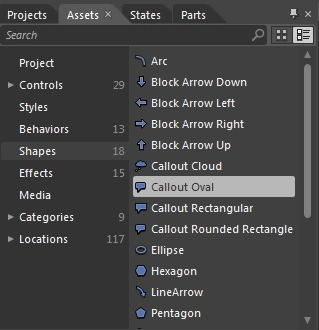
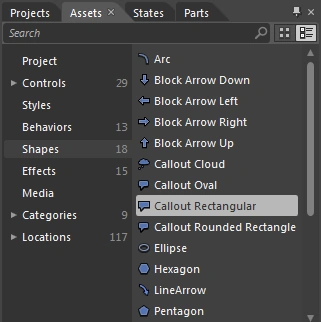
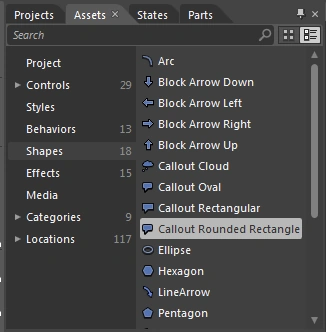
Step 2: Select Shapes -> Select Callout from Shapes or Assets located to the Top Left of the Workspace as shown below:
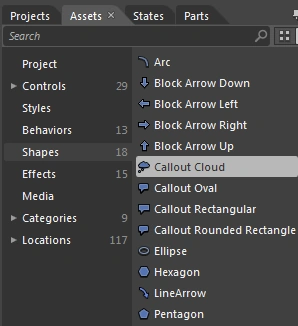
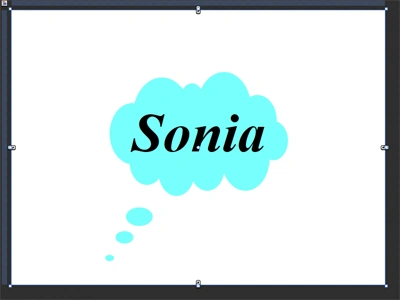
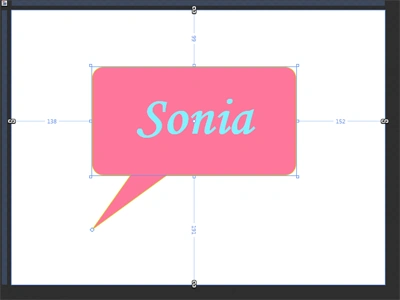
Step 3: Select Callout Cloud -> Draw a Callout Cloud Shape which looks like Speech Bubbles as shown below:
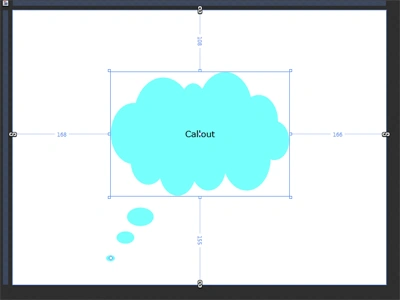
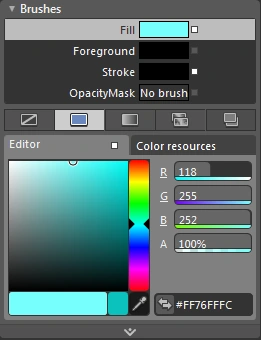
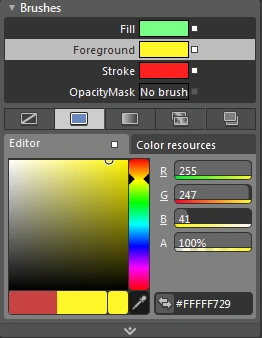
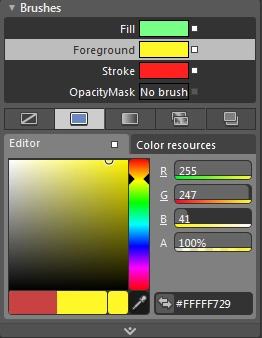
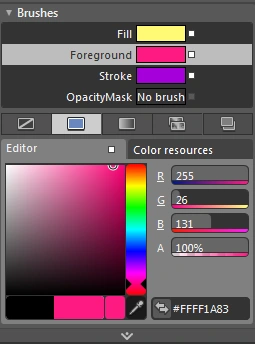
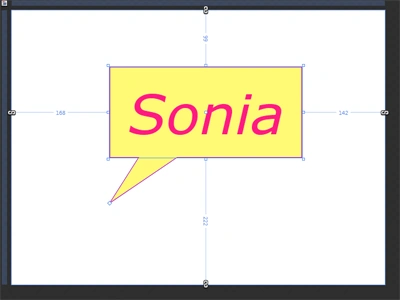
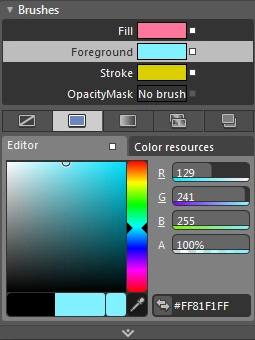
Note: Here, using Fill Property and Stroke Property from Brushes Property of Property Panel located to the right of the Workspace we can make our Shape Colorful as shown below:
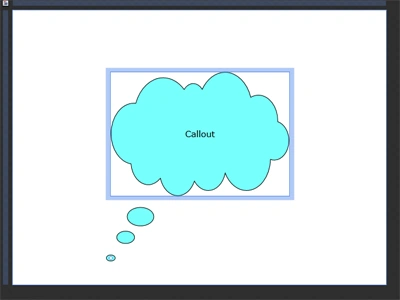
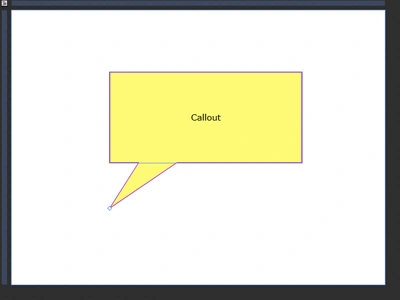
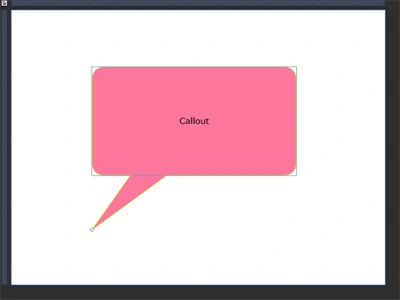
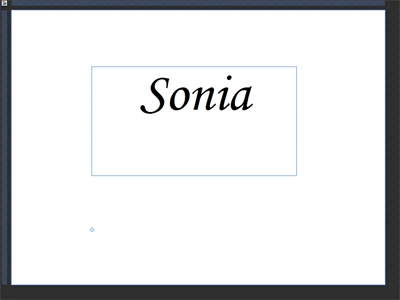
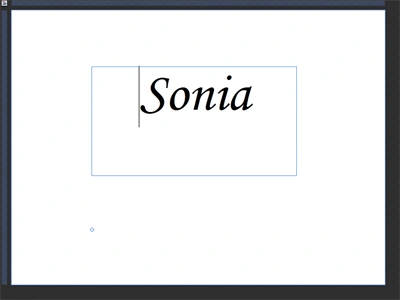
Step 4: Click on Callout Word and change the Text accordingly as shown below:
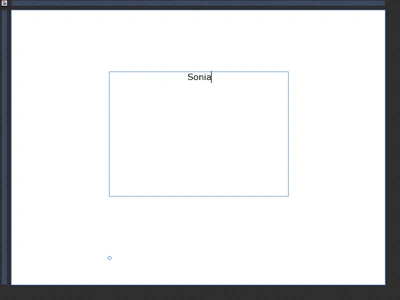
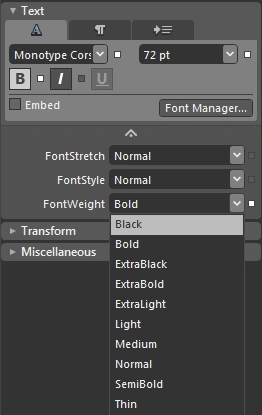
Step 5: Select Text Property located to the right of the Workspace as shown below:
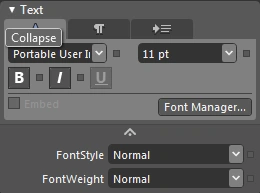
Note: The Text Property contains 5 properties; Font Manger, Paragraph, Line Indent, FontStyle and FontWeight.
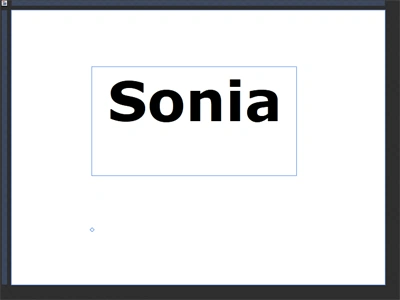
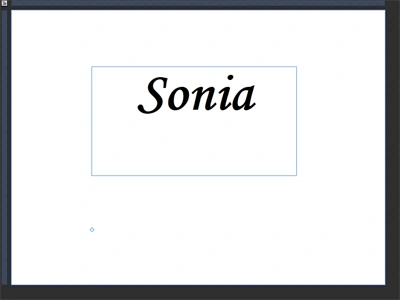
Step 6: Change the Font, Font Size, Bold-Italic-Underline Property, FontStyle and FontWeight and see the effect as shown below:
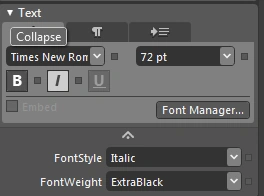
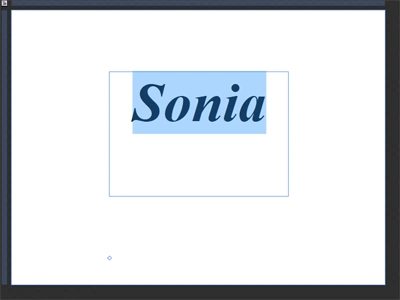
Step 7: The Callout Cloud Image looks like this:
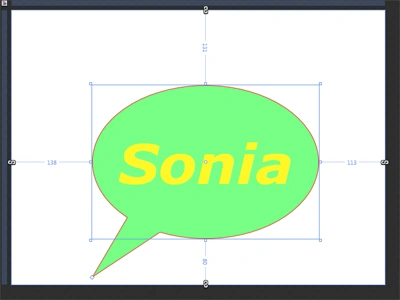
Step 8: Select Callout Oval Shape and draw a Callout Oval Shape and see the effect as shown below:
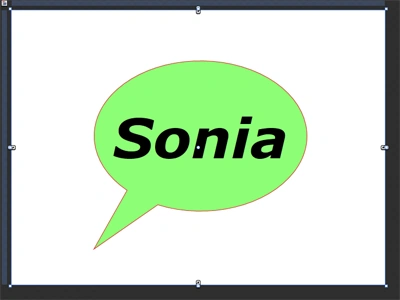
Note: Here, using Fill Property, Stroke Property and Text Property from the Property Panel located to the right of the Workspace we can manage our shape as shown below:
Join the conversation! Your thoughts help the community grow.