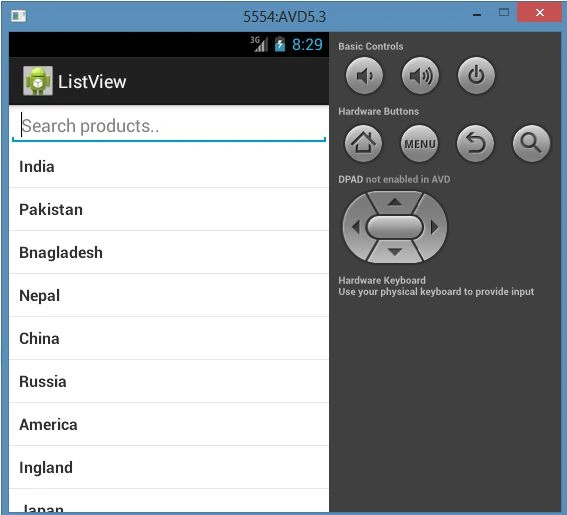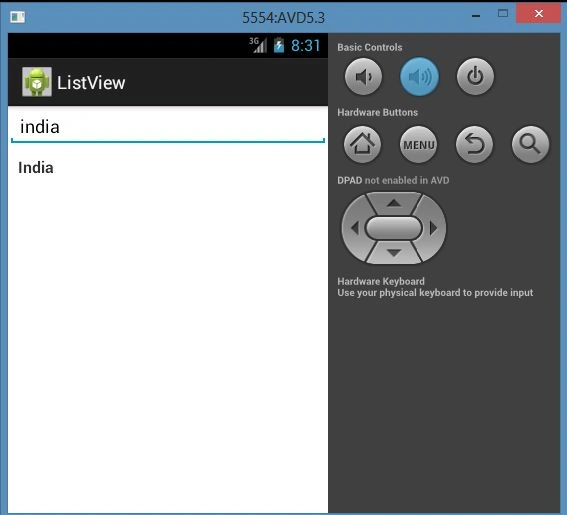
Introduction

In this article, I explain how to build a simple list view and how a search bar works within a list view in Android. When we work on a type list and we want to search for data using a search bar in a list view, how the data is filtered and becomes a filtered result is explained.
So we can do all this using the following procedure.
Step 1
First of all, create a new project file as shown below using "File" -> "New" -> "Android Application Project".
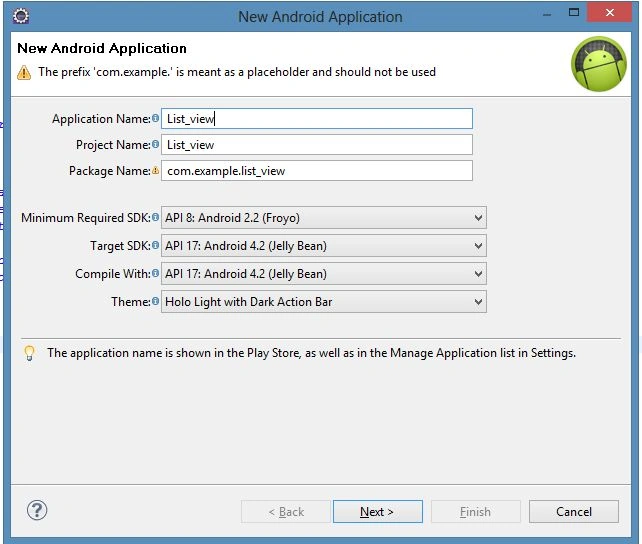
listview.jpg
Step 2
Now open the "activity_main.xml" and update it as Edit txt and List view as in the following code:
  1. <?xml version="1.0" encoding="utf-8"?>
  2. <LinearLayout xmlns:android="http://schemas.android.com/apk/res/android"
  3. android:layout_width="fill_parent"
  4. android:layout_height="fill_parent"
  5. android:orientation="vertical" >
  6. <!-- Editext for Search -->
  7. <EditText android:id="@+id/inputSearch"
  8. android:layout_width="fill_parent"
  9. android:layout_height="wrap_content"
  10. android:hint="Search products.."
  11. android:inputType="textVisiblePassword"/>
  12. <!-- List View -->
  13. <ListView
  14. android:id="@+id/list_view"
  15. android:layout_width="fill_parent"
  16. android:layout_height="wrap_content" />
  17. </LinearLayout>
Step 3
Create a "list_item.xml" file to insert value as an item in the list view of "activity_main.xml" as shown in the following code:
  1. <?xml version="1.0" encoding="utf-8"?>
  2. <LinearLayout xmlns:android="http://schemas.android.com/apk/res/android"
  3. android:layout_width="match_parent"
  4. android:layout_height="match_parent"
  5. android:orientation="vertical" >
  6. <!-- Single ListItem -->
  7. <!-- Product Name -->
  8. <TextView android:id="@+id/product_name"
  9. android:layout_width="fill_parent"
  10. android:layout_height="wrap_content"
  11. android:padding="10dip"
  12. android:textSize="16dip"
  13. android:textStyle="bold"/>
  14. </LinearLayout>
Step 4
Open "strings.xml" and update it with a resources tag in which you have your array of strings as shown in the following:
  1. <?xml version="1.0" encoding="utf-8"?>
  2. <resources>
  3. <string name="app_name">ListView</string>
  4. <string name="hello_world">Hello world!</string>
  5. <string name="menu_settings">Settings</string>
  6. <string name="delhi_btn">New Delhi</string>
  7. <string name="bnglr_btn">Bangalore</string>
  8. <string name="jpr_btn">Jaipur</string>
  9. <string name="noida_btn">Noida</string>
  10. <string name="glmrg_btn">Gulmarg</string>
  11. <string-array name="Countreis">
  12. <item >India</item>
  13. <item >Pakistan</item>
  14. <item >Bnagladesh</item>
  15. <item >Nepal</item>
  16. <item >China</item>
  17. <item >Russia</item>
  18. <item >America</item>
  19. <item >Ingland</item>
  20. <item >Japan</item>
  21. <item >Arab emirat</item>
  22. <item >Saudi Arabia</item>
  23. <item >Austrelia</item>
  24. <item> Kuwiat</item>
  25. <item >Israil</item>
  26. </string-array>
  27. </resources>
Step 5
Open the "MainActivity.java" file and update it with adapter code for adapting the item within the list in list view as shown in the following:
  1. package com.LisstView.myapp;
  2. import java.security.PublicKey;
  3. import java.util.ArrayList;
  4. import java.util.HashMap;
  5. import android.app.Activity;
  6. import android.content.ClipData.Item;
  7. import android.os.Bundle;
  8. import android.text.Editable;
  9. import android.text.TextWatcher;
  10. import android.view.View;
  11. import android.widget.ArrayAdapter;
  12. import android.widget.EditText;
  13. import android.widget.ListView;
  14. import android.widget.TextView;
  15. public class MainActivity extends Activity {
  16. // List view
  17. private ListView lv;
  18. // Listview Adapter
  19. ArrayAdapter<String> adapter;
  20. // Search EditText
  21. EditText inputSearch;
  22. // ArrayList for Listview
  23. ArrayList<HashMap<String, String>> productList;
  24. @Override
  25. public void onCreate(Bundle savedInstanceState) {
  26. super.onCreate(savedInstanceState);
  27. setContentView(R.layout.activity_main);
  28. // Listview Data
  29. String products[] = getResources().getStringArray(R.array.Countreis);
  30. lv = (ListView) findViewById(R.id.list_view);
  31. inputSearch = (EditText) findViewById(R.id.inputSearch);
  32. // Adding items to listview
  33. adapter = new ArrayAdapter<String>(this, R.layout.list_item, R.id.product_name, products);
  34. lv.setAdapter(adapter);
  35. inputSearch.addTextChangedListener(new TextWatcher() {
  36. @Override
  37. public void onTextChanged(CharSequence cs, int arg1, int arg2, int arg3) {
  38. // When user changed the Text
  39. MainActivity.this.adapter.getFilter().filter(cs);
  40. }
  41. @Override
  42. public void beforeTextChanged(CharSequence arg0, int arg1, int arg2,
  43. int arg3) {
  44. // TODO Auto-generated method stub
  45. }
  46. @Override
  47. public void afterTextChanged(Editable arg0) {
  48. // TODO Auto-generated method stub
  49. }
  50. });
  51. }
  52. }
Step 6
Open the "AndroidManifest.xml" file and update it using the following code:
  1. <?xml version="1.0" encoding="utf-8"?>
  2. <manifest xmlns:android="http://schemas.android.com/apk/res/android"
  3. package="com.LisstView.myapp"
  4. android:versionCode="1"
  5. android:versionName="1.0" >
  6. <uses-sdk
  7. android:minSdkVersion="8"
  8. android:targetSdkVersion="17" />
  9. <application
  10. android:allowBackup="true"
  11. android:icon="@drawable/ic_launcher"
  12. android:label="@string/app_name"
  13. android:theme="@style/AppTheme" >
  14. <activity
  15. android:name="com.LisstView.myapp.MainActivity"
  16. android:label="@string/app_name"
  17. android:windowSoftInputMode="stateHidden">
  18. <intent-filter>
  19. <action android:name="android.intent.action.MAIN" />
  20. <category android:name="android.intent.category.LAUNCHER" />
  21. </intent-filter>
  22. </activity>
  23. </application>
  24. </manifest>
Now you will get the output as in the following output.
Output for normal list view:
ListView1.jpg
Output for search i in list view:
searchfori.jpg
Output for search Inida:
india.jpg