

There are around 5 ways to make mutex logic with respect to windows services and os interactions are concern. But best way to integrate IDE is using the .net built-in mutex logic using System.Diagnostics class. By reading links in the glossary at end you can get to know what all are the other ways.
Step 1:
Include/import System.Diagnostics Class to which Windows service you want. Then go to ONSTART event.
Step 2:
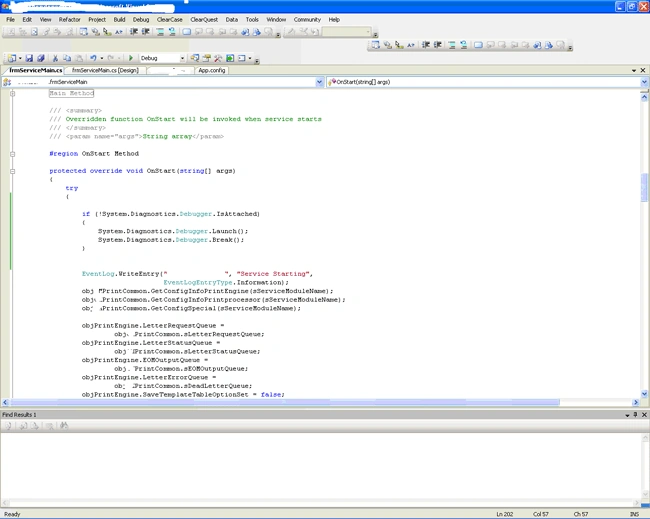
Copy and Paste below code on your ONSTART event very beginning.
if
(!System.Diagnostics.Debugger.IsAttached)
{
System.Diagnostics.Debugger.Launch();
System.Diagnostics.Debugger.Break();
}
Ex: Print Service
Step 3:
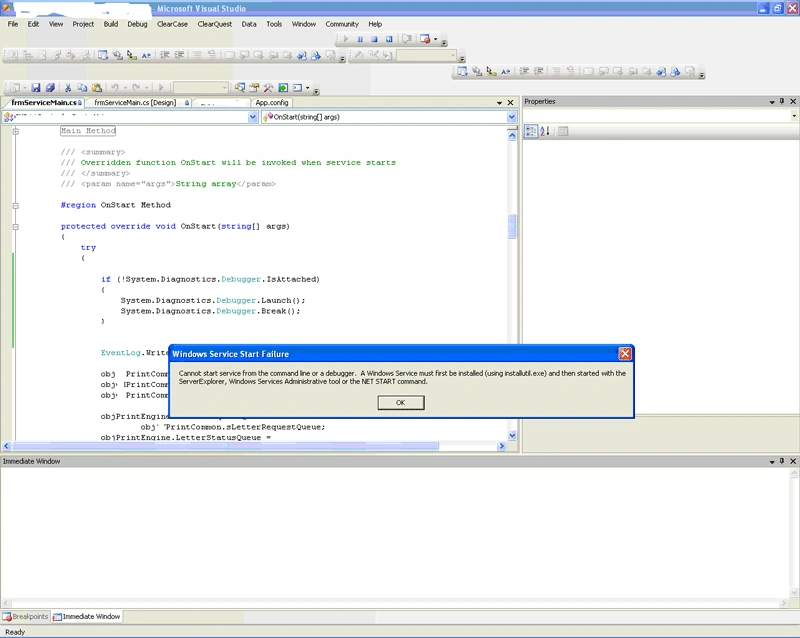
Run the Application in Debug Mode.
Ex: Print Service
Then you will get the new exe for that project in its Debug folder.
Ex: Print Service
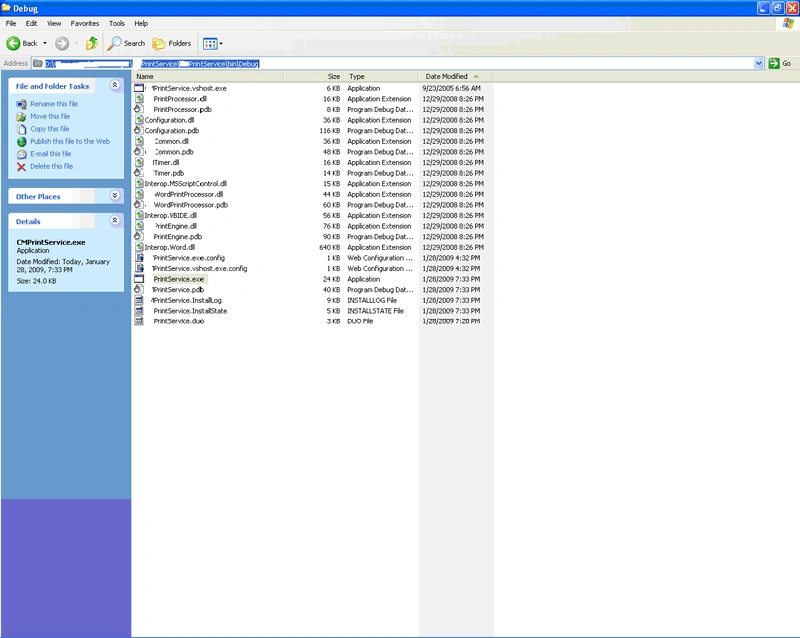
Check the system time and exe time by taking properties since we need to double check the change is happened.
Step 4:
Install the exe from debug folder using this statement.
"%Windir%\Microsoft.NET\Framework\v2.0.50727\InstallUtil.exe" /name="NameOfService" "Service EXE Full path\Debug\Service Name with extension Exe".
Ex: Print Service
"%Windir%\Microsoft.NET\Framework\v2.0.50727\InstallUtil.exe" /name="PrintService" "D:\PorrespondenceManager\PrintService\PrintService\bin\Debug\PrintService.exe"
Step 5:
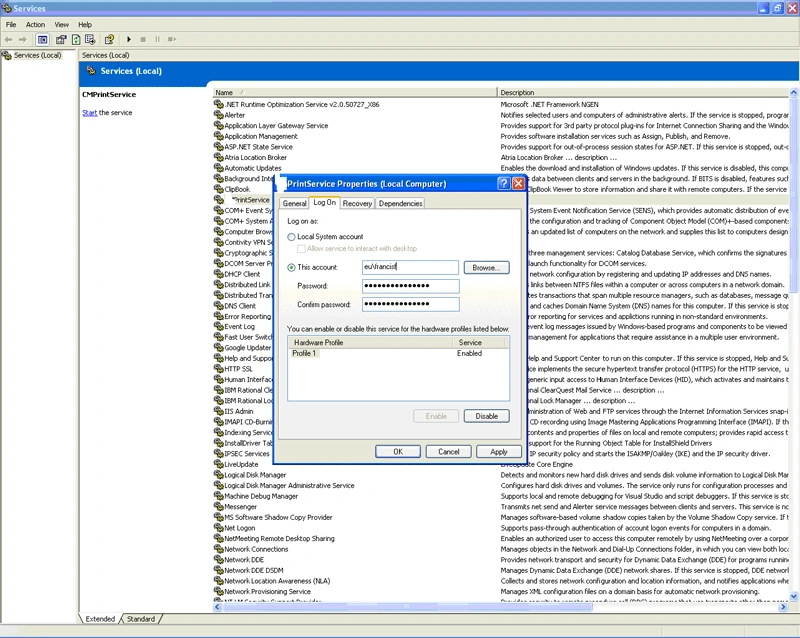
Once it is installed it will be there in the Service. Before start the service if sometime we need to set local user permissions, if that is required you can do it by right clicking there properties of service and selecting the tab Logon.
Ex: Print Service
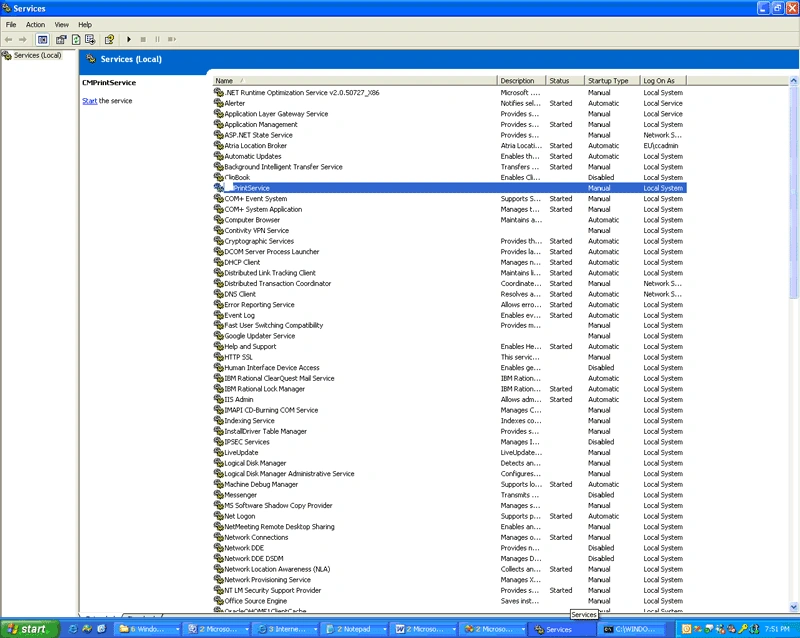
Step 6:
Start the service it will look like this. Attach the JIT-IN-TIME Debugger to service as well as .net IDE.
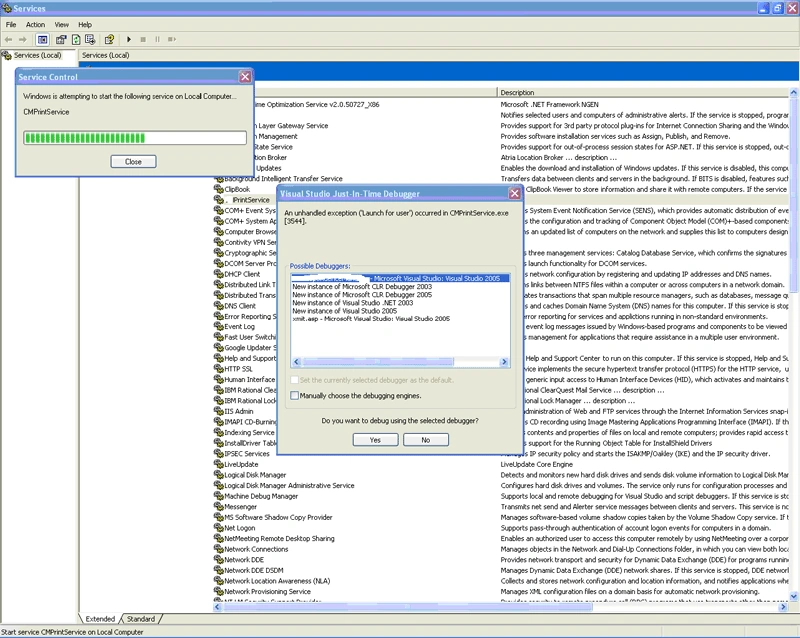
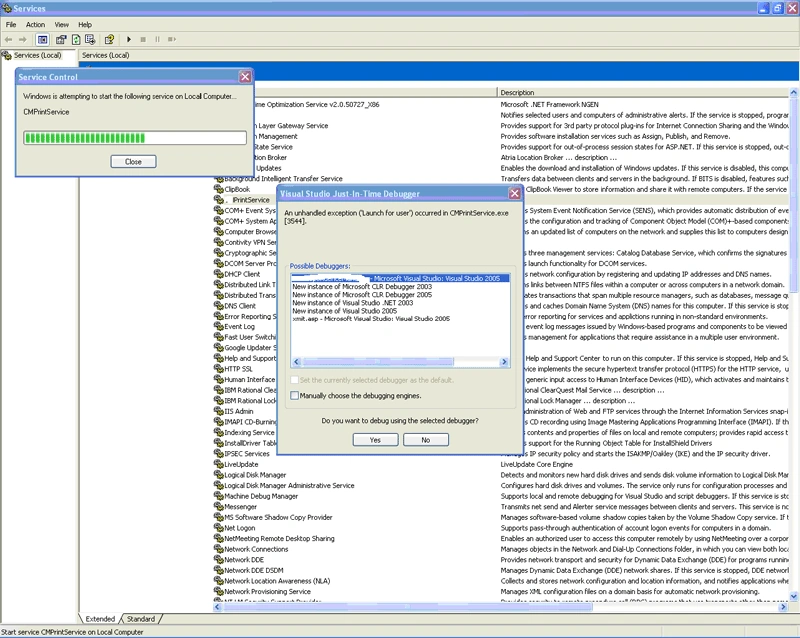
Select the application name and press yes.
Just press ok button and ignore it.
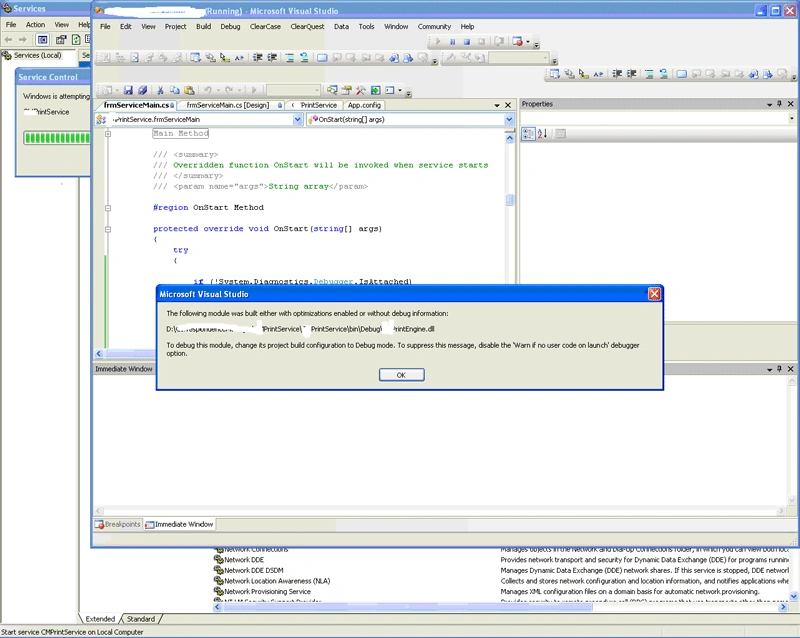
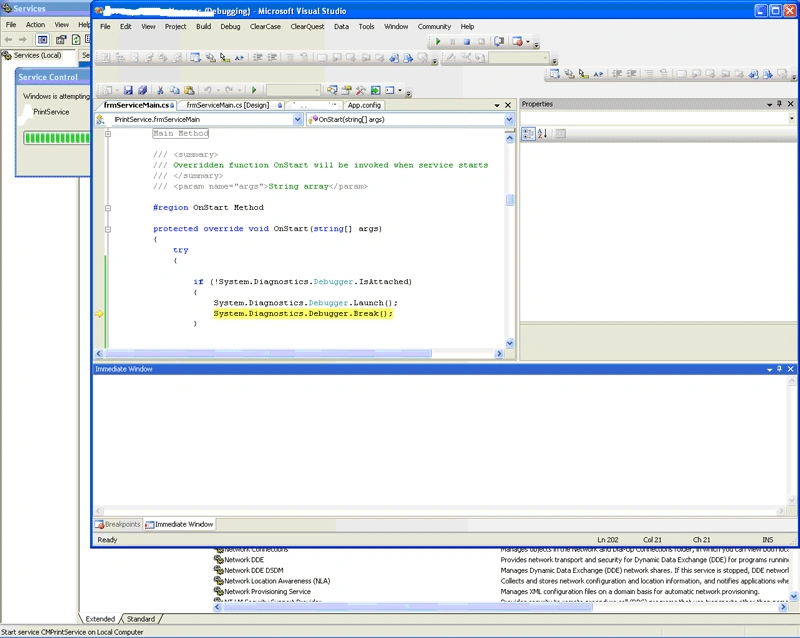
Once we attach IDE to Service Application look like this. And it breaks in the debugger.break() line as I show in the below image.
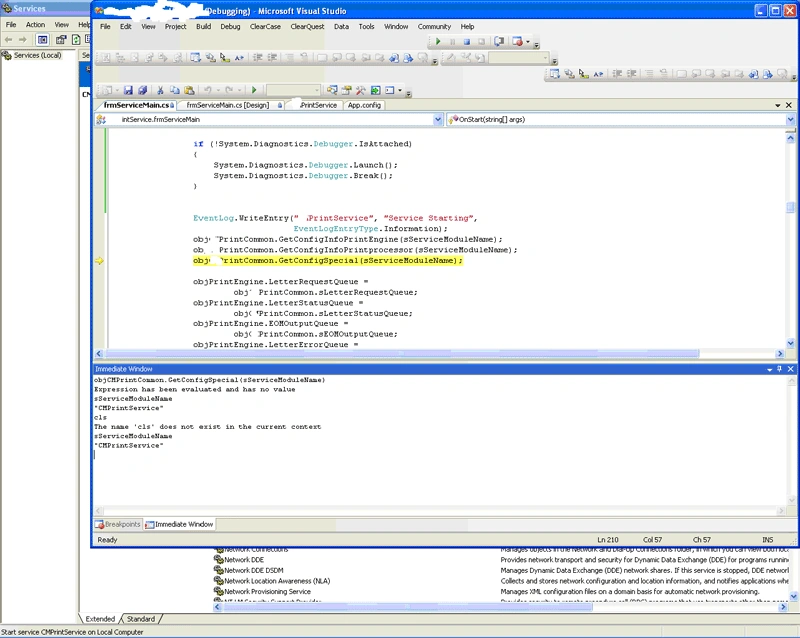
Immediate window values you will get like this
Watch window values you will get like this.
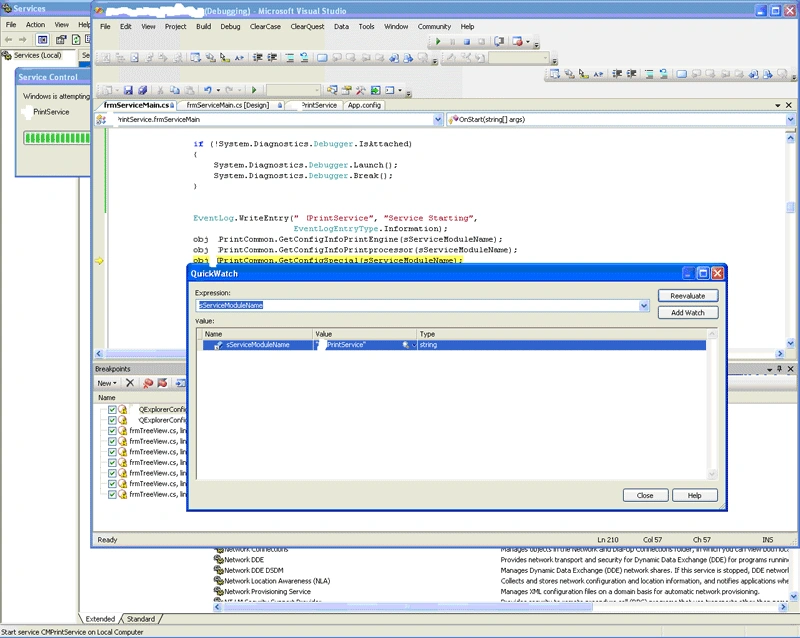
So that you can debug and get those values of your variables.
Step 7:
Once finish debug you need remove this code from ONSTART event and build the service once more time in release mode so it will work in normal way.
if
(!System.Diagnostics.Debugger.IsAttached)
{
System.Diagnostics.Debugger.Launch();
System.Diagnostics.Debugger.Break();
}
Step 8:
Finished.
Integrating Service to .net 2003 IDE through JIT-IN-TIME Debugger.
Tools->Options. Then we will get below figure.
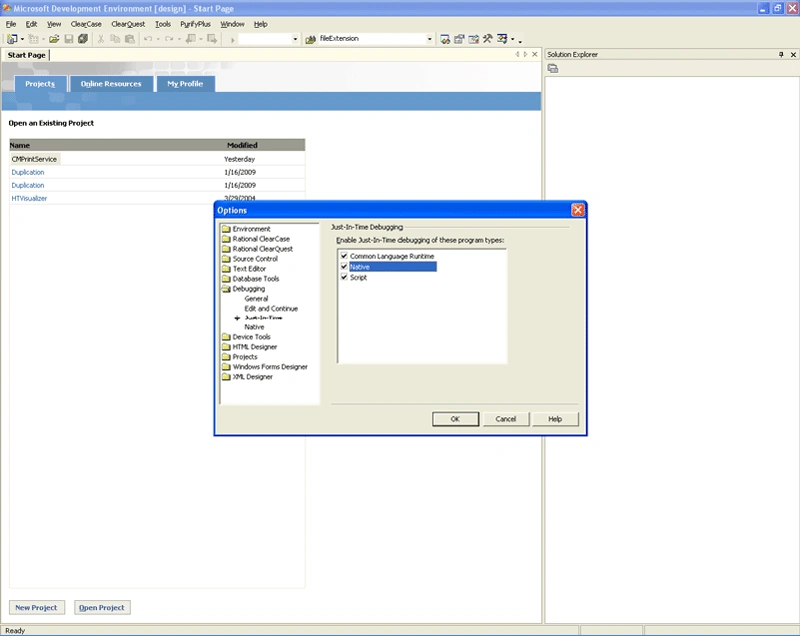
Check the common language runtime, Native,Script. And pres ok . so it will list in the JUST-IN-TIME debugger list.
So it will list like this
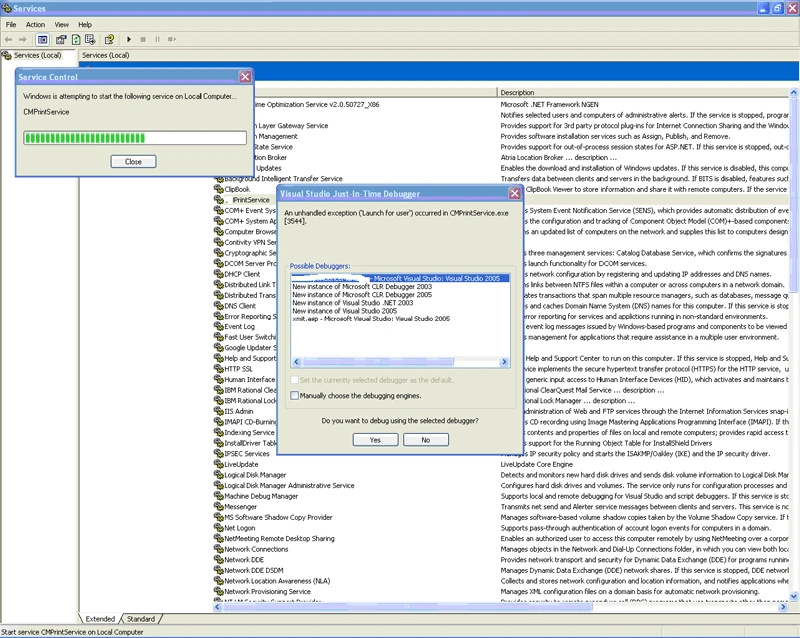
You can see Microsoft CLR debugger 2003 is there in possible debugger list.
Integrating Service to .net 2005 IDE through JIT-IN-TIME Debugger.
Tools->Options. Then we will get below figure.
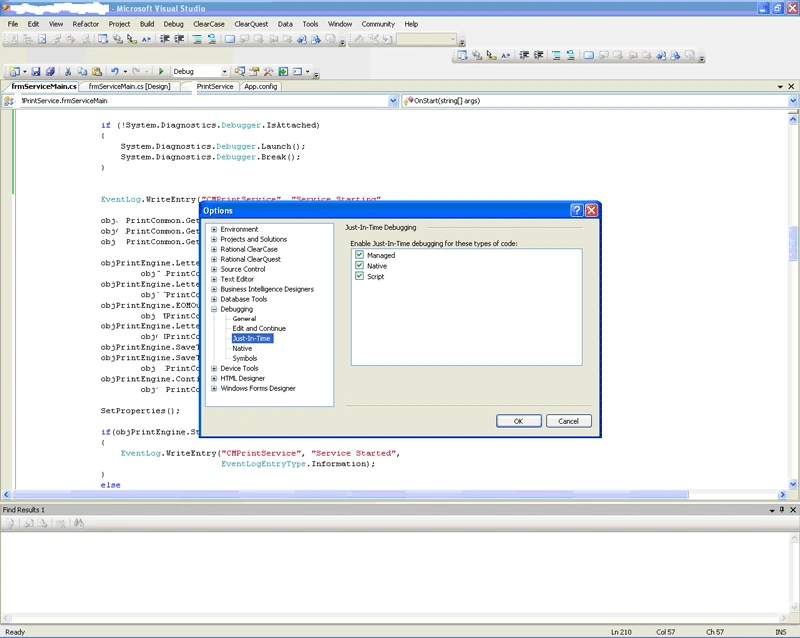
Check the common language runtime, Native, Script. And press OK. So it will list in the JUST-IN-TIME debugger list.
So it will list like this
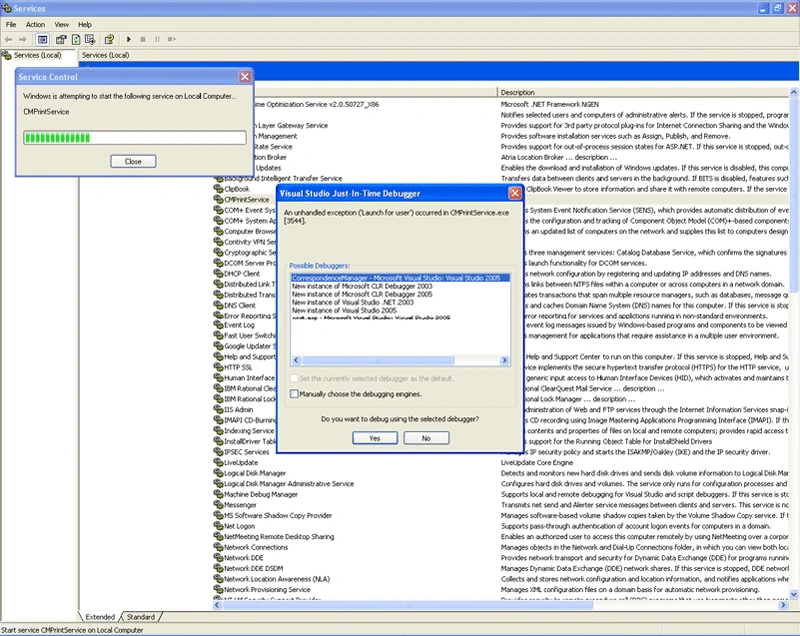
You can see Microsoft CLR debugger 2005 is there in possible debugger list.
Glossary
dineshPosted May 12, 2010, 11:36 AM
Fijo, Very useful article. Keep it up Cheers dinesh
Mahesh ChandPosted May 7, 2010, 10:45 AM
Great article fijo. Obviously you have put lot of work in this article. Here is one advice about your screen shots. Try to make them larger and show only part that is required. For that you will have to cut the image and save and upload again. Try a free small tool called irfanview. You can download irfanview here: http://www.irfanview.com/main_download_engl.htm After installation, just copy and paste your image to irfanview and cut as much portion of image as you need using mouse down. Cheers!