

Math Class in C#
Introduction
Today, in this article let's
play around with one of the interesting and most useful concept in C#.
Question: What is math class?
In simple terms "It provides
rich set of mathametical calculations with rich set of methods as Min, Abs,
Max, Sqrt and so on".
Step 1: Create a new WebForm project
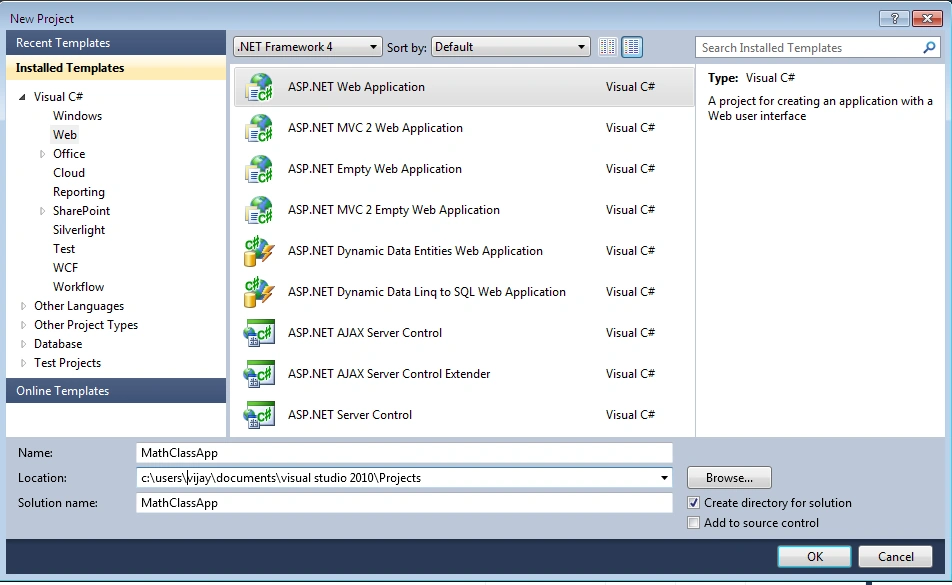
Step 2: The complete code of WebForm1.aspx
looks like this
<%@ Page Language="C#" AutoEventWireup="true" CodeBehind="WebForm1.aspx.cs" Inherits="MathClassApp.WebForm1" %>

<!DOCTYPE html PUBLIC "-//W3C//DTD XHTML 1.0 Transitional//EN" "http://www.w3.org/TR/xhtml1/DTD/xhtml1-transitional.dtd">

<html xmlns="http://www.w3.org/1999/xhtml">
<head runat="server">
    <title></title>
</head>
<body>
    <form id="form1" runat="server">
     <center>
        <div>
            <table>
                <tr>
                    <td colspan="2" align="center">
                        <asp:Label ID="Label1" runat="server" Text="Math in C#" Font-Bold="true"
                            Font-Size="Large" Font-Names="Verdana" ForeColor="Maroon"></asp:Label>
                    </td>
                </tr>
                <tr>
                    <td>
                        <asp:Label ID="Label3" runat="server" Text="Please Enter First Number" Font-Size="Large"
                            Font-Names="Verdana" Font-Italic="true"></asp:Label>
                    </td>
                    <td>
                        <asp:TextBox ID="TextBox2" runat="server" Width="120px"></asp:TextBox>
                    </td>
                </tr>
                <tr>
                    <td>
                        <asp:Label ID="Label2" runat="server" Text="Please Enter Second Number" Font-Size="Large"
                            Font-Names="Verdana" Font-Italic="true"></asp:Label>
                    </td>
                    <td>
                        <asp:TextBox ID="TextBox1" runat="server" Width="120px"></asp:TextBox>
                    </td>
                </tr>
                <tr>
                    <td colspan="2" align="center">
                        <asp:Button ID="Button1" runat="server" Text="Sqaure Root" Font-Names="Verdana" Width="213px"
                            BackColor="Orange" Font-Bold="True" OnClick="Button1_Click" />
                    </td>
                </tr>
                <tr>
                    <td colspan="2" align="center">
                        <asp:Button ID="Button2" runat="server" Text="Maximum" Font-Names="Verdana"
                            Width="213px" BackColor="Orange" Font-Bold="True" OnClick="Button2_Click" />
                    </td>
                </tr>
                <tr>
                    <td colspan="2" align="center">
                        <asp:Button ID="Button3" runat="server" Text="Minimum" Font-Names="Verdana"
                            Width="213px" BackColor="Orange" Font-Bold="True" OnClick="Button3_Click" />
                    </td>
                </tr>
                <tr>
                    <td colspan="2" align="center">
                        <asp:Label ID="Label5" runat="server" Font-Bold="true" Font-Names="Verdana" ForeColor="Maroon"></asp:Label>
                    </td>
                </tr>
            </table>
        </div>
    </center>
    </form>
</body>
</html>
Step 3: The complete code of WebForm1.aspx.cs
looks like this
using System;
using System.Collections.Generic;
using System.Linq;
using System.Web;
using System.Web.UI;
using System.Web.UI.WebControls;

namespace MathClassApp
{
    public partial class WebForm1 : System.Web.UI.Page
    {
        protected void Page_Load(object sender, EventArgs e)
        {
            TextBox2.Focus();
        }

        protected void Button1_Click(object sender, EventArgs e)
        {
            if (string.IsNullOrEmpty(TextBox2.Text))
            {
                Label5.Text = "Please Enter Some Values";
                Label5.ForeColor = System.Drawing.Color.Red;
            }
            else
            {
                Label5.Text = "SquareRoot Result is: " + Math.Sqrt(double.Parse(TextBox2.Text));
                Label5.ForeColor = System.Drawing.Color.Green;
                TextBox1.Text = string.Empty;
                TextBox2.Text = string.Empty;
            }
        }

        protected void Button2_Click(object sender, EventArgs e)
        {
            if (string.IsNullOrEmpty(TextBox1.Text) || string.IsNullOrEmpty(TextBox2.Text))
            {
                Label5.Text = "Please Enter Some Values";
                Label5.ForeColor = System.Drawing.Color.Red;
            }
            else
            {
                Label5.Text = "Maximum Value is: " + Math.Max(double.Parse(TextBox2.Text), double.Parse(TextBox1.Text));
                Label5.ForeColor = System.Drawing.Color.Green;
                TextBox1.Text = string.Empty;
                TextBox2.Text = string.Empty;
            }
        }

        protected void Button3_Click(object sender, EventArgs e)
        {
            if (string.IsNullOrEmpty(TextBox1.Text) || string.IsNullOrEmpty(TextBox2.Text))
            {
                Label5.Text = "Please Enter Some Values";
                Label5.ForeColor = System.Drawing.Color.Red;
            }
            else
            {
                Label5.Text = "Minimum Value is: " + Math.Min(double.Parse(TextBox2.Text), double.Parse(TextBox1.Text));
                Label5.ForeColor = System.Drawing.Color.Green;
                TextBox1.Text = string.Empty;
                TextBox2.Text = string.Empty;
            }
        }
    }
}
Step 4: The output of the application looks
like this
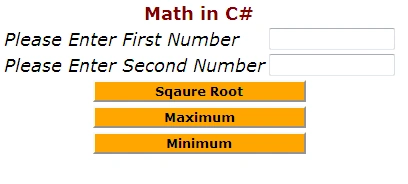
Step 5: The minimum result output of the
application looks like this
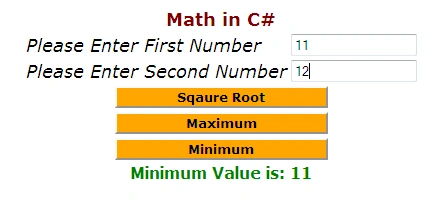
I hope this article is useful for you …I look forward for
your comments and feedback….Thanks Vijay Prativadi
Gowtham RajamanickamPosted Apr 26, 2016, 9:13 AM
Good article