

Silverlight MediaElement Control
The MediaElement control is used to display and play videos in Silverlight. This article demonstrates how to use a MediaElement control in Silverlight to play videos with the help of XAML and C#.
MediaElement
MediaElement element represents a MediaElement in XAML. The Source property of the MediaElement specifies name of the media file to be played. This property can be an absolute URL or a relative URL.
The following code snippet sets the Source property to a .wmv file.
<MediaElement Source="="/Wildlife.wmv" />
The following XAML code snippet creates a MediaElement, sets Source to a movie, and also sets Width, Height, Name, and Alignment of the MediaElement.
<MediaElement Height="238" HorizontalAlignment="Left" Margin="12,12,0,0" Name="mediaElement1" VerticalAlignment="Top" Width="424" Source="/Wildlife.wmv" />
Play, Pause and Stop
The MediaElement class in Silverlight represents a MediaElemnet control. The Play, Pause, and Stop methods of the MediaElement class play, pause, and stop a video respectively.
How about creating a simple video player looks like following. 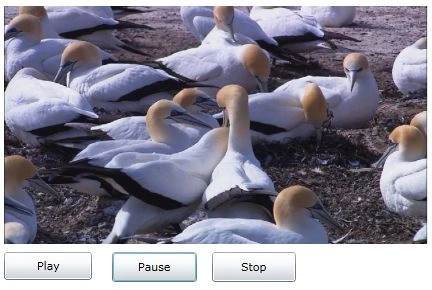
Create a Silverlight project using Visual Studio 2010 or Expression Blend 4 and place a MediaElement and three Button controls on the page and name them mediaElement1, PlayButton, PauseButton, and StopButton respectively.
XAML code for the page looks like following.
<Grid x:Name="LayoutRoot" Background="White" Width="460" Height="360">
<MediaElement Height="238" HorizontalAlignment="Left" Margin="12,12,0,0" Name="mediaElement1"
VerticalAlignment="Top" Width="424" Source="/Wildlife.wmv" />
<Button Content="Play" Height="28" HorizontalAlignment="Left" Margin="12,258,0,0"
Name="PlayButton" VerticalAlignment="Top" Width="88" Click="PlayButton_Click" />
<Button Content="Pause" Height="30" HorizontalAlignment="Left" Margin="120,258,0,0"
Sidhartha PatnaikPosted Mar 17, 2017, 4:22 AM
Hello Sir, I want to play video bind from sql server to wpf MediaElement Control.