

WPF SpinnerButton
As a part of Visual Studio
2010, Windows Presentation Foundation (WPF) does not have a Spin Button. A Spin
Button is a control that has a value and by clicking up and down arrows, the
value changes to the previous and next values.
The ButtonSpinner control comes with the WPF Toolkit
Extended provides an alternative to a spin button. The WPF SpinnerButton
control allows us to add a spinning feature to any element. This article
demonstrates how to use the ButtonSpinner control in a WPF application using C# and XAML.
Adding Reference to WPF Toolkit
Extended Assembly
The ButtonSpinner control
is a part of the WPF Toolkit Extended and does not come with Visual Studio
2010. To use the ButtonSpinner control in your application, you must add
reference to the WPFToolkit.Extended.dll assembly. You can download Extended
WPF Tookit from the CodePlex or you can use the WPFToolkit.Extended.dll
available with this download. All you need is the DLL. See Downloads section of
this article. You can find more details in my blog Adding
Reference to WPF Toolkit Extended.
Creating a ButtonSpinner
The ButtonSpinner
control allows you to add a spinner button to any WPF element. A typical
spinner button looks like Figure 1. The content area is used to display some
content. The up and down arrow is used to move up and down.
Listing 1 creates a
simple ButtonSpinner control. The Content property is used to display a value
in the control.
<wpfx:ButtonSpinner Name="SpinButton" Margin="149,10,247,0" Height="30"
Content="10" />
Listing 1
The output of Listing 1 looks
like Figure 1.
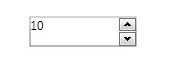
Figure 1
Spin Event
The Spin event is fired when the up and down arrows are
clicked. Listing 2 creates a ButtonSpinner.
<wpfx:ButtonSpinner Name="SpinButton" Margin="149,10,247,0" Height="30"
Spin="SpinButton_Spin"
Content="10"
FontFamily="Georgia" FontSize="16" FontWeight="Bold"
Foreground="Green" Background="Orange"
/>
Listing 2
Listing 2 creates Figure 5.
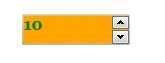
Figure 2
The Spin event is used to changing the value of the content
part of the ButtonSpinner control. This content can be anything, a number, text
or whatever else you want. Only thing you need to take care is, on the Spin
event handler, set the value.
The code listed in Listing 3 reads the content of the
control and converts it to an integer. The Direction property of the
ButtonSpinner control decides if up or down arrow is clicked.
private void
SpinButton_Spin(object sender, SpinEventArgs e)
{
ButtonSpinner spinner = (ButtonSpinner)sender;
string currentSpinValue = (string)spinner.Content;
int currentValue = String.IsNullOrEmpty(currentSpinValue)
? 0 : Convert.ToInt32(currentSpinValue);
if (e.Direction == SpinDirection.Increase)
currentValue++;
else
currentValue--;
spinner.Content = currentValue.ToString();
}
Listing 3
Summary
In this article, I discussed how we can use a ButtonSpinner
control in a WPF
application using C# and XAML.
Ihar YeuseyenkaPosted Apr 6, 2019, 8:09 AM
Can you help me with DataContextChanged? I have error by changing Content of SpinButton from C#.
Majid malikPosted Jan 19, 2019, 10:27 AM
How can I change the style of spinbutton embedded in the doubleUpDown Control. Please help
Ihar YeuseyenkaPosted Jan 9, 2019, 8:38 PM
How to input value inside fild? Only by clicking on arrows? I would like to input some value?
Chandru APosted Jun 21, 2012, 6:29 AM
I tried to change it's template in expression blend 4. But it is showing exception(Type Converter con not convert System.String). what should i do for that.
Davin MartynPosted Sep 7, 2011, 1:58 AM
What is spin event.and why are we use in WPF?