

WPF CheckListBox
As a part of Visual Studio 2010, Windows Presentation Foundation (WPF) does not have a CheckListBox control. A CheckListBox is a combination of ListBox with each item being a CheckBox. You may want to read WPF ListBox and WPF CheckBox articles to understand these controls better.
This article demonstrates how to use the CheckListBox control in a WPF application using C# and XAML.
Adding Reference to WPF Toolkit Extended Assembly
The CheckListBox control is a part of the WPF Toolkit Extended and does not come with Visual Studio 2010. To use the ButtonSpinner control in your application, you must add reference to the WPFToolkit.Extended.dll assembly. You can download Extended WPF Tookit from the CodePlex or you can use the WPFToolkit.Extended.dll available with this download. All you need is the DLL. See Downloads section of this article. You can find more details in my blog Adding Reference to WPF Toolkit Extended.
Sample code
See the attached file in the Downloads area.
Introduction
The CheckListBox tag represents a CheckListBox control in XAML.
<CheckListBox></CheckListBox>
The Width and Height properties represent the width and the height of the CheckListBox. The Name property represents the name of the control, which is a unique identifier of a control. The Margin property tells the location of the CheckListBox on the parent control. The HorizontalAlignment and VerticalAlignment properties are used to set horizontal and vertical alignments.
The following code snippet sets the name, height, and width of a CheckListBox control. The code also sets horizontal alignment to left and vertical alignment to top.
<wpfx:CheckListBox Name="CheckListBox1" Margin="12,12,0,0"
HorizontalAlignment="Left"
VerticalAlignment="Top" Height="134" Width="156" />
Adding CheckListBox Items
A CheckListBox control hosts a collection of CheckListBoxItem. The following code snippet adds items to a CheckListBox control.
<wpfx:CheckListBox Name="CheckListBox1" Margin="12,12,0,0"
HorizontalAlignment="Left"
VerticalAlignment="Top" Height="134" Width="156">
<wpfx:CheckListBoxItem>C# Corner</wpfx:CheckListBoxItem>
<wpfx:CheckListBoxItem>VB.NET Heaven</wpfx:CheckListBoxItem>
<wpfx:CheckListBoxItem>DB Talks</wpfx:CheckListBoxItem>
<wpfx:CheckListBoxItem>SharePoint Talks</wpfx:CheckListBoxItem>
<wpfx:CheckListBoxItem>Longhorn Corner</wpfx:CheckListBoxItem>
</wpfx:CheckListBox>
The above code generates Figure 1.
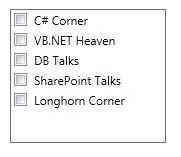
Figure 1
Adding CheckListBox Items Dynamically
Let's change our UI and add a TextBox and a Button control to the window. The following code snippet adds a TextBox and a Button control to the window. I also add a click button event handler.
<TextBox Height="33" HorizontalAlignment="Left" Margin="18,6,0,0"
Name="AddTextBox" VerticalAlignment="Top" Width="129" />
<Button Content="Add Item" Height="33" HorizontalAlignment="Left" Margin="162,9,0,0"
Name="AddButton" VerticalAlignment="Top" Width="83" Click="AddButton_Click" />
The final UI looks like Figure 2.
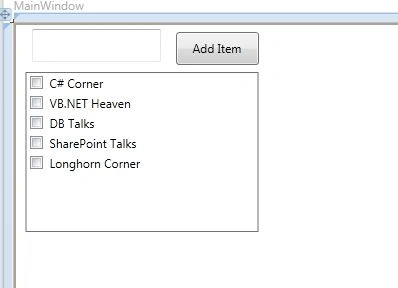
Figure 2
On the button click event handler, we add the content of the TextBox to the CheckListBox by calling CheckListBox.Items.Add method. The following code adds the TextBox contents to the CheckListBox items.
private void AddButton_Click(object sender, RoutedEventArgs e)
{
CheckListBox1.Items.Add(AddTextBox.Text);
}
You can enter any text in the TextBox and use Add Item to add it to the CheckBoxList items.
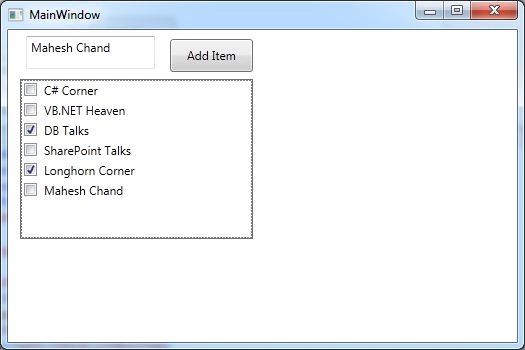
Figure 3
Getting Checked Items
The CheckedItem property returns the recently checked item.
CheckListBoxItem item = (CheckListBoxItem)CheckListBox1.CheckedItem;
The CheckedItems property returns all checked items.
foreach (CheckListBoxItem item in CheckListBox1.CheckedItems)
Deleting CheckListBox Items
We can use Remove method of Items collection to remove an item from the list. The following code snippet deletes the recently checked item.
CheckListBoxItem item = (CheckListBoxItem)CheckListBox1.CheckedItem;
string str = (string)item.Content;
if (item != null)
CheckListBox1.Items.Remove(item);
The following code snippet loops through all the checked items and removes them.
foreach (CheckListBoxItem item in CheckListBox1.CheckedItems)
CheckListBox1.Items.Remove(item);
Summary
In this article, I discussed how to use a CheckListBox control available in WPF. Most of the functionality of CheckListBox works almost same way as WPF ListBox. I recommend you read WPF ListBox to learn more.
Zeeshan AfzalPosted Sep 19, 2020, 6:09 AM
Hey MaheshYour article about CheckListBox in WPF is really helpfull. I insert the data in database by using CheckListBox, but i stuck in a problem which is, how i check only those items which we store in database. In winform we can handle this problem with this line of code "chkListColors.SetItemChecked(index, true);" but here this is not usefull please guide me how can i do this in wpf...Thanx
Falguni PanchalPosted Aug 31, 2020, 5:13 AM
Hello, I have 2 string variables which fetches some data from a file, and which I want to add to checkedlistbox in wpf. But I want one string to be left aligned and other one to be right aligned. Is there any way I can achieve this? Please help.
Paolo PaoloPosted May 11, 2019, 4:39 PM
I get the error "impossible to do the cast 'System.String' on type 'Microsoft.Windows.Controls.CheckListBoxItem'" when I try to do the foreach cycle -> foreach (CheckListBoxItem item in CheckListBox1.CheckedItems)
Shajahan PothuvacholaPosted Feb 20, 2015, 7:20 AM
how can i select all by an item in the checklistbox and also opposite
AhmededitedPosted Oct 11, 2011, 10:29 AMEdited Oct 11, 2011, 10:30 AM
thank for your easy explain in listbox control we can set SelectedValuePath , how can i set it to the checklistbox